Signature Policies
The Signature Policies page controls when Manage1to1 prompts for an electronic signature during device hand-off — and who signs. Districts use it to capture parent acknowledgment of financial responsibility, student receipt of the device, staff hand-off witnessing, and any combination thereof. The captured signature is stored alongside the lease record with full audit metadata: typed name, timestamp, IP address, and user agent.
You need the Manage Settings permission to open Signature Policies. Anyone with checkout or manage-items permissions can sign during a hand-off when a policy applies.
Opening Signature Policies
From the main menu, click Settings, then click the Signature Policies tile.
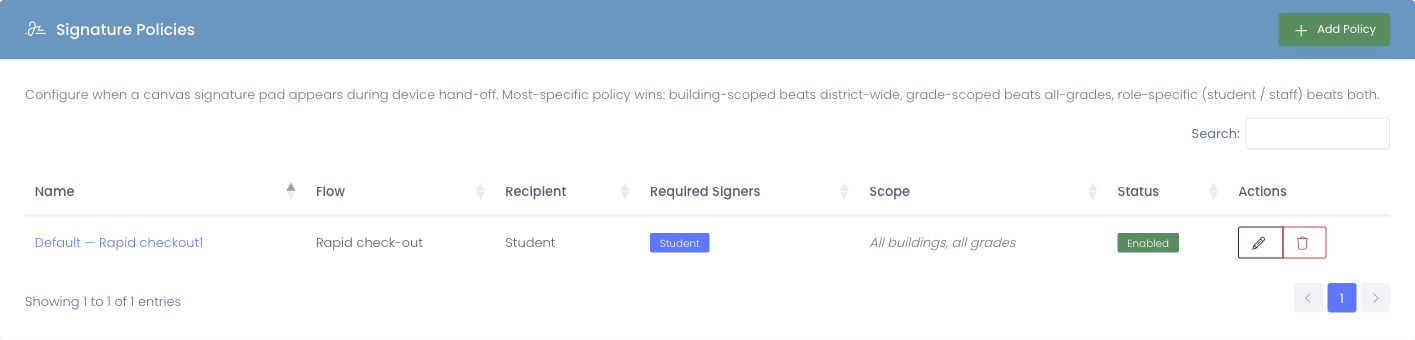
The page lists every configured policy. Each row shows the flow (lease check-out, rapid check-out), the recipient role (student, staff, both), which signers must sign, the scope (building, grade range), and whether it's enabled.
How policies are matched
When a hand-off starts, Manage1to1 finds the most-specific enabled policy that applies to the recipient:
- Building match beats no-building. A policy scoped to "Oakwood High School" wins over a district-wide policy for an Oakwood High student.
- Grade range match beats no-grades. A policy for grades 9–12 wins over one with no grade restriction for a 10th grader.
- Role-specific beats both. A student-only policy wins over a "Both student and staff" policy for a student.
- Tie-breaker: lower
Sort orderwins, then lower ID.
If nothing matches, the hand-off proceeds without capturing a signature.
Adding a policy
Click Add Policy in the top right.
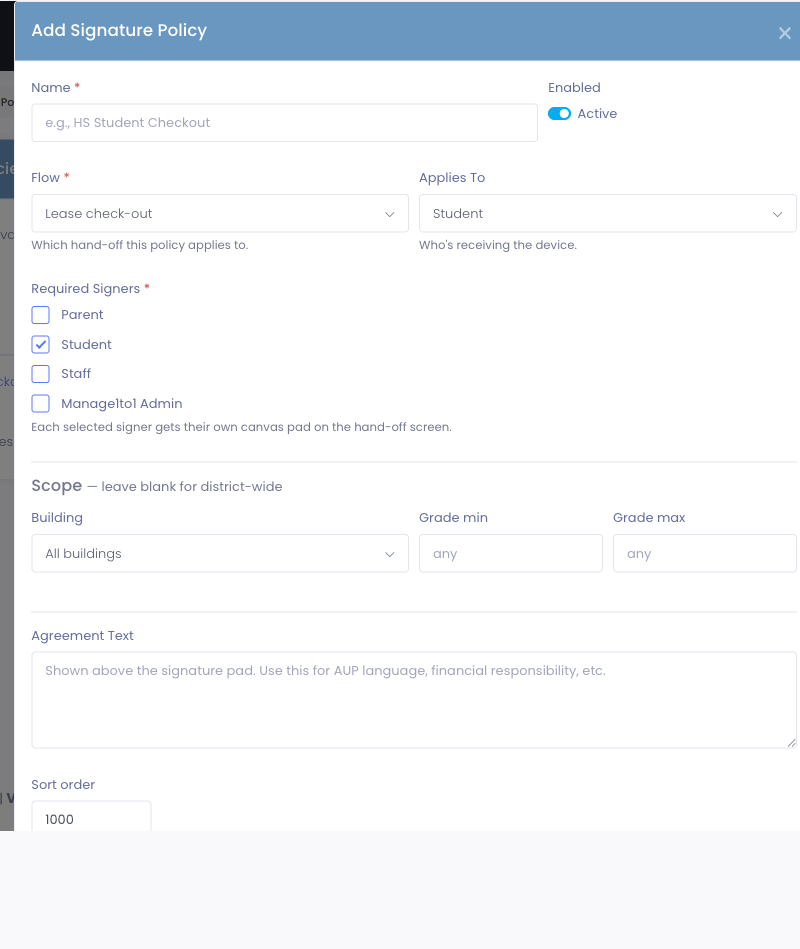
Fill in the fields:
- Name — admin-friendly label (e.g., "HS Student Checkout", "Staff Loaner Hand-off")
- Enabled — quick on/off without deleting the policy
- Flow — which hand-off this policy applies to:
- Lease check-out — the full Device Check-Out / Cart Check-Out screen
- Rapid check-out — the streamlined Rapid Check-Out flow on the sidebar
- Applies To — who's receiving the device: Student, Staff, or Both
- Required Signers — pick any combination of the four signers:
- Parent (or guardian)
- Student
- Staff (the actual recipient when role is Staff)
- Manage1to1 Admin (the issuing admin witnesses) Each selected signer gets their own canvas pad on the hand-off screen.
Scope (leave blank for district-wide):
- Building — limit this policy to one building
- Grade min / Grade max — limit to a grade range (any combination of min and max)
Agreement Text — the legalese shown above the pads. Use this for AUP language, financial responsibility statements, or board-approved hand-off language.
Sort order — only matters as a tie-breaker between policies of equal specificity. Lower numbers evaluate first.
Click Add Policy to save.
What admins see during hand-off
When a matching policy applies to the recipient, the hand-off form displays a Signature Required section above the Submit button:
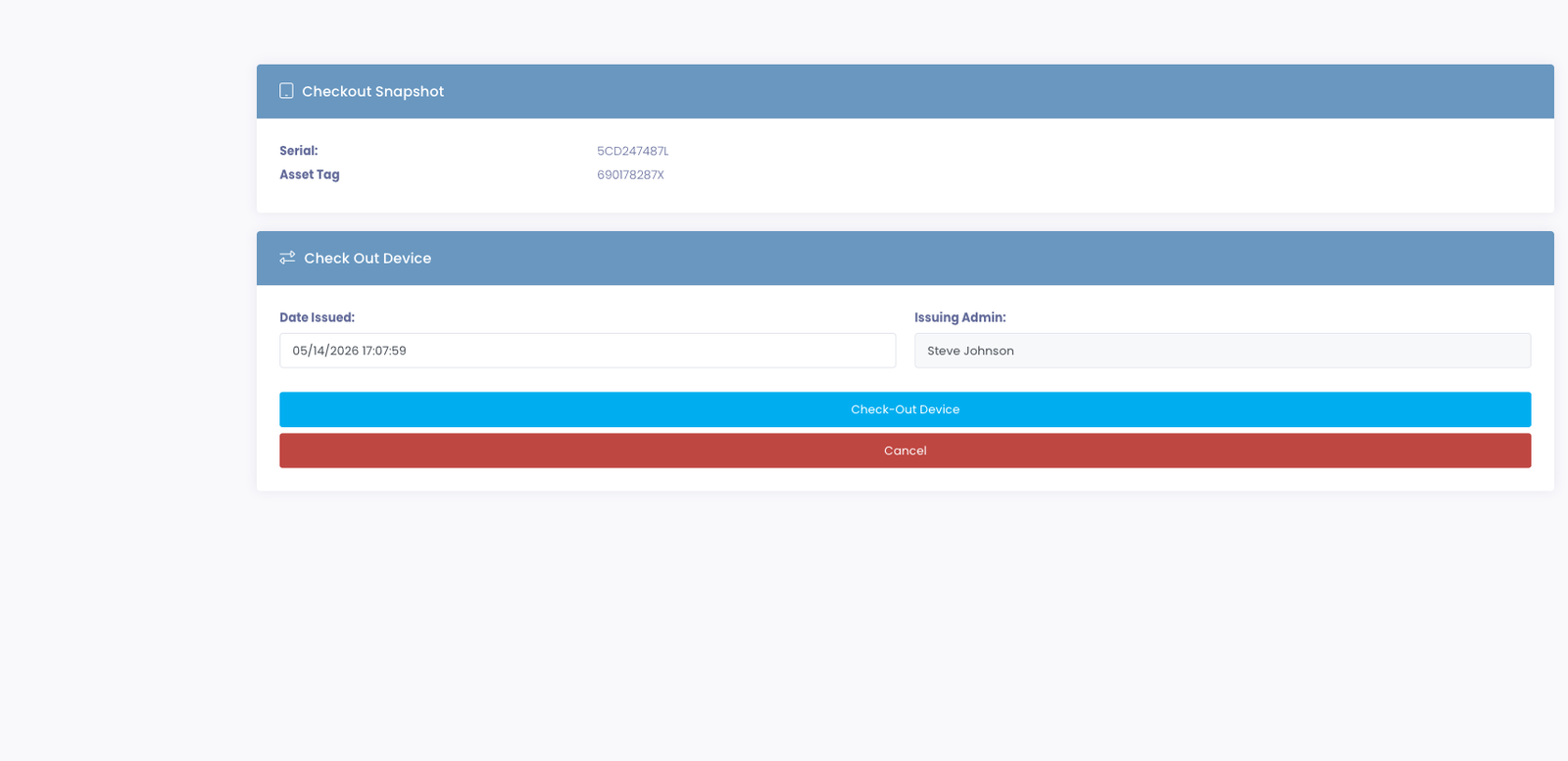
- The Agreement banner shows the policy's agreement text.
- One canvas pad appears for each required signer.
- The pad cannot be skipped — the form will not submit until every required signer has signed.
- A Clear button on each pad lets the signer redo their signature.
When the admin submits, signatures are captured as PNG images and stored alongside the lease record.
Viewing captured signatures later
On the Checkout History tables on a device profile and on a user profile, captured signatures appear as a small signature-icon button in the row's Actions column.
Click the icon to open a modal showing:
- The captured signature image
- The signer's role (Student / Parent / Staff / Manage1to1 Admin)
- The typed or auto-filled name
- The signed-at timestamp
- The IP address the signature came from
Common Configurations
Catch-all student policy
- Flow: Lease check-out
- Applies to: Student
- Building: (any)
- Grade range: (any)
- Required signers: Student
- Use when every student should sign for every device.
Parent + Student for high-school 1:1 take-home devices
- Flow: Lease check-out
- Applies to: Student
- Building: High School
- Grade range: 9–12
- Required signers: Student, Parent
- Use when financial responsibility matters and a guardian's acknowledgment is required.
Staff witness for IT-issued loaners
- Flow: Rapid check-out
- Applies to: Staff
- Required signers: Staff, Manage1to1 Admin
- Use when staff loaners need a documented witness during issuance.
Rapid check-out for elementary students (no parent)
- Flow: Rapid check-out
- Applies to: Student
- Grade range: 0–5
- Required signers: Student
- Use when elementary students sign for daily-checkout devices but parents aren't expected to.
Common Questions
Q: Where do the captured signature images live? On the same encrypted local storage as your other district file uploads. Manage1to1 holds them for audit purposes; they aren't shared with anyone outside your district.
Q: What if a parent isn't present for the hand-off but the policy requires a parent signature? Capture the parent signature in person later — for now, you can temporarily disable the policy or set up a building-specific policy that doesn't require parent signature for hand-off-day. Future versions will support an email link the parent can sign from home.
Q: Can a signature be replaced or deleted? No. Captured signatures are permanent audit records. If you need a re-signing, capture a new one on the next event (e.g., during a re-issue or return).
Q: Can I require different signatures for different grade ranges in the same building? Yes — that's exactly what the grade-range scope is for. Create one policy for grades K–5 and a second policy for grades 6–12, each with their own required signers.
Q: What happens when no policy applies? The hand-off proceeds normally without a signature step. The signature pad only appears when a matching enabled policy exists.
Q: Do the four signer roles (Parent / Student / Staff / Manage1to1 Admin) cover every use case? For the device hand-off flows, yes. Additional roles can be added if a district needs them — contact support to discuss.