Smart Rules
Smart Rules are if / then automations that watch your devices and incidents and act on them — flipping statuses, sending emails, closing stale incidents, and more. You write the conditions; Manage1to1 applies them every time the record is created, updated, or on a schedule you choose.
A few examples of what a Smart Rule can do:
- When a device is marked Lost, email IT so they can chase reimbursement.
- When an incident has had no update in 30 days, automatically move it to Completed.
- When a brand-new incident at Oakwood High School lands in Investigating status, notify the building lead.
- When a device flips to Sold, send the admin team a heads-up.
- When a Chromebook is marked Repair, move it into your
/Devices/RepairGoogle organizational unit so it picks up the right policy.
Where to find Smart Rules
Go to Automations (or Settings → Automations), then select the Smart Rules button at the top of the page. The Automations list shows your Smart Rules alongside your ticket Workflows; the Smart Rules page is where you build and manage the device and incident rules themselves.
The list shows every rule, its on/off status, what it targets, when it fires, what it does, and how many times it has run.
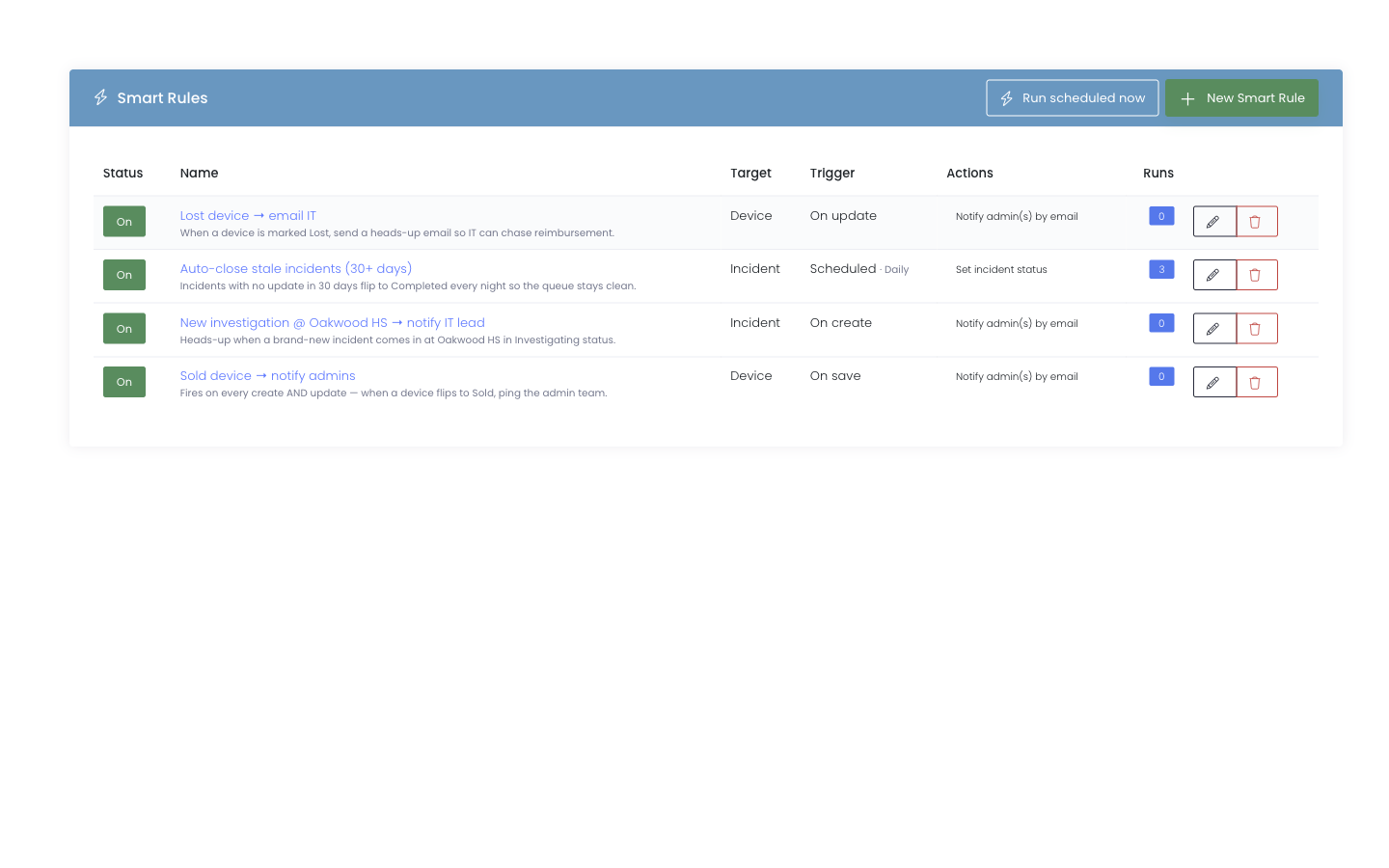
The toolbar in the top right has two actions:
- New Smart Rule — opens the rule builder.
- Run scheduled now — appears when you have at least one scheduled rule. Fires the scheduled sweep immediately instead of waiting for the next cron tick. Useful for testing a rule you just edited.
Each rule row has three quick actions: the pencil icon to edit, the copy icon to duplicate, and the red trash icon to delete (with a confirmation). Click the green On / Off pill to enable or disable a rule without leaving the list.
Duplicate a rule
Click the copy icon on any rule to make an exact duplicate — every condition and action comes across, and Manage1to1 drops you straight into the new copy's editor. The duplicate is named after the original with (copy) on the end and starts Off, so you can adjust it and switch it on only when you're ready. It's the fastest way to build a set of similar rules — one per building, say — without rebuilding the conditions each time.
Anatomy of a Smart Rule
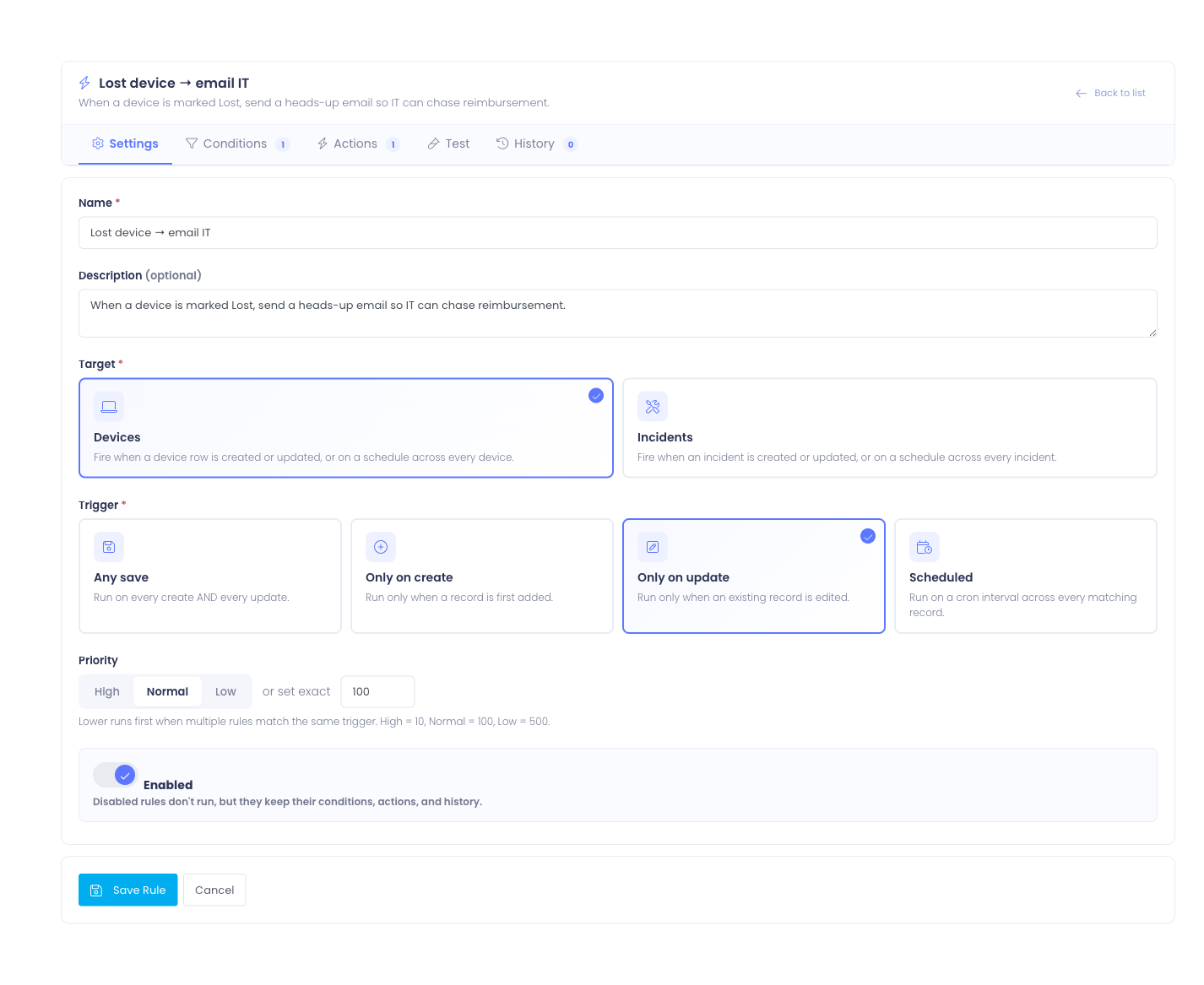
Every rule has five tabs: Settings, Conditions, Actions, Test, and History.
- Target — what the rule watches: Devices, Incidents, or Schedule only (no record — just a recurring action). (Settings tab)
- Trigger — when the rule fires. (Settings tab)
- If — one or more conditions that must be true. (Conditions tab)
- Then — one or more actions that run when the conditions match. (Actions tab)
- Try it — dry-run against a specific record or count how many would be affected. (Test tab)
- See what happened — recent runs and a match-rate rollup. (History tab)
Targets
| Target | What it watches |
|---|---|
| Devices | Every device row in your inventory. |
| Incidents | Every incident (e.g. broken screen, lost charger, water damage). |
| Schedule only | Nothing — there's no record to watch. The rule simply runs its actions on the schedule you choose. Use it for standing tasks like "every Monday, open a maintenance ticket" or "email the team a weekly reminder". |
Switching the target after you've started building a rule clears the conditions and actions, because the available fields and actions are different per target.
Schedule only rules always run on a schedule, so when you pick that target the trigger is set to Scheduled for you and you just choose the cadence. Because there's no record involved, there are no conditions to set — every action runs on each pass. The actions available are the ones that don't need a specific device or incident: Notify admin(s) by email and Open a help desk ticket.
Triggers
| Trigger | Fires when… |
|---|---|
| Any save | A record is created or updated. |
| Only on create | A record is added for the first time. |
| Only on update | An existing record is edited. |
| Scheduled | On a cadence you pick — hourly, every 6 hours, daily, or weekly. Walks every matching record on each pass. |
Scheduled rules are how you do things like "close incidents nobody has touched in 30 days". Pair them with conditions to narrow what gets touched.
Conditions ("If")
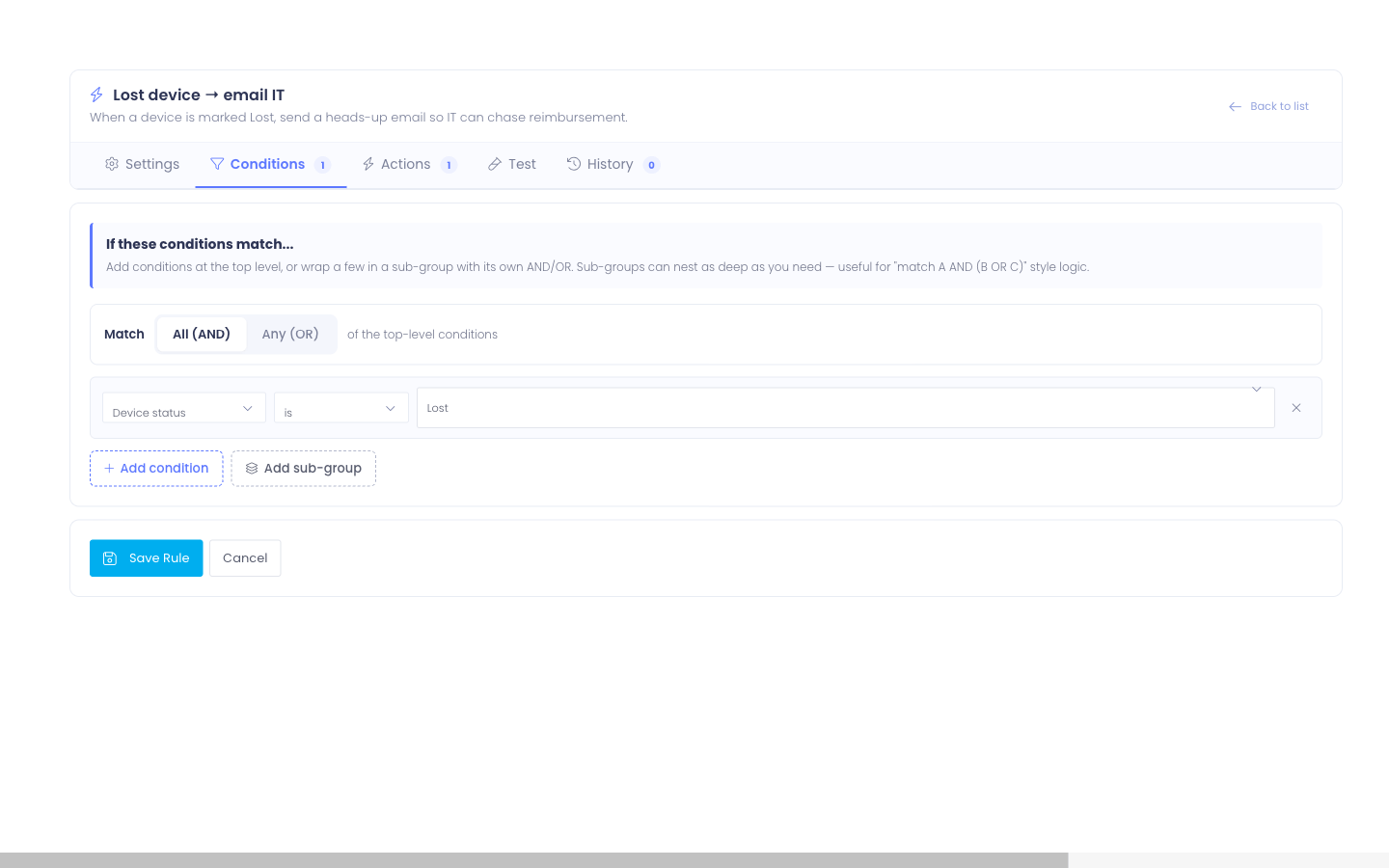
Add one or more conditions to decide whether a rule should run on a given record. Each condition is a field, an operator, and a value.
Available device fields:
- Device status — match against a device status (Active, Sold, Lost, etc.).
- Device location (building) — match against a building.
- Device type / model — match against a specific device model, so you can give one model its own OU or exclude it from a broader rule.
- Assigned student grade — the grade of the student the device is currently checked out to. Ideal for summer‑rollover rules — is one of takes a comma‑separated list like
9,10,11,12. Doesn't match devices that aren't checked out to a student. - Loaner device — whether the device is flagged as a loaner (Yes / No).
- Has an open incident — whether the device currently has an incident that isn't completed (Yes / No). Handy for "anything with an open repair → move to the repair OU" rules.
- Device Google Workspace OU — match against the Google organizational unit (OU) the device currently sits in, as synced from Google Workspace. Supports is, is not, contains, and does not contain, so you can match a whole branch — for example, OU contains
/Students/HS.
Available incident fields:
- Incident status — match against an incident status (In Progress, Completed, etc.).
- Incident building — match against a building.
- Days since incident last update — number of days since the incident was last touched. Great for stale-cleanup rules.
Use the toggle above the condition list to decide whether all conditions must match (AND) or whether any one is enough (OR). Need "match A AND (B OR C)" logic? Click Add sub-group to nest a section with its own AND/OR — sub-groups can nest as deep as you need.
Actions ("Then")
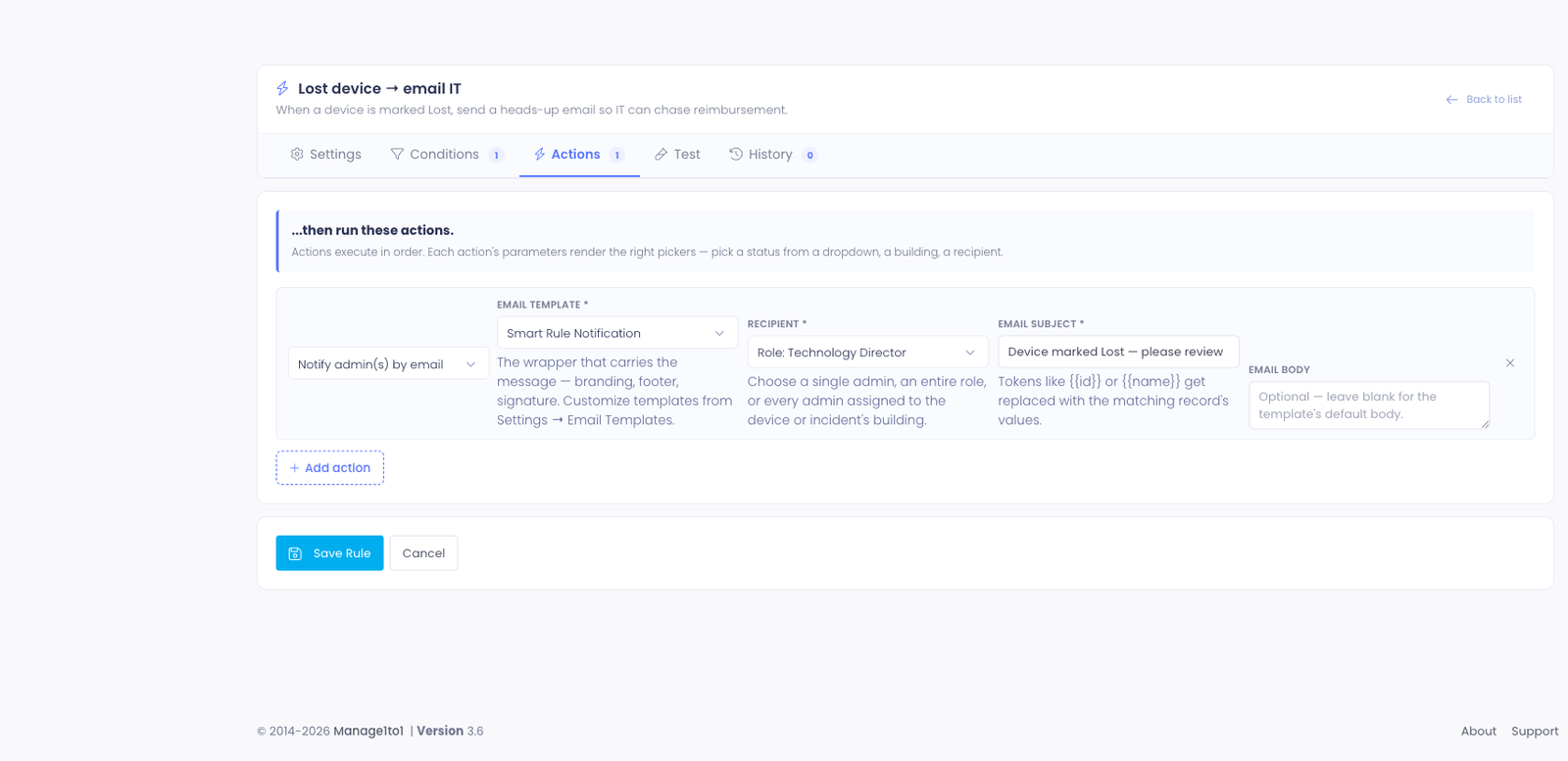
Actions run in the order you list them. Available actions:
- Set device status — change a device's status.
- Set device location (building) — move a device to a different building.
- Move to Google Workspace OU — place the device into a Google Workspace organizational unit. Enter the full OU path — for example
/Students/HS/2026-2027— which must already exist in your Google Admin console. A device already in that OU is left as‑is. - Set incident status — change an incident's status (e.g. flip stale ones to Completed).
- Notify admin(s) by email — send a heads-up email. You can target a specific admin, a role, or every admin assigned to the relevant building.
- Open a help desk ticket — automatically create a real ticket when the rule matches (for example, when a device has been offline for 30 days, open a ticket to investigate). You choose the department, priority, subject, and details (merge fields work in the subject and body), optionally assign it to a specific technician (otherwise it uses the department's normal assignment), and optionally attach the device that triggered the rule. The ticket behaves exactly like one opened by hand — it's assigned, notified, and worked the same way.
Each action's parameters render the right pickers for you — pick a status from a dropdown, a building, or a recipient. No raw IDs to memorize.
Keeping Chromebooks in the right Google OU
If you manage Chromebooks through the Google Workspace integration, Smart Rules can keep each device in the correct Google organizational unit (OU) on their own. OU placement is what governs a Chromebook's Google policies — which apps and extensions are allowed, what web filter applies, and so on — so keeping devices placed correctly keeps the right policy on each one, without shuffling them by hand in the Google Admin console.
It works in both directions:
- Set the OU from the device's state. Pair a condition on the device with the Move to Google Workspace OU action — for example, when a device's status is Repair, move it to
/Devices/Repair, or during summer rollover move a grade's devices into next year's OU. - Set the building from the OU — handy for imports. Use the Device Google Workspace OU condition with the Set device location (building) action to read where Google already has a device and file it into the matching Manage1to1 building — for example, when a device's Google OU contains
/Buildings/HS, set its location to High School. It's a quick way to sort a freshly imported fleet into buildings using the OU structure you already keep in Google.
This uses the Google Workspace device connection you already set up — there's nothing extra to grant. As with every rule, use the Test tab to preview how many devices would move before you turn it on.
Some OUs you'll want to curate yourself — a special‑needs program with hand‑tuned policies, for example. On the Google Workspace device settings, fill in Protected OUs with those paths, and no OU‑placement rule will ever move a device out of them (or their sub‑OUs), even if the device otherwise matches a rule.
Merge fields in the notification subject and body
When you write the Email subject or Email body for a Notify admin(s) by email action, drop in {$field_name} tokens to pull live data from the record that triggered the rule. It's the same style of merge field every other email template in Manage1to1 uses.
Click Available merge fields under the body textarea on the rule edit page to see the full list for the rule's target type — every supported token is listed there with what it expands to, so you don't have to guess. The list changes based on the rule's target: device fields for a device rule, incident fields for an incident rule, and the run date/time for a Schedule only rule.
Incident-target rules have these merge fields available:
| Token | What it expands to |
|---|---|
{$incident_id} | Incident ID number (e.g. 4271) |
{$incident_date} | Date the incident was reported |
{$incident_status} | Current incident status (e.g. Investigating, Completed) |
{$incident_completed_date} | Date the incident was completed (blank if still open) |
{$incident_assessment} | Free-text assessment notes |
{$incident_repair} | Free-text repair notes |
{$incident_url} | Full admin-area link to open this incident |
{$fullname} | First + last name of the associated student / staff |
{$first_name} | First name only |
{$last_name} | Last name only |
{$email} | Email address of the associated student / staff |
{$grade} | Grade (students only; blank for staff) |
{$school} | Name of the associated student / staff's building |
{$building} | Name of the building on the incident record itself |
{$device_serial} | Serial number of the device the incident is about |
{$device_barcode} | Barcode / asset tag of the device |
{$device_model} | Device type / model name |
Device-target rules have these merge fields available:
| Token | What it expands to |
|---|---|
{$device_id} | Device ID number |
{$device_serial} | Serial number |
{$device_barcode} | Barcode / asset tag |
{$device_model} | Device type / model name |
{$device_status} | Current status (e.g. Active, Lost, Sold) |
{$device_url} | Full admin-area link to open this device profile |
{$building} | Name of the building the device is assigned to |
{$assigned_to_fullname} | Full name of the user currently checked out to (blank if not checked out) |
{$assigned_to_first_name} | First name of the user currently checked out to |
{$assigned_to_last_name} | Last name of the user currently checked out to |
{$assigned_to_email} | Email of the user currently checked out to |
Schedule only rules have no record, so they offer the run-time merge fields:
| Token | What it expands to |
|---|---|
{$today} | Today's date (the date the rule runs) |
{$now} | Current date and time the rule runs |
{$system_url} | Full admin-area link to your Manage1to1 site |
Example incident notification body
Hi team,

An incident has been created or updated for {$fullname} ({$grade}) at {$school}.

Incident Details:
- Incident ID: {$incident_id}
- Reported: {$incident_date}
- Status: {$incident_status}
- Completed: {$incident_completed_date}
- Asset Tag / Serial: {$device_barcode} / {$device_serial}

Open the incident: {$incident_url}
If you mistype a merge field ({$incidentid} instead of {$incident_id}), it gets sent as literal text in the email so you can spot the typo. We don't silently drop it.
Test before you save
The Test tab does two kinds of dry-run, with no side effects:
- Bulk preview — counts how many records currently match the conditions you've built.
- Run against a specific record — pick a single record by ID and see exactly which conditions passed or failed.
It's available for every kind of rule — devices, incidents, and tickets. For a ticket rule the preview counts matching open tickets.
Scheduled rules work a little differently, because they aren't tied to a single record — they run on their schedule. For a scheduled rule the Test tab simply confirms whether the rule is active and would fire on its next scheduled run.
Nothing is saved, no actions actually fire, and no run-log row is written. Use it to sanity-check a new rule before turning it on.
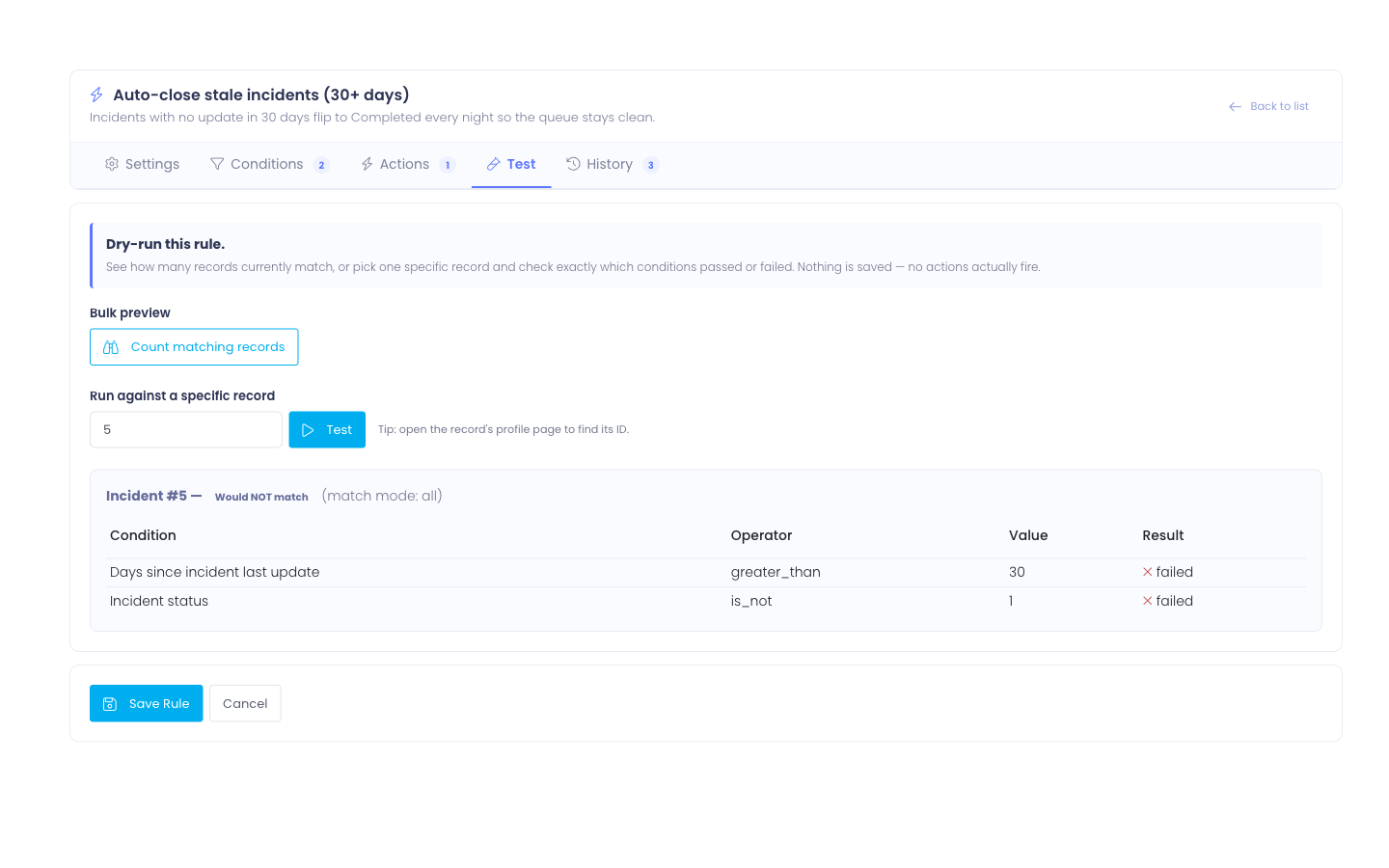
If a preview comes back with a surprisingly large number, your conditions are probably broader than you intended.
See what fired (History)
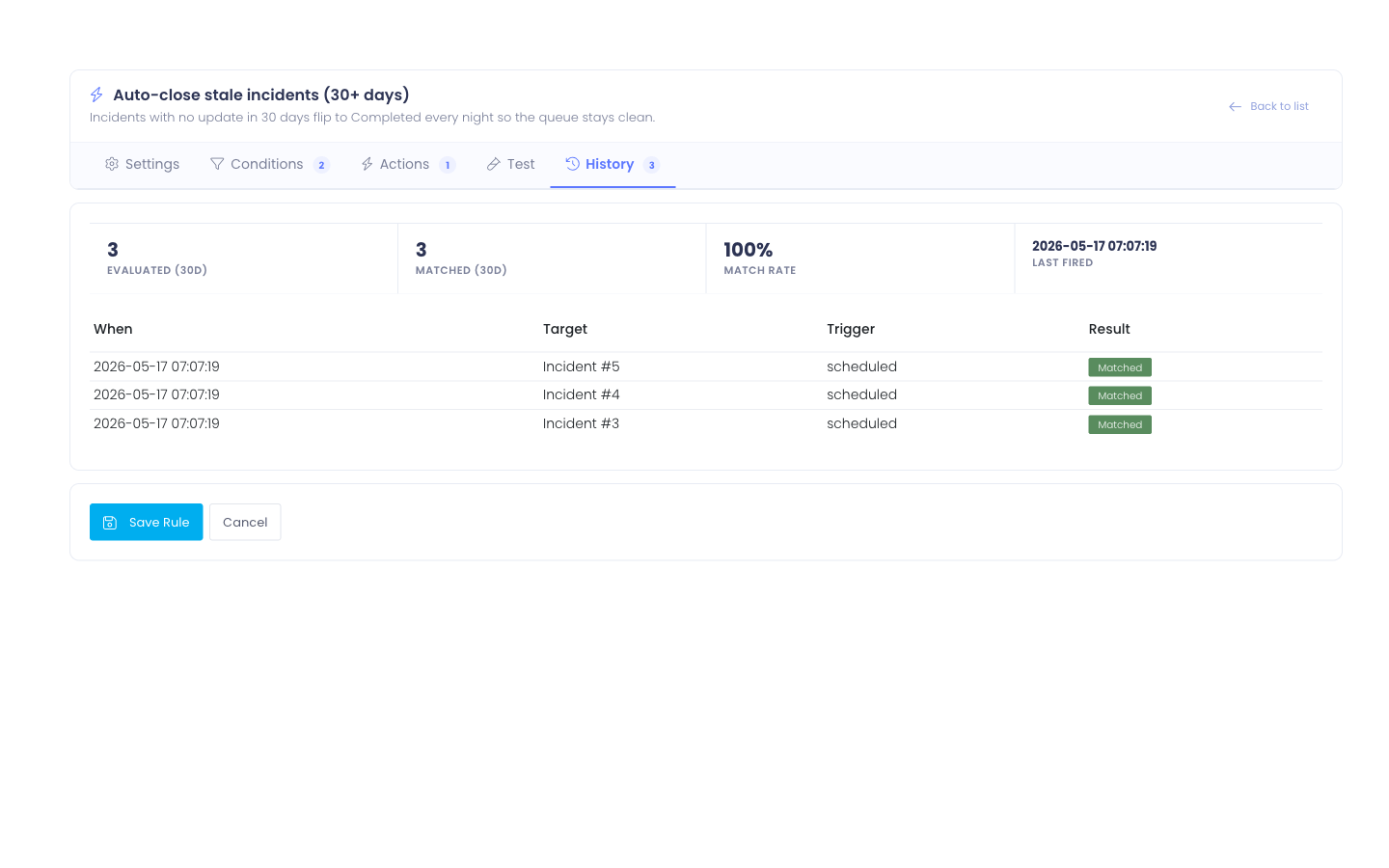
The History tab shows recent runs of this rule along with a 30-day rollup: how many records were evaluated, how many matched, the match rate, and the last time the rule fired.
Scheduled rules and the cron
Scheduled rules don't fire the instant you save them — they run on a regular sweep in the background. By default the sweep happens every 15 minutes; rules with their own cadence (e.g. Daily) wait until that interval has elapsed before they fire again.
If you want to fire scheduled rules right now for testing, click Run scheduled now in the toolbar of the list page. Manage1to1 will walk through every scheduled rule and process anything that's due, and report back how many records were affected.
Export and import a rule
Built a rule you would like to reuse, hand to another site, or keep a backup of? Every rule can be exported to a small file and imported later.
- Export. On the Smart Rules list, click the export icon on the rule's row. Your browser downloads a
.jsonfile containing the whole rule: its target, trigger, conditions, and actions. No records or run history come along, just the rule's recipe. - Import. Click Import in the toolbar, choose a previously exported file, and Manage1to1 adds it as a new rule.
An imported rule is always created Off and named with an "(imported)" suffix, so nothing fires until you have reviewed it. Open it, confirm the conditions and actions point at the right buildings, statuses, and fields for this site, then toggle it On.
Export and import make it easy to build a rule once and roll it out across several sites, or to save a known-good copy before experimenting with changes.
Best practices
Before flipping a new rule on, click Preview affected to see exactly how many records would be touched. A typo in a condition can quickly turn into thousands of unintended updates.
When in doubt, start a rule with tight conditions, watch the Runs counter on the list page for a few cycles, and then loosen the conditions. It's much easier to add records than it is to unwind a sweep that updated the wrong fleet.
Toggle a rule Off when you want to keep its definition on file but pause it temporarily — for example, during a school-year rollover. Only delete a rule when you're sure you'll never need its conditions again.
Permissions
Smart Rules are gated behind the Manage Automation Rules permission. By default it's granted to the Technology Director role only, since a single rule can update many records at once. Assign it to additional roles from the user-roles management screen as needed.
Delegating by object type
If you'd rather hand someone just part of your automations, two narrower permissions let you do that without granting the full set:
- Manage Device Automations lets a role manage only the rules that act on devices (for example an asset manager).
- Manage Incident Automations lets a role manage only the rules that act on incidents (for example a help-desk lead).
A role with one of these sees, edits, and toggles only that kind of rule; the others are hidden from their list. Manage Automation Rules remains the full grant and still covers every kind, including schedule-based rules, so anyone who has it today is unaffected. Grant whichever fits each role from the user-roles management screen.