ClassLink Sign-In
Overview
Users can sign in to Manage1to1 with their ClassLink account two ways:
- Sign in with ClassLink button on the Manage1to1 login page.
- The Manage1to1 tile in the ClassLink LaunchPad, so users go straight from ClassLink into Manage1to1 without visiting the login page first.
Either way, Manage1to1 signs the person in based on who they are: administrators land in the admin area, and all other users land in their Manage1to1 portal. A ClassLink account whose email does not match an existing Manage1to1 admin or user is not granted access (single sign-on never creates new accounts).
The Sign in with ClassLink button works on its own once ClassLink is enabled. Launching from the LaunchPad tile additionally needs your ClassLink Tenant ID (below) so Manage1to1 knows which district the launch belongs to.
Step 1: Enable ClassLink
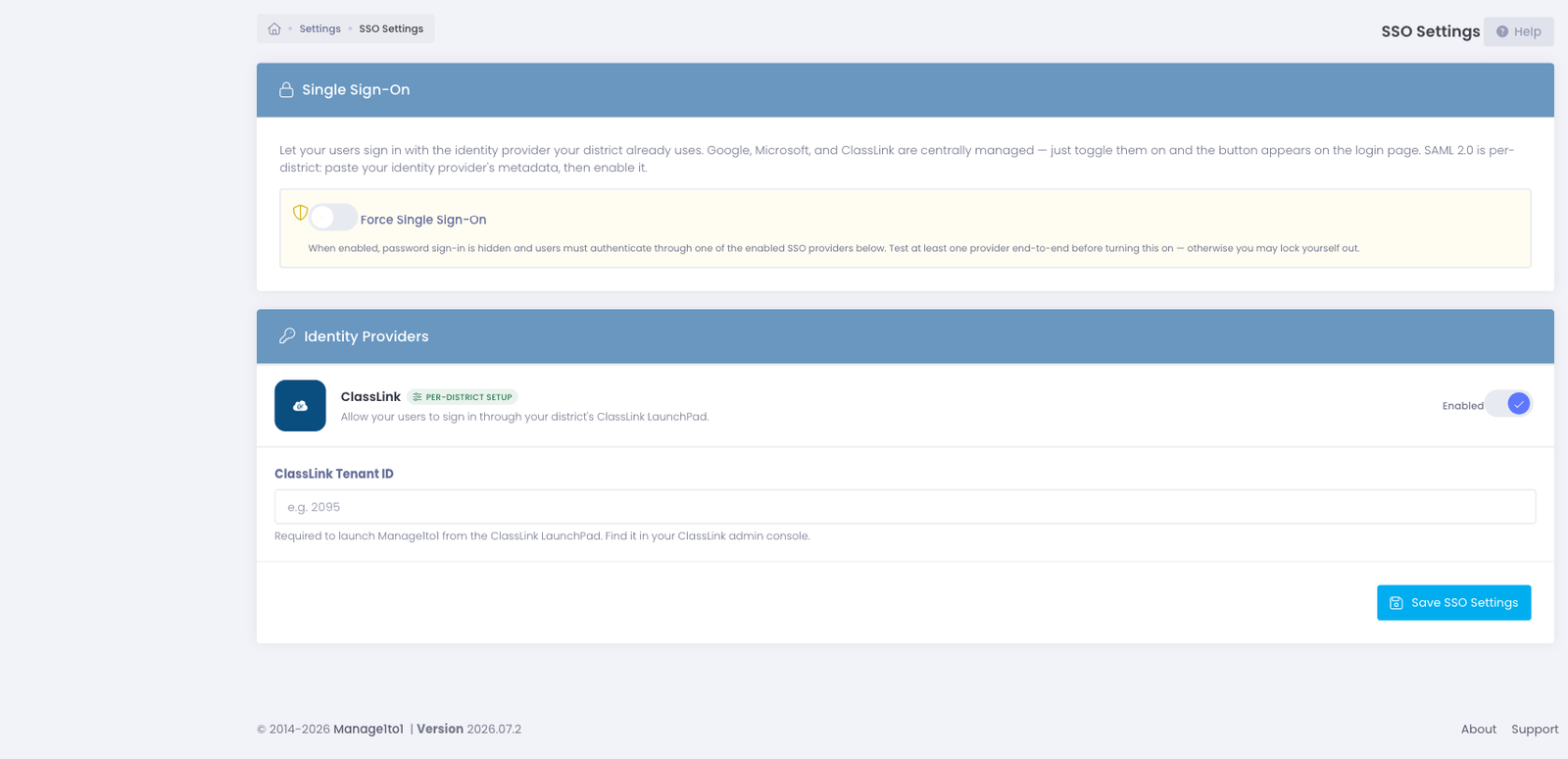
- Go to Settings → SSO Settings.
- Find the ClassLink row and turn on the Enabled toggle.
Step 2: Enter your ClassLink Tenant ID
With ClassLink enabled, a ClassLink Tenant ID field appears on the card. This is the numeric ID ClassLink assigns your district.
- If your district already rosters through ClassLink, Manage1to1 detects the Tenant ID from that configuration and pre-fills it. Just confirm it and save.
- Otherwise, copy it from your ClassLink admin console and paste it in.
Click Save SSO Settings. The Tenant ID is required to launch Manage1to1 from the ClassLink LaunchPad.
Step 3: Add the Manage1to1 tile to your ClassLink LaunchPad
In your ClassLink Management Console, add Manage1to1 as an app and set its launch URL to:
https://sso.manage1to1.com/classlink/launchpad
That is the only value you need for the tile. When a user clicks it, ClassLink signs them in and sends them straight into Manage1to1.
How sign-in routes users
However a user arrives (button or tile), Manage1to1 matches their ClassLink email to an account and routes them:
- Administrators land in the Manage1to1 admin area.
- All other users (staff, students, guardians) land in their Manage1to1 portal.
- No matching account is bounced back with an "invalid credentials" message. Single sign-on does not create accounts.
A ClassLink sign-in is recorded in the user's profile login history as "via ClassLink SSO," the same as any other sign-in.
Troubleshooting
- The LaunchPad tile gives an error, but the button works. The district isn't linked yet. Make sure the ClassLink Tenant ID is filled in on the SSO Settings card and saved. Once any administrator signs in with the Sign in with ClassLink button once, the tile also starts working automatically.
- "Invalid credentials" after signing in with ClassLink. The person's ClassLink email doesn't match an existing Manage1to1 admin or user. Add or correct the account in Manage1to1, then try again.