RapidIdentity Sign-In
Overview
Districts that use RapidIdentity can let their people sign in to Manage1to1 with it. A Sign in with RapidIdentity button appears on the Manage1to1 login page, and RapidIdentity signs the person in based on who they are: administrators land in the admin area, and all other users land in their Manage1to1 portal.
RapidIdentity uses SAML 2.0, so this is a per-district setup: you connect RapidIdentity by pasting its metadata, hand a few values to your RapidIdentity team, and enable it. A RapidIdentity account whose email does not match an existing Manage1to1 admin or user is not granted access (single sign-on never creates new accounts).
To configure SSO, you need the Manage Settings permission assigned to your role.
What you'll need from RapidIdentity
Work with your RapidIdentity administrator to create a SAML application (service provider) for Manage1to1 in RapidIdentity, then collect:
- The RapidIdentity SAML metadata (a metadata URL is easiest; metadata XML also works).
You will also hand a few Manage1to1 values back to your RapidIdentity team, shown on the SSO Settings card once you open it (next section).
Step 1: Open the RapidIdentity card
- Go to Settings → SSO Settings.
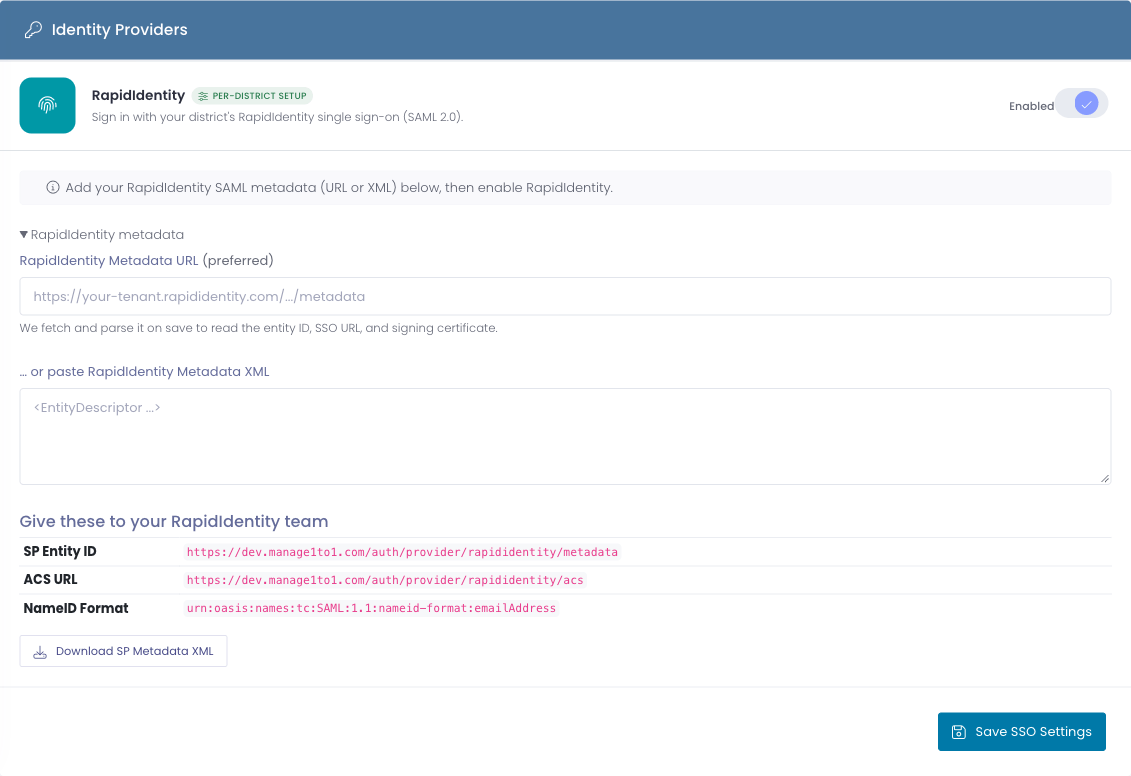
- Find the RapidIdentity row and turn on its toggle to reveal the configuration panel.
The panel shows a metadata box and, under Give these to your RapidIdentity team, the Manage1to1 service-provider values (SP Entity ID, ACS URL, and NameID Format) plus a Download SP Metadata XML link.
Step 2: Connect RapidIdentity
- Paste your RapidIdentity Metadata URL (preferred) or Metadata XML into the panel. Manage1to1 reads the entity ID, SSO URL, and signing certificate from it.
- Give your RapidIdentity team the SP Entity ID, ACS URL, and NameID Format shown on the card (or the downloadable SP metadata), so RapidIdentity knows where to send people and releases an email address in the assertion.
- Click Save SSO Settings.
Once saved, the card shows Connected with a Test sign-in link you can use to confirm the round trip end to end before rolling it out.
Manage1to1 matches each person by email, so RapidIdentity must send an email address in the assertion (as the NameID in emailAddress format, or in a standard email attribute). If sign-in reports no email, ask your RapidIdentity team to add the email claim.
How sign-in routes users
When someone signs in with RapidIdentity, Manage1to1 matches their email to an account and routes them:
- Administrators land in the Manage1to1 admin area.
- All other users (staff, students, guardians) land in their Manage1to1 portal.
- No matching account is bounced back with an "invalid credentials" message. Single sign-on does not create accounts.
A RapidIdentity sign-in is recorded in the user's profile login history as a RapidIdentity SSO sign-in, the same as any other sign-in method.
Troubleshooting
- "Invalid credentials" after signing in with RapidIdentity. The person's RapidIdentity email doesn't match an existing Manage1to1 admin or user, or no email was released in the assertion. Add or correct the account in Manage1to1, and confirm RapidIdentity sends an email address, then try again.
- The button doesn't appear on the login page. RapidIdentity is enabled only once a connection is saved. Open the RapidIdentity card, paste your metadata, and save.
- The connection won't save. Manage1to1 could not read an entity ID, SSO URL, or signing certificate from the metadata. Re-copy the metadata URL or XML from RapidIdentity and try again.