SAML 2.0 Sign-In
If your district standardizes on an enterprise identity provider (IdP) — Okta, Azure AD / Entra, OneLogin, ADFS, Ping, or Shibboleth — your administrators can sign in to the Manage1to1 admin area with SAML 2.0.
Unlike Google, Microsoft, and ClassLink (which are centrally managed and need no setup), SAML is per-district: you paste your IdP's metadata once, hand a few values to your IdP team, and enable it.
SAML covers the admin area. Students and staff continue to sign in to the user portal with Google, Microsoft, or ClassLink.
Manage1to1 matches the email address in the SAML assertion to an existing administrator account. There's no automatic account creation — if the email doesn't match an active admin, the sign-in is declined. Make sure each admin who will use SAML already exists in Manage1to1 with the email their IdP sends.
What you'll need
- IdP administrator access (to register an application and find your metadata).
- The Manage1to1 Manage Settings permission.
- Each Manage1to1 admin's email must match what the IdP sends.
Step 1: Configure SAML in Manage1to1
- Navigate to
Settings → SSO Settings. - Turn the SAML 2.0 toggle on — its setup panel appears.
- Provide your IdP metadata one of two ways:
- IdP Metadata URL (preferred) — Okta and Azure publish a metadata URL. Paste it; Manage1to1 fetches and reads it on save.
- IdP Metadata XML — if your IdP (e.g. ADFS) doesn't publish a public URL, paste the metadata XML instead.
- Click Save SSO Settings.
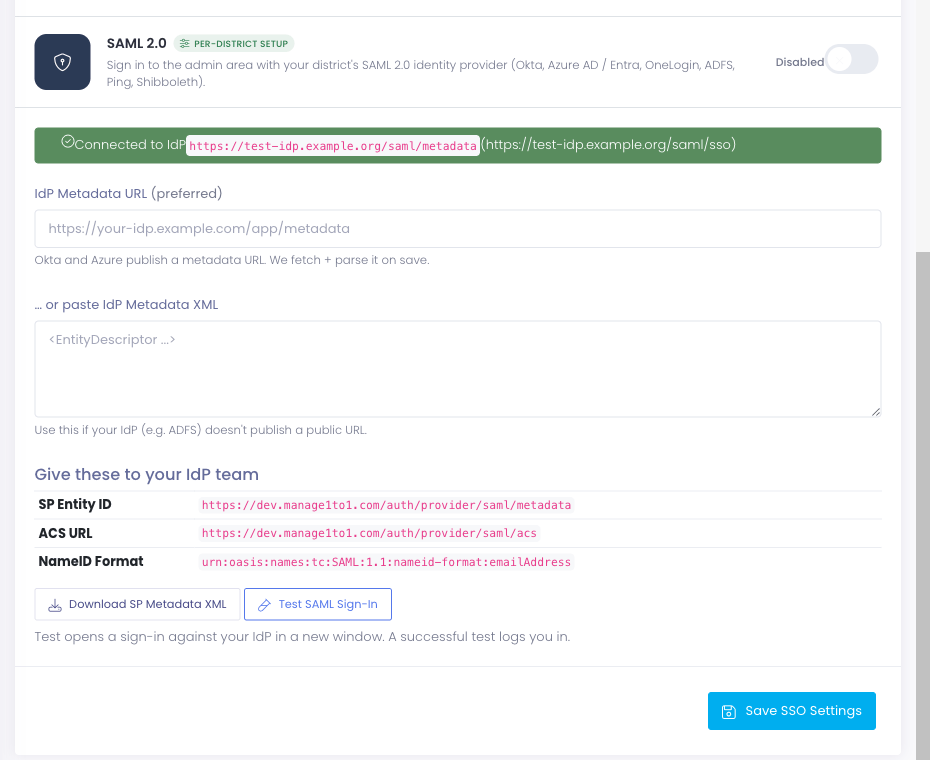
When the metadata reads correctly, the panel shows a green Connected to IdP banner with your identity provider's entity ID and sign-on URL.
- Okta — In the application's Sign On tab, use the Identity Provider metadata link.
- Azure AD / Entra — In the enterprise application's Single sign-on settings, copy the App Federation Metadata Url.
- OneLogin — On the app's SSO tab, use the Issuer URL / metadata link.
- ADFS — Use your federation metadata XML (typically
https://your-adfs/FederationMetadata/2007-06/FederationMetadata.xml), or paste the XML directly.
Step 2: Give these values to your IdP team
Your IdP needs three values from Manage1to1 to register it as a service provider (SP). They're shown in the setup panel under Give these to your IdP team — each is click-to-copy:
| Value | What it's for |
|---|---|
| SP Entity ID | Identifies Manage1to1 to your IdP |
| ACS URL | Where your IdP sends the sign-in assertion |
| NameID Format | Requests the user's email as the identifier |
There's also a Download SP Metadata XML button — hand that file to your IdP team and most platforms will import all three values at once.
In your IdP, create (or edit) the application using these values, and make sure it sends the user's email — either as the NameID (in email format) or as a standard email / mail attribute. Confirm the assertion is signed.
Step 3: Test it
Use Test SAML Sign-In in the setup panel. It opens a sign-in against your IdP in a new window; a successful test signs you in.
Admins can then sign in two ways:
- From the Manage1to1 login page — click Sign in with SAML, authenticate at your IdP, and you're returned signed in.
- From your IdP's app launcher — click the Manage1to1 tile in Okta / Azure / OneLogin and land signed in.
If you later turn on Force Single Sign-On, password sign-in is hidden. Always confirm SAML works end-to-end first so you don't lock yourself out.
Troubleshooting
| Symptom | Likely cause |
|---|---|
| Sign-in bounces back to the login page | The assertion's email doesn't match an active admin, or the assertion wasn't signed / failed validation. |
| "Could not read the IdP metadata" on save | The metadata URL wasn't reachable, or the pasted XML was incomplete (missing entity ID, sign-on URL, or signing certificate). |
| Works from the IdP launcher but not the login button | Confirm the SP Entity ID and ACS URL in your IdP exactly match the values shown in the setup panel. |
| Intermittent failures around sign-in time | Clock skew between your IdP and our servers — make sure your IdP's clock is accurate. |
If an email doesn't match, the attempt is recorded in the admin activity log so you can see which address was sent.
What's covered today
- Admin-area sign-in via SAML 2.0, matched to an existing admin by email.
- SP-initiated (from our login page) and IdP-initiated (from your app launcher) sign-in.
- Signed assertions, with audience and timing validation.
Single Logout, automatic account creation, and group-to-role mapping aren't part of this release — reach out to Support if your district needs them.