Bulk Device Check-In
The Bulk Device Check-In utility allows you to check in multiple devices at once using a CSV file. This is useful when receiving a large batch of devices back — for example, at the end of the school year or after a device refresh. You upload the file, review a preview of exactly what will happen, then confirm.
Uploading and clicking Preview & Process Bulk Check-In only shows you what will happen — how many devices will be checked in and any rows that will be skipped. No devices are checked in until you click Confirm & Check In on the preview screen.
CSV Format
The CSV file requires a single column with a header row:
| Column | Description |
|---|---|
| Serial/Barcode/Asset Tag | The device's serial number or asset tag |
The system will attempt to match each row by serial number first, then by asset tag if no serial match is found.
How to Use
- Navigate to Settings → System Utilities → Devices tab
- Prepare your CSV file with one device identifier per row
- Drag and drop the file onto the upload area (or click to browse)
- Once uploaded, click Preview & Process Bulk Check-In — this opens a preview and does not check in anything yet
- Review the preview, then click Confirm & Check In to apply the check-ins (or Cancel to walk away with no changes)
Reviewing the Preview
The preview screen opens after you click Preview & Process Bulk Check-In and summarizes exactly what confirming will do.
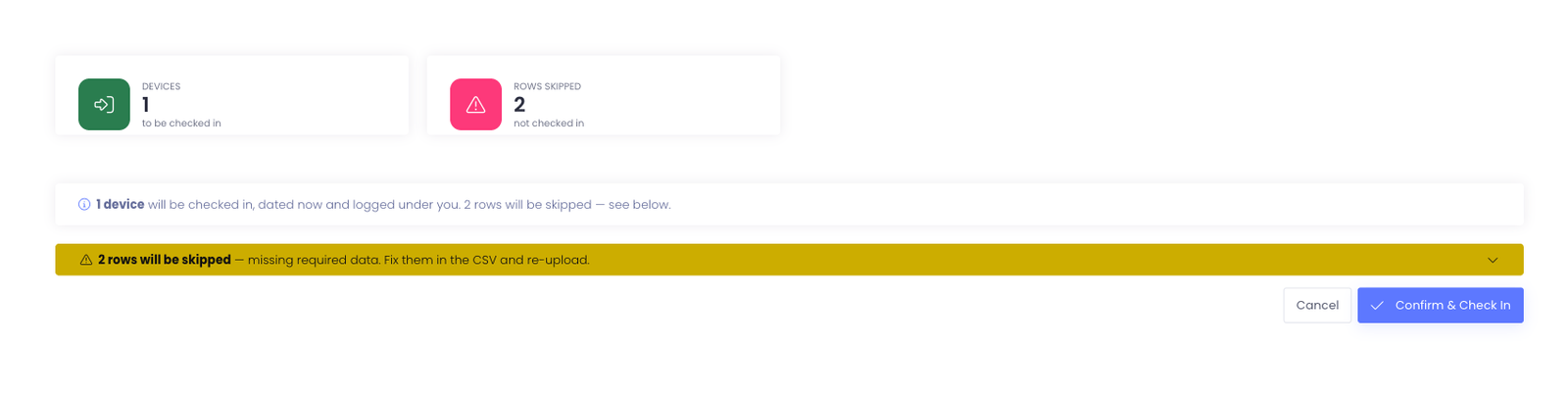
Summary cards
- Devices — devices that will be checked in
- Rows Skipped — rows missing required data; these are left out and no device is checked in for them
Skipped rows
Rows missing required data are grouped into a collapsible rows will be skipped notice. Expand it to see which rows were left out, fix them in your CSV, and re-upload if you want them included.
What Happens During Processing
- Each device is looked up by serial number, then by asset tag
- If the device has an active checkout, it is checked in with the current date and time
- The check-in is logged under the currently logged-in administrator
- Devices that are not found or not currently checked out are skipped and logged
After Processing
A summary message shows how many devices were successfully checked in and how many failed. Detailed failure information (which devices weren't found or weren't checked out) is available in the Activity Log.
Tips
- Export your device list first to ensure your serial numbers and asset tags match what's in the system
- Devices that are already checked in will be skipped without error
- The preview writes nothing — you can always click Cancel for no changes, or Confirm & Check In to apply what it shows
- The CSV file is removed after processing