Bulk Device Status Change
The Bulk Device Status Change utility allows you to update the status of multiple devices at once using a CSV file. This is ideal for fleet management tasks like marking devices as "Released", "Retired", "Sold", or any custom status your district uses. Upload the file, review a full preview of exactly what will happen, then confirm.
Uploading and clicking Preview & Process Status Change only shows you what will happen — how many devices will change status, any status names in the file that don't match an existing device status and need a decision, and any rows that will be skipped. No device statuses are changed until you click Confirm & Change Status on the preview screen.
CSV Format
The CSV file requires two columns with a header row:
| Column | Description |
|---|---|
| Serial/Barcode/Asset Tag | The device's serial number or asset tag |
| Status | The exact name of the target device status |
The status name must match a status configured in your system (under Settings → System Settings → Inventory → Device Status). The match is case-insensitive.
How to Use
- Navigate to Settings → System Utilities → Devices tab
- Prepare your CSV file with device identifiers and target statuses
- Drag and drop the file onto the upload area (or click to browse)
- Once uploaded, click Preview & Process Status Change — this opens a preview and writes nothing yet
- Review the preview screen (covered in Reviewing the Preview below)
- When the preview looks right, click Confirm & Change Status to apply the updates
If anything looks wrong, click Cancel instead — nothing is changed and you can fix and re-upload the CSV.
Reviewing the Preview
The preview screen is the heart of the status change. It opens after you click Preview & Process Status Change and summarizes exactly what confirming will do — no statuses are changed until you confirm.
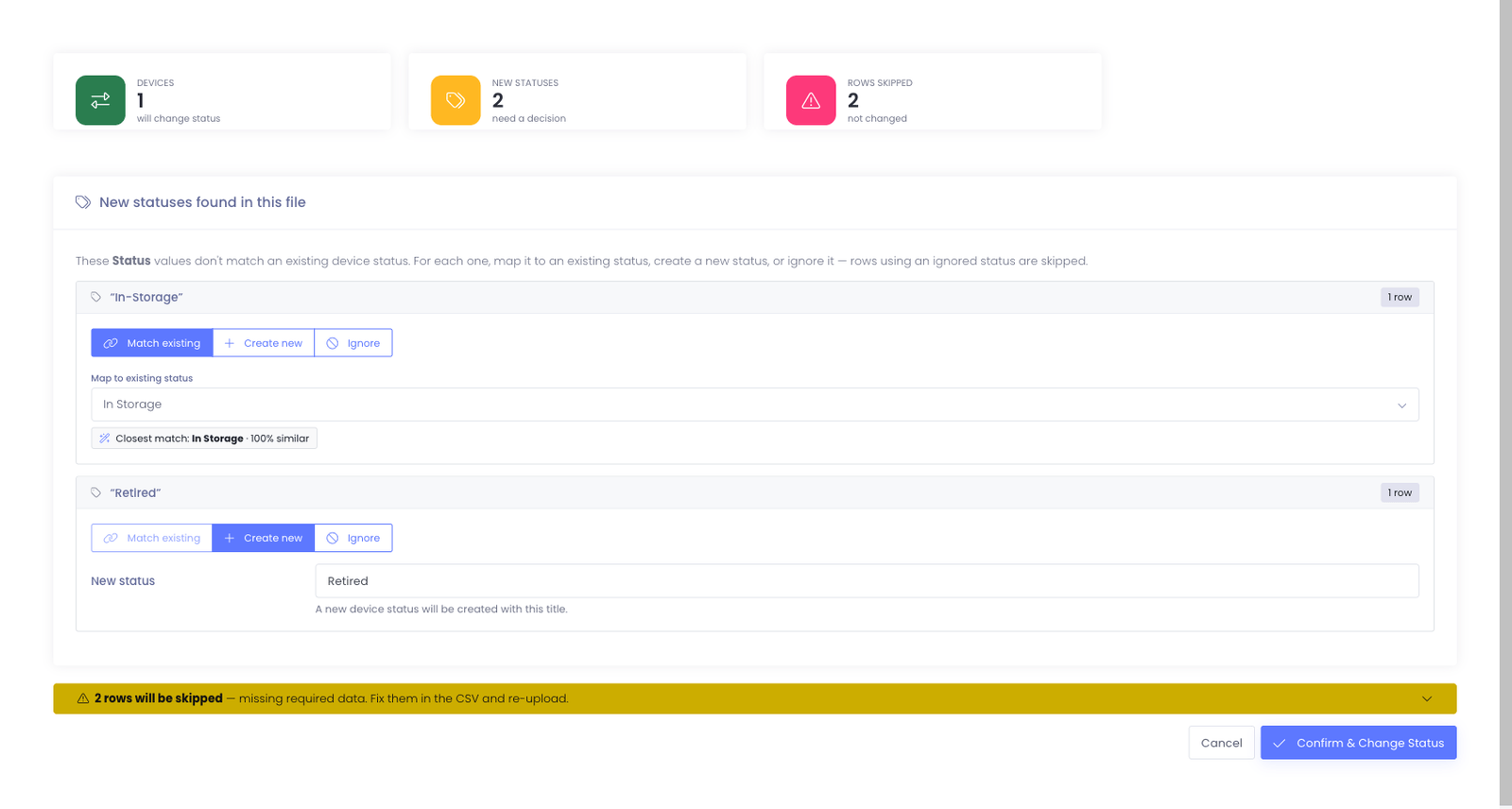
Summary cards
The cards across the top give you the totals at a glance:
- Devices — how many devices will change status
- New Statuses — status names in the file that don't match an existing device status and need a decision from you
- Rows Skipped — rows that won't be changed
New-status decisions
When a Status value in your file doesn't match a device status you already have, Manage1to1 doesn't silently create a duplicate — it asks. Each unrecognized status gets a card with three choices:
- Match existing — map the file's value to a status you already have. When we find a close match, we preselect it and show how similar it is (for example, In-Storage preselects In Storage · 100% similar). Pick a different existing status from the dropdown if the suggestion isn't right.
- Create new — add a brand-new device status with the given title.
- Ignore — skip every row using this status. Those rows are not changed.
This is what prevents accidental near-duplicate statuses like In-Storage and In Storage from piling up — map the new spelling onto the status you already keep, or deliberately create it if it really is different.
Skipped rows
Rows missing required data are grouped into a collapsible rows will be skipped notice at the bottom of the preview. Expand it to see which rows were left out, fix them in your CSV, and re-upload if you want them included.
Auto-Hide Behavior
If the target status has "Automatically hide devices" enabled (configured in Device Status settings), devices changed to that status will also be automatically marked as inactive (hidden) in the device list. This is useful for statuses like "Released" or "Retired" where you want devices removed from the active inventory view.
What Happens During Processing
- Each device is looked up by serial number, then by asset tag
- The status name is matched against your configured device statuses
- The device's status is updated and the change is logged in the activity log
- If the new status has auto-hide enabled, the device is also hidden
- Devices or statuses that aren't found are skipped and logged
After Processing
A summary message shows how many devices were updated and how many failed. Detailed failure information is available in the Activity Log.
Tips
- Use this utility to retire devices in bulk — pair it with a "Released" status that has auto-hide enabled
- Review the preview before confirming — resolve every new-status decision so you don't create near-duplicate statuses by accident
- Check your device status names match exactly before uploading (go to Settings → Inventory → Device Status to verify)
- You can change devices to any status, including bringing them back to "Active"
Common Questions
Q: What if a status in my file isn't recognized? The preview lists it under New statuses found in this file and asks you to decide: map it to an existing status, create it as a new status, or ignore it. Nothing is changed until you confirm — so you'll never end up with an accidental duplicate status.
Q: Can I still cancel after clicking Preview & Process Status Change? Yes. The preview writes nothing. Click Cancel to walk away with no changes, or Confirm & Change Status to apply what the preview shows.