Bulk Room Import
The Bulk Room Import allows you to create or update multiple rooms at once using a CSV file. This is useful when initially setting up Manage1to1 or when adding rooms across multiple buildings. You upload the file, review a preview of exactly what will happen, then confirm.
Uploading and clicking Preview & Execute Room Import only shows you what will happen — how many rooms will be created, how many will be updated, and any rows that will be skipped. No rooms are created or updated until you click Confirm & Import on the preview screen.
CSV Format
Your CSV file must include a header row. Download the CSV Import Template for the correct format.
Required Columns
| Column | Description |
|---|---|
| Name | The name of the room (e.g., "Library Media Center", "Computer Lab 101") |
| Building Name | The name of the building this room belongs to. Must match an existing building in Manage1to1. You can also use the building's SIS code. Minor differences in capitalization, spacing, or common abbreviations (like HS for High School) are matched automatically, and a close-but-inexact name is flagged on the preview with the closest match. |
Optional Columns
| Column | Description |
|---|---|
| Floor | The floor the room is on (e.g., "1st Floor", "2nd Floor", "Basement") |
| Comments | Any additional notes about the room |
| Responsible Staff | Comma-separated list of staff Local IDs to assign as responsible persons (e.g., "T1001,T1002"). Staff must be active with a matching Local ID in the system. |
How It Works
- Navigate to Settings → System Utilities → Inventory tab
- Locate the Bulk Room Import section
- Upload your CSV file using the upload area
- Once uploaded, click Preview & Execute Room Import — this opens a preview and does not create or update anything yet
- Review the preview, then click Confirm & Import to apply the changes (or Cancel to walk away with no changes)
Matching Behavior
Rooms are matched by Name + Building. When processing:
- If a room with the same name already exists in the same building, it will be updated with any new values from the CSV
- If no matching room is found, a new room will be created
- If the building name cannot be found, that row will be skipped and logged as an error
Building Resolution
The Building Name column is flexible — Manage1to1 will try to match it in the following order:
- Building name — matches against the building display name (case-insensitive)
- SIS/Building code — if no name match is found, tries to match against the building's SIS code
This means you can use either the full building name (e.g., "Lincoln Elementary") or the SIS code (e.g., "10300") in your CSV.
Reviewing the Preview
The preview screen opens after you click Preview & Execute Room Import and summarizes exactly what confirming will do.
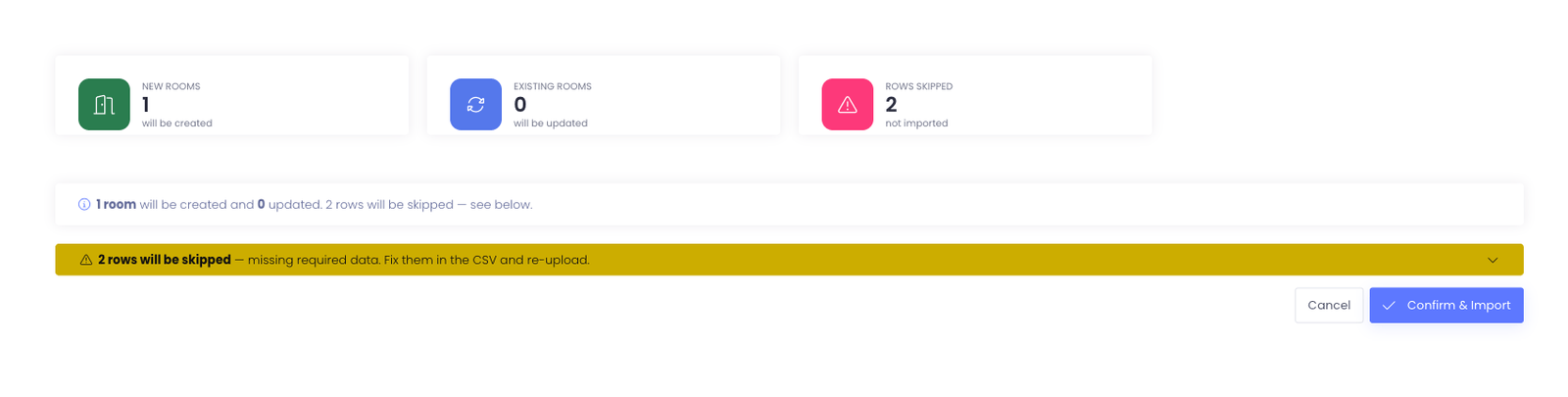
Summary cards
- New Rooms — rooms that will be created
- Existing Rooms — rooms already in Manage1to1 that will be updated
- Rows Skipped — rows missing required data; these are left out of the import
Skipped rows
Rows missing required data are grouped into a collapsible rows will be skipped notice. Expand it to see which rows were left out, fix them in your CSV, and re-upload if you want them included.
After Import
After the import completes, you'll see a summary showing how many rooms were created, updated, or failed. Any errors are logged to the Activity Log with details about which rows failed and why.
Tips
- Download the template first to ensure your columns are in the correct order
- Check your building names before importing — if a building name doesn't match, those rooms will be skipped
- You can run the import multiple times safely — existing rooms will be updated, not duplicated
- Keep room names consistent — "Lab 101" and "Computer Lab 101" would be treated as different rooms
- The preview writes nothing — click Cancel for no changes, or Confirm & Import to apply what it shows