Import Duplicate Detection
When you import students or staff from a CSV, Manage1to1 matches each incoming row to an existing account by a single field (Local ID or Email). If that value is even slightly different, the row would normally create a brand-new account, even when it is really the same person. Import Duplicate Detection catches those near-misses so you don't end up with two accounts for one person.
How It Works
For every row that would create a new account, Manage1to1 compares it to existing accounts in the same building and looks for a close match on name or email. It catches the everyday causes of duplicates:
- Typos in a first or last name (for example, "Jon" instead of "John").
- Transposed names, where the first and last name are swapped.
- A slightly different email for the same person.
When a row looks like a close match to someone who already exists, it is held for review and not imported, so a duplicate is never created silently. Genuinely new people, and people who simply share a last name (such as siblings or twins), are left alone.
Held rows are shown on the import preview before you commit, and they are recorded in the Activity Log when the import runs (including scheduled imports). Reviewing each held row and choosing whether to merge it or keep it as a new record is done on the Pending Match Decisions screen.
On the Import Preview
Before you confirm an import, the preview shows a Potential Duplicates summary card and a section listing each held row next to the existing account it matched, with a similarity score. These rows are not counted in "New Students/Staff will be created," because they will not be imported.
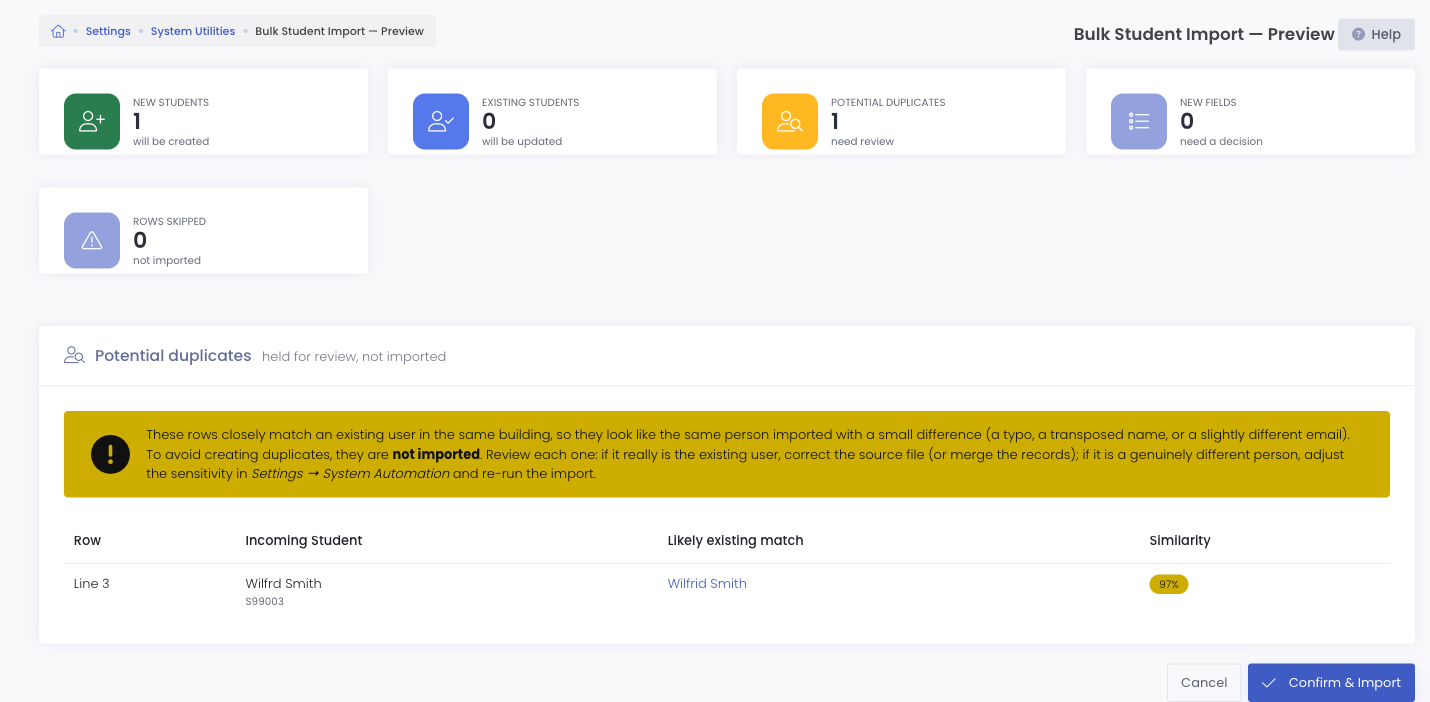
For each flagged row you can decide what to do:
- If it really is the existing person, correct the source file (or merge the two records) and re-import.
- If it is genuinely a different person, lower the sensitivity (see below) and run the import again.
Adjusting the Sensitivity
Duplicate detection is configured under Settings → System Automation, with a separate sensitivity for students and staff.
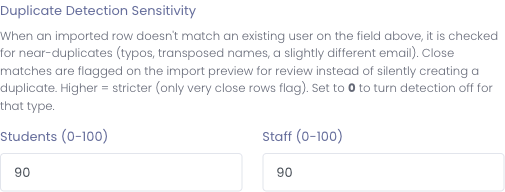
- The value is a 0 to 100 match score. A higher number is stricter, so only very close rows are flagged.
- The default is 90, which favors precision: it flags clear near-duplicates while leaving distinct people (including short, similar names like "Jon" and "Ron") alone. Lower it if you would rather catch more possible duplicates and review more of them.
- Set a value to 0 to turn detection off for that type entirely.
If your district has a lot of common names, keep the sensitivity high (or raise it) so only true duplicates are held. If you find real duplicates are slipping through as separate accounts, lower it gradually and re-run a preview to see the effect before committing.
Common Questions
Q: Will this stop me from importing legitimately new people? No. Only rows that closely match an existing account in the same building are held, and only when they score at or above your sensitivity setting. Brand-new people import normally.
Q: Are siblings or twins flagged as duplicates? Generally no. Sharing a last name is not enough to be flagged; the first names have to be close too. If a specific case is flagged, you can review it on the preview and proceed if they really are different people.
Q: Does this apply to scheduled (automated) imports as well? Yes. When a scheduled import holds any rows, Manage1to1 records them in the Activity Log and sends an admin notification so you know to review them, since there is no preview screen on an automated run. A held row never causes the matching existing account to be deactivated.
Q: What happens to a held row? Nothing is created for it. It stays out of the system until you either correct the source data, merge it with the existing account, or lower the sensitivity and import again.