Pending Match Decisions
When an import finds a row that closely resembles someone already in your system, it holds that row back instead of risking a duplicate. Those held rows collect on the Pending Match Decisions screen, where you review each one against the record it matched and decide what should happen to it.
This is the companion to Import Duplicate Detection: duplicate detection catches the near-misses, and Pending Match Decisions is where you resolve them.
You can open it from Settings → System Utilities → Users → Pending Match Decisions, then click Open Pending Match Decisions.
You need the System Utilities permission to reach this screen, since it lives in System Utilities.
What a Pending Match Decision Is
Every import matches each incoming row to an existing account by a single field. When a row doesn't match on that field but looks very close to someone who already exists — a small name typo, swapped first and last names, or a slightly different email — the import doesn't create a second account and doesn't silently merge it either. It holds the row here so a person can make the call.
A pending match decision is one of those held rows, waiting for you to confirm whether it is the same person as the record it matched, or genuinely someone new.
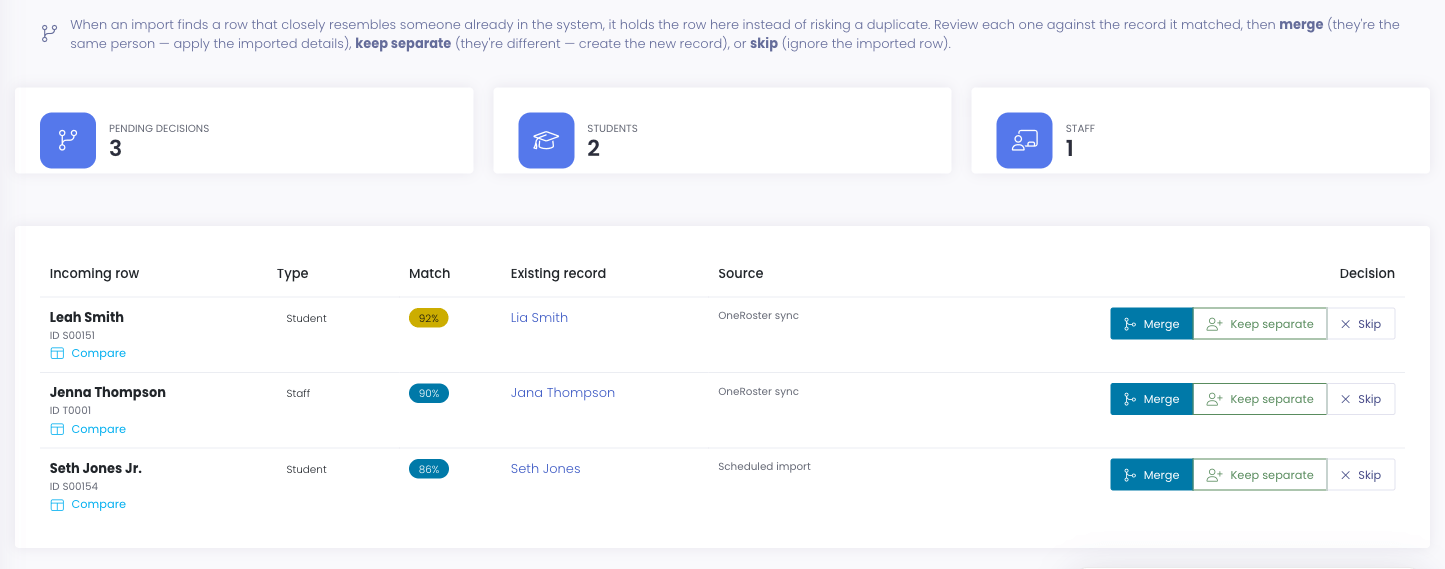
What You'll See
At the top of the page, summary cards show the totals: Pending decisions (all held rows), Students, and Staff.
The table below lists each held row, highest match score first:
| Column | What it shows |
|---|---|
| Incoming row | The name from the import file (and its Local ID, if present), plus a Compare button |
| Type | Whether the row is a Student or Staff record |
| Match | How similar the incoming row is to the existing record, as a percentage |
| Existing record | A link to the person the row matched. If that record has since been removed, it shows No longer exists |
| Source | Where the import came from — OneRoster sync, Scheduled import, or Manual import |
| Decision | The buttons you use to resolve the row |
Comparing Side by Side
Click Compare on any row to expand a side-by-side view of the existing record and the incoming row. For students it compares Name, Local ID, Email, Building, and Grade; for staff it compares Name, Local ID, Email, and Building. Fields where the two differ are highlighted and flagged so you can see at a glance exactly what changed, which usually makes it obvious whether it's the same person.
Resolving a Row
Each row has three choices. All three ask you to confirm before anything happens, and the row disappears from the list once you've resolved it.
- Merge — choose this when it is the same person. The imported details are applied to the existing record, updating it (including adopting the incoming Local ID). Merge is only offered when the matched record still exists.
- Keep separate — choose this when it's genuinely a different person. A brand-new record is created from the imported row.
- Skip — choose this to discard the imported row. Nothing is created and nothing is changed.
If the record a row matched has since been deleted, Merge is no longer available for it — there's nothing left to merge into. Use Keep separate to create the person fresh, or Skip to discard the row.
Rows are resolved one at a time so each decision gets a deliberate look; there is no bulk resolve.
When there's nothing waiting, the page shows No pending match decisions with a note that imports haven't held any near-miss rows for review.
Common Questions
Q: How did a row end up here? An import found it closely matched someone who already exists, so instead of creating a possible duplicate it held the row for you to review. See Import Duplicate Detection for how that matching works and how to tune its sensitivity.
Q: What's the difference between Merge and Keep separate? Merge treats the row as the same person and updates the existing record with the imported details. Keep separate treats the row as a new person and creates a new record. Use Compare to decide which is right.
Q: If I skip a row, is it gone for good? Skipping discards that held row and changes nothing. If the same near-miss appears in a future import, it will be held again for review.
Q: Do automated (scheduled and OneRoster) imports pile up here too? Yes. Because automated runs have no preview screen, any rows they hold land here, and the Source column tells you which import each one came from.