Ticket Statuses
Ticket statuses are the stages a help desk ticket moves through, like Open, Waiting on Parts, or Closed. You can name them to match how your team actually works, give each one a color, set the order they appear in, and decide which ones belong in your active queue, your waiting list, or count as closed.
Open the statuses page
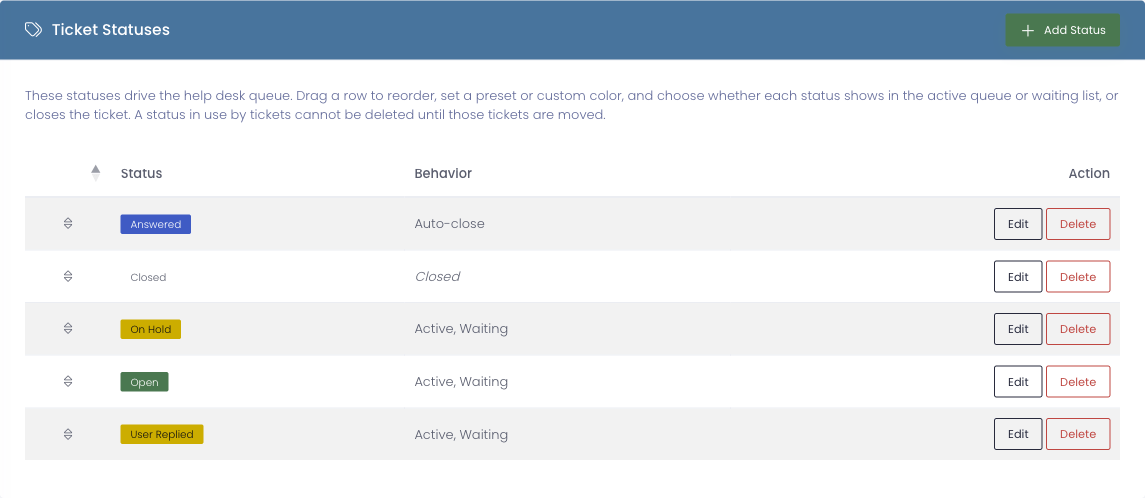
Go to Settings → Ticket Statuses. You will see your current statuses as colored badges, with a Behavior column showing how each one is treated and an Action column to edit or remove it.
Managing statuses needs the Settings permission.
Add or edit a status
Click Add Status (or Edit on an existing one) to open the status form:
- Status Name is the label techs and requesters see on a ticket. Each name must be unique. Renaming a status updates every ticket already using it, so nothing is left pointing at an old name.
- Color is either one of the built-in presets (Secondary, Default, Primary, Success, Info, Warning, Danger, Brand) or a Custom color you pick yourself. A preview shows how each preset looks.
- Behavior controls where the status shows up, with three independent switches:
- Show in active queue puts tickets with this status in your working queue.
- Show in waiting list puts them in the waiting list (for example, waiting on a part or on the requester).
- Auto-close closes the ticket automatically after the configured interval.
A status with none of those three switched on reads as closed, which is how you mark a ticket done.
Reorder statuses
Drag a status row up or down to change the order. The order you set here is the order statuses appear in your queue and in the status dropdown on a ticket. Your new order saves as soon as you drop the row.
Delete a status
Use Delete to remove a status you no longer need. A status that tickets are still using cannot be deleted until you move those tickets to another status first, so you never lose track of an open ticket.
Where your statuses appear
Once you have set up your statuses, they drive the rest of the help desk:
- The active queue and waiting list are built from the statuses you marked Show in active queue and Show in waiting list.
- The ticket list has a status filter built from your statuses.
- On any ticket, the status dropdown lets a tech move it to any status you have defined, in the order you set.