Notification Center
The Notification Center is the bell icon in the top-right of the admin header. It collects the things that happen on your tickets — new replies, @-mentions, assignments, status changes, and automation actions — into one in-app list, so you can see what needs your attention without digging through email.
Notifications are personal: the bell only ever shows your notifications, based on the tickets you're assigned to, watching, or were mentioned on. Every admin has their own independent feed.
The Notification Center works alongside the existing email notifications, not instead of them. You still get the emails you're used to; the bell is a faster, in-app way to catch up at a glance.
The bell and unread badge
The bell sits in the header toolbar, between the flagged-incidents list and the theme switch. When you have unread notifications, a red badge shows the count. Once you've read everything, the badge disappears.

The badge counts up to 99; beyond that it shows 99+. The count updates on its own every minute, so you'll see new notifications arrive without reloading the page.
Opening the list
Click the bell to open the dropdown. It shows your most recent notifications, newest first.
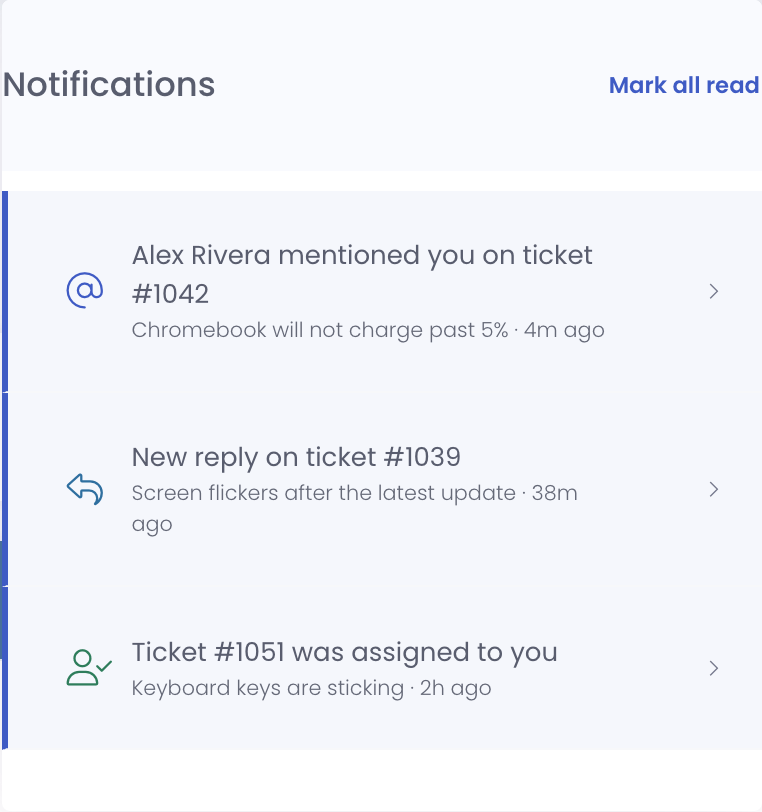
Each row has:
- An icon that tells you the kind of notification at a glance — a reply, a mention, an assignment, a status change, or an automation action
- A headline — for example "Alex Rivera mentioned you on ticket #1042" or "Ticket #1051 was assigned to you"
- The ticket subject and how long ago it happened
- A colored bar on the left while the notification is still unread
What shows up here
Your feed collects notifications for tickets you have a stake in:
- New replies on a ticket you're assigned to or watching
- @-mentions — when another admin tags you in a reply or an internal note
- Assignments — when a ticket is assigned to you ("assigned to you"), or when a ticket you follow is reassigned
- Status changes — when a ticket you follow moves to a new status
- Automation actions — when a workflow acts on a ticket you follow, such as an SLA escalation
You never get notified about your own actions — replying to a ticket won't notify you about your own reply.
Acting on a notification
Jump to the ticket
Click any notification to open the ticket it's about. Opening it also marks that notification as read, so its unread bar clears.
Mark everything read
Use Mark all read in the top-right of the dropdown to clear every unread notification at once. The badge drops to zero. The notifications stay in your list — marking read just clears the "new" state; it doesn't remove them.
Dismiss one
Hover a notification (or move to it with the keyboard) and a ✕ appears on the right. Click it to remove that single notification from your list. Dismissing is permanent for that entry — use it to tidy up things you've handled and no longer need to see.
When you're caught up
With nothing to show, the dropdown displays a simple all-clear message and the bell carries no badge.

This is the goal state — an empty feed means every ticket event has been seen or handled.
Notifications, watching, and assignment
The Notification Center draws on the same relationships that already drive ticket emails:
- Assigned tickets notify their assignee.
- Watched tickets notify everyone on the watchers list. See Ticket Watchers for how watching and @-mentions work.
- Mentions notify the tagged admin (and add them as a watcher, exactly as they do for email).
Because it's the same audience as your ticket emails, anything that would have emailed you also shows up in the bell — just faster and in one place.
Common Questions
Q: Do in-app notifications replace my ticket emails? No. Emails keep working exactly as before. The Notification Center is an additional, in-app way to see the same events. Use whichever fits your workflow — or both.
Q: The bell shows a count but I don't recognize the notifications. Why? You're likely watching those tickets, or you're on their department's notification roster. Open the ticket and check the Watchers strip and the Options tab to see why you're following it. See Ticket Watchers to manage your subscriptions.
Q: I dismissed a notification by accident. Can I get it back? Dismissing removes that single entry for good. The ticket itself is unaffected — you can always find it again from Support Center → View Tickets or by searching for its number.
Q: Does clicking a notification affect other admins? No. Reading, dismissing, and marking-all-read only touch your own feed. Every admin's Notification Center is independent.
Q: Will the count update if I leave the page open? Yes. The badge refreshes about once a minute, so new notifications appear without a manual reload.