Recurring Tickets
Recurring Tickets are templates that automatically open real help desk tickets on a schedule you set. Instead of remembering to create the same ticket every month, or hoping someone opens the summer maintenance checklist on time, you set the schedule once and Manage1to1 opens each ticket for you.
You can open the screen from Settings → Recurring Tickets (under the System Automation section).
You need the Manage Recurring Tickets permission assigned to your role to view this screen and create or change schedules.
What Recurring Tickets Are For
A recurring ticket is ideal for work that repeats on a predictable rhythm:
- Annual device refresh — open a ticket every year to plan and stage the next round of replacements.
- Summer maintenance — schedule the cleaning, updating, and re-imaging tasks that happen over the break.
- Monthly checks — projector bulbs, charging carts, spare-loaner inventory, or any routine inspection.
Each schedule carries a preset department, subject, instructions, priority, and (optionally) an assignee and a linked device. When the scheduled time arrives, Manage1to1 opens a normal help desk ticket using those details, exactly as if a person had opened it. The generated ticket then behaves like any other ticket: it can be replied to, reassigned, and closed.
Creating a Recurring Ticket
- Open
Settings → Recurring Tickets. - Click New Recurring Ticket (top right). The New Recurring Ticket window opens.
- Fill out the form (fields below).
- Click Create Schedule.
Your new schedule appears in the list and begins generating tickets from its first run onward.
Form Fields
Required fields are marked with an asterisk on screen.
- Schedule Name — an internal label shown only on the schedules list, so you can recognize it at a glance (for example, Monthly Projector Bulb Check). This is not the ticket subject.
- Department — which help desk each generated ticket opens into.
- Priority — Low, Medium, or High. This is the priority every generated ticket starts with.
- Ticket Subject — the subject line that appears on each generated ticket (for example, Inspect and replace projector bulbs).
- Instructions — the body of every generated ticket. Describe what needs to happen each time the ticket opens.
- Frequency — how often a ticket is created. See Schedule Options below.
- First run — the date and time the first ticket is created. Later tickets follow the chosen frequency counting from this point.
- Assign To — the administrator each generated ticket is assigned to. Leave it on Auto-assign by department to use the department's normal assignment rules instead.
- Linked Asset — a specific device (by serial number or asset tag) to attach to every generated ticket. Leave blank for none.
- Notify on creation — turn on to send the usual new-ticket notifications when a ticket is generated. Turn off for silent, behind-the-scenes tickets.
- Status — Active schedules generate tickets on their schedule; Paused schedules stay configured but generate nothing.
Schedule Options
The Frequency field controls how often a ticket is opened:
| Frequency | What happens |
|---|---|
| One time | A single ticket opens once, on the date and time you set in First run. After it fires, the schedule pauses itself. Use this for a one-off task scheduled for a specific date. |
| Daily | A ticket opens every day, starting from the first run. |
| Weekly | A ticket opens once a week, on the same day and time as the first run. |
| Monthly | A ticket opens once a month, aligned to the first run. |
| Annually | A ticket opens once a year, aligned to the first run — ideal for an annual device refresh. |
The first run always happens at the First run date and time you choose. Every later ticket is counted forward from there using the frequency.
Each schedule has a Run now action that opens a ticket immediately, so you can confirm the department, subject, and assignee look right without waiting for the next scheduled run.
Reviewing and Managing Schedules
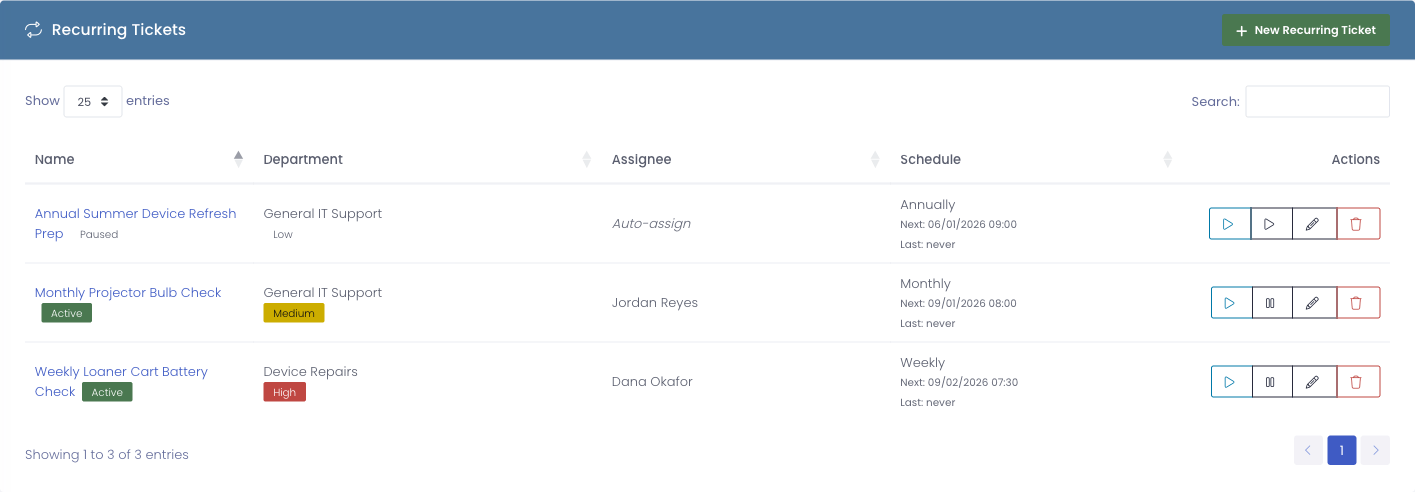
The Recurring Tickets list shows every schedule you've set up:
| Column | What it shows |
|---|---|
| Name | The schedule's internal name, with an Active or Paused status badge |
| Department | The department each ticket opens into, with a colored priority badge |
| Assignee | The administrator tickets are assigned to, or Auto-assign when none is set |
| Schedule | The frequency, plus Next: (when the next ticket will open) and Last: (when the last one opened, or never) |
| Actions | Edit, pause/resume, run now, and delete |
Editing a Schedule
Click the schedule's name, or its edit action, to open the Edit Recurring Ticket window. Make your changes and click Save Changes.
Pausing and Resuming
To stop a schedule from generating without deleting it, use its Pause schedule action; the status badge changes to Paused. Use Resume schedule to turn it back on. Paused schedules keep all of their settings and simply stop opening tickets until you resume them.
Deleting a Schedule
Use the schedule's delete action and confirm. Deleting removes the schedule going forward. Tickets it has already generated are kept — they remain in your help desk exactly as they were.
Common Questions
Q: What's the difference between a recurring ticket and the tickets it creates? The recurring ticket is a template and schedule — it never appears in your ticket lists. Each time it runs, it opens a normal help desk ticket that does appear in your lists and can be worked like any other.
Q: Will the person assigned get notified? Only if Notify on creation is turned on for that schedule. Leave it off for routine internal tickets you don't want to send emails for.
Q: If I delete or pause a schedule, do I lose the tickets it already opened? No. Pausing and deleting only affect future tickets. Everything already generated stays in your help desk.
Q: How do I schedule a ticket for one specific date only? Set Frequency to One time and pick that date and time in First run. The ticket opens once, then the schedule pauses itself automatically.
Q: Can I point a recurring ticket at a specific device? Yes. Enter the device's serial number or asset tag in Linked Asset, and every generated ticket is attached to that device.