Following Up on a Ticket from the User Portal
After you submit a support ticket from the User Portal, you don't have to wait by your email. You can sign back in any time to check on your ticket, read replies from the support team, and respond back — and you can attach files to your reply, such as a screenshot of an error or a photo of the problem.
Opening Your Ticket
- Sign in to the User Portal.
- Go to your tickets and select the ticket you want to check on.
The ticket opens to the full conversation, with the most recent message at the top. Any replies from the support team appear here as they respond.
Reading Replies
Each message in the conversation shows who sent it and when. If a technician attached a file to their reply — a how-to screenshot, a form to sign, a photo — it appears beneath their message with a Download button so you can open it.
Replying and Attaching Files
When you're ready to respond, use the Reply box at the bottom of the conversation.
- Type your reply in the message box.
- To include a file, use the Attachments area below the message:
- Drag files from your computer onto the drop area, or
- Click the drop area to browse and pick files, or
- Paste an image you've copied (handy for a screenshot).
- Each file you add appears in a list, where you can remove any you didn't mean to include.
- Click Submit to send your reply and its attachments.
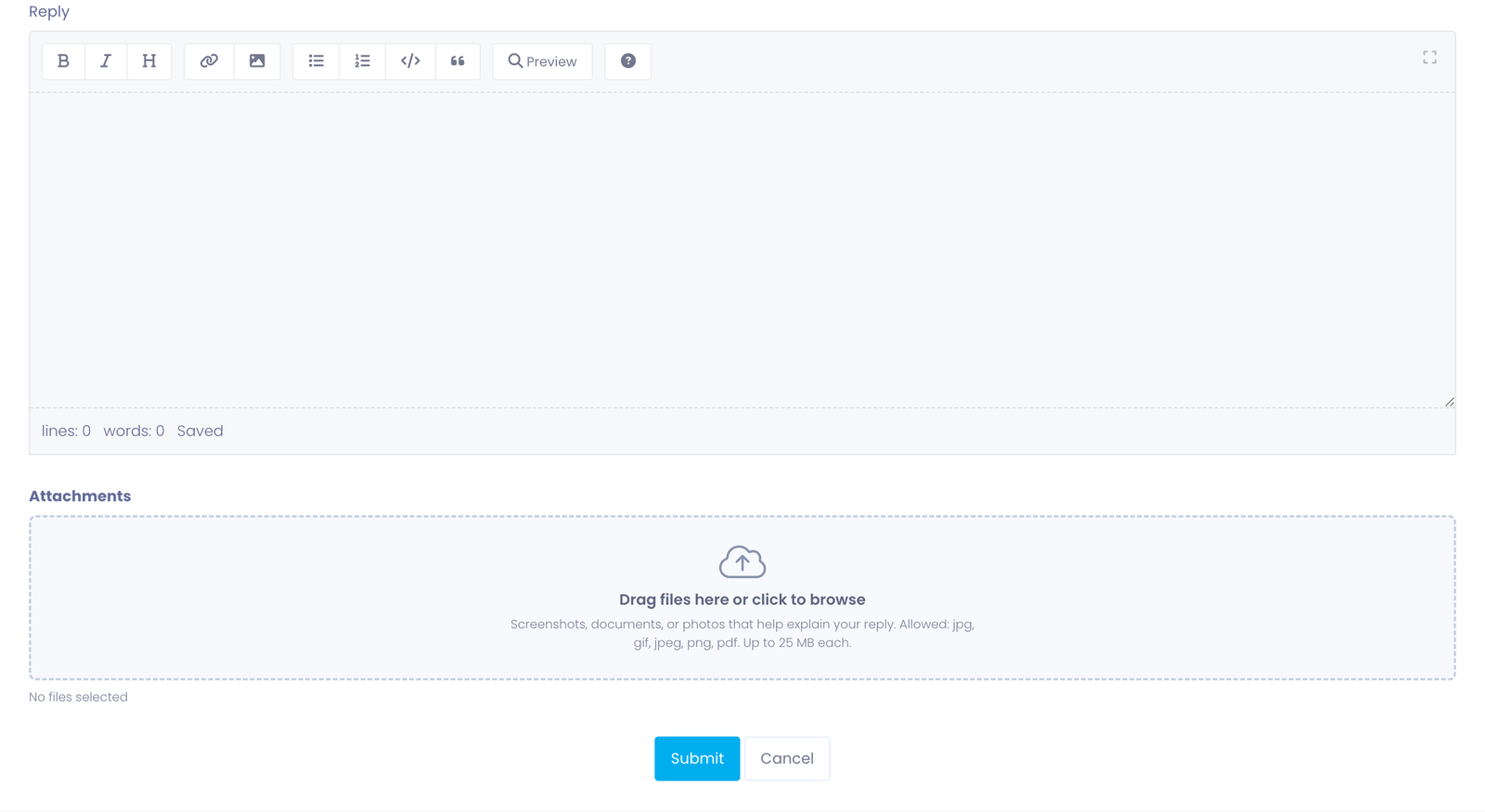
Attaching a screenshot or photo often helps the support team understand the problem faster than words alone.
The drop area lists the file types your organization accepts and the size limit for each file — for example, images and PDFs up to a set number of megabytes. If a file type isn't accepted, choose a different format (a screenshot saved as an image usually works well). Your organization controls which file types are allowed.
Tips for Users
- A picture is worth a thousand words. A quick screenshot of the exact error message or screen saves back-and-forth.
- Add files to the reply, not a new ticket. Keeping everything on the same ticket gives the technician the full history in one place.
- Watch the size limit. If a photo is too large, most phones and computers can save or export a smaller version.