Student Worker Mode
Many districts staff the help desk with student workers. When a student worker answers a ticket, their name normally appears on the reply the person who opened the ticket sees. Student Worker Mode lets you hide that name — so a student worker can help their peers without their own name being shown to them.
It's built to be deliberate, not automatic. You decide which roles count as student worker roles, and which help desk departments hide their names. Nothing changes until you turn both on.
Here's the idea:
- Anyone in a role you've marked as a student worker role is a student worker.
- In any department where you've turned on masking, a student worker's replies show a generic support label to the customer instead of the student's name.
- Everyone else is unaffected — and the customer's own name is never masked.
Step 1 — Mark a role as a student worker role
Go to Administrators › Roles, open the role your student workers are assigned to, and find the Help Desk section. Turn on Student Worker Role.
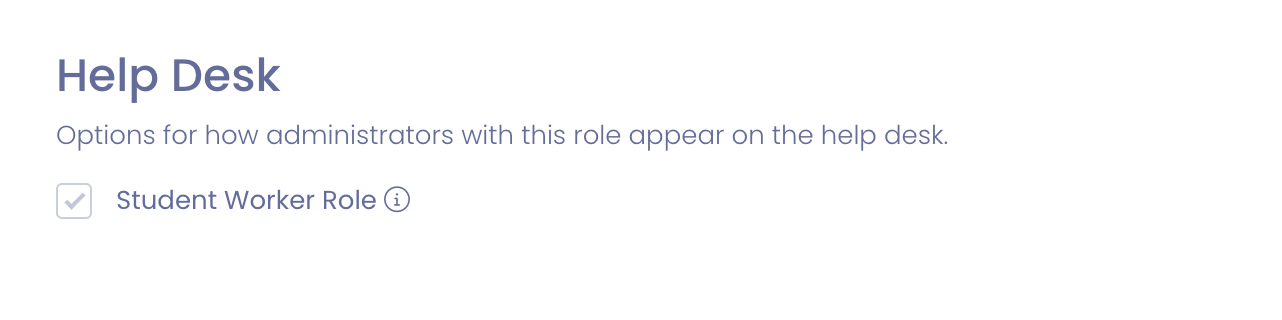
Everyone assigned to this role is now treated as a student worker on the help desk. This flag on its own doesn't hide anything yet — it just identifies who the student workers are. You control where their names are hidden in the next step.
Create a dedicated role for student workers (for example, "Student Help Desk") and assign your student workers to it. That keeps the flag cleanly separated from your full-time staff roles.
Step 2 — Turn on masking for a department
Masking is chosen per help desk department, so you can hide student worker names where it matters and leave other queues untouched.
Go to Settings › Help Desk, open the department you want, and turn on Mask Student Worker Names.
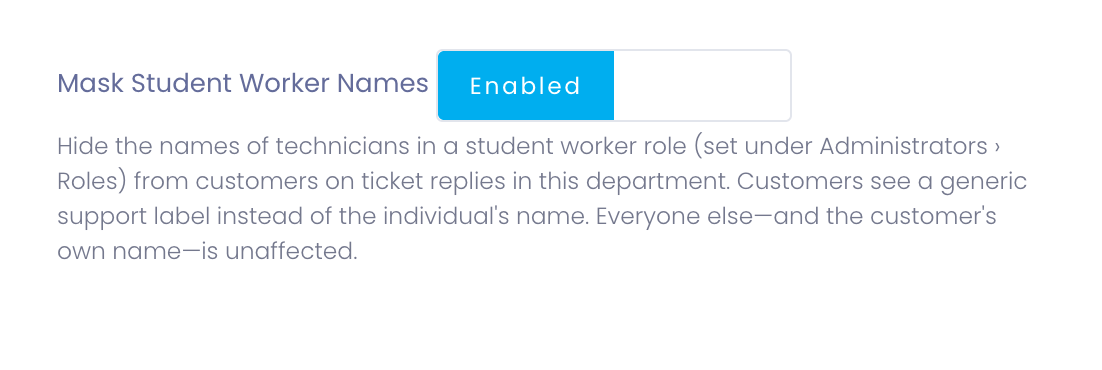
From now on, in this department, any reply written by a student worker shows the department's name as a generic support label instead of the individual's name. Replies from everyone else — and from the person who opened the ticket — are unchanged.
Repeat this for each department where student workers help out. Departments you leave off behave exactly as before.
What the customer sees
On the ticket in the User Portal — and in the email notifications they receive — a student worker's reply is attributed to the department, not the person. In the example below, the reply came from a student worker in the "Account Access" department, so the customer simply sees Account Access.

The customer never learns which staff member handled their ticket, and they can't tell a student worker apart from anyone else on your team.
What your team sees
Inside the admin area, your staff always see the real name — so you never lose track of who did what. The reply is clearly marked with a Masked to customer badge, so whoever is looking knows how that reply appears on the customer's side.

Good to know
- Both switches are required. A name is only hidden when the author is in a student worker role and the ticket's department has masking turned on. Turn either one off and names show normally.
- Only student workers are affected. Replies from your full-time staff always show their names, even in a masking-enabled department.
- The customer's own name is never masked — only the people helping them.
- It's not retroactive to a person's identity in your records. Your team always sees the real name in the admin area; masking only changes what the customer sees on the portal and in emails.