Ticket Watchers
Ticket Watchers subscribes admins to a ticket so they receive an email every time something happens on it — replies (from the user or another admin), internal notes, status changes, department reassignment, priority bumps, anything. Watching is independent of being assigned: you can keep tabs on a ticket someone else owns, or subscribe a colleague to one of yours so they're aware of how it's progressing.
Two ways to add a watcher:
- The Watch toggle on the ticket profile — you (or any admin with manage permission) click to subscribe yourself
- @-mentioning an admin in a reply or internal note — the tagged admin is auto-added as a watcher and gets a one-time mention email so they know they were called in
The watchers feature is admin-only — end users can't be added as watchers, and they don't see who's watching the tickets they open.
The Watchers strip
The Watchers strip sits at the top of every ticket profile, above the conversation. It's compact and stays out of the way until you need it.
When no one is watching
A fresh ticket starts with no watchers. The strip shows the Watch ticket button and a hint reminding you what watchers receive.

The hint says: "Watchers get emailed on every reply, note, or change."
When the ticket has watchers
Once anyone subscribes — manually or via a mention — chips appear with each watcher's name, avatar, and a small ✕ to remove them.

A small MENTIONED label on a chip means that watcher was added because someone @-tagged them in a reply or note. Manually-added watchers (via the toggle or the Add picker) have no label.
Watching the ticket yourself
Click Watch ticket to subscribe yourself. The button flips to Watching with a filled-eye icon, and your name appears as a chip in the list.

Click again to unwatch. There's no confirmation prompt — the toggle is the confirmation.
Removing a watcher
Each chip has a ✕ button. The visibility rules:
- You can always remove yourself from any ticket's watchers list — even if someone else added you (via a mention, for example), you have a one-click escape hatch
- Admins with the Manage Ticket Watchers permission can remove anyone — useful for cleanup when a watcher list has gone stale or someone needs to be pulled out for confidentiality reasons
- Admins without the manage permission only see the ✕ on their own chip
Removing yourself or being removed has no after-effect — you simply stop receiving change emails on that ticket.
Adding another admin manually
If you have the Manage Ticket Watchers permission, the strip also shows a + Add button on the right. Clicking it opens a search popup where you can pick an admin to subscribe.
The picker filters to active admins only and excludes anyone already watching this ticket. Type to narrow the list — names match by first name, last name, or email substring.
This path is useful for bulk-subscribing a teammate to a long-running incident, or proactively adding a department lead to a ticket that's about to get heated. For one-off "hey look at this" mentions, the @-mention approach below is more conversational and triggers an explanatory email.
@-Mentions
When you type @ in either the Reply or Add Note editor, an autocomplete dropdown appears anchored right under the cursor. Continue typing to filter — the search matches first name, last name, or email substring.
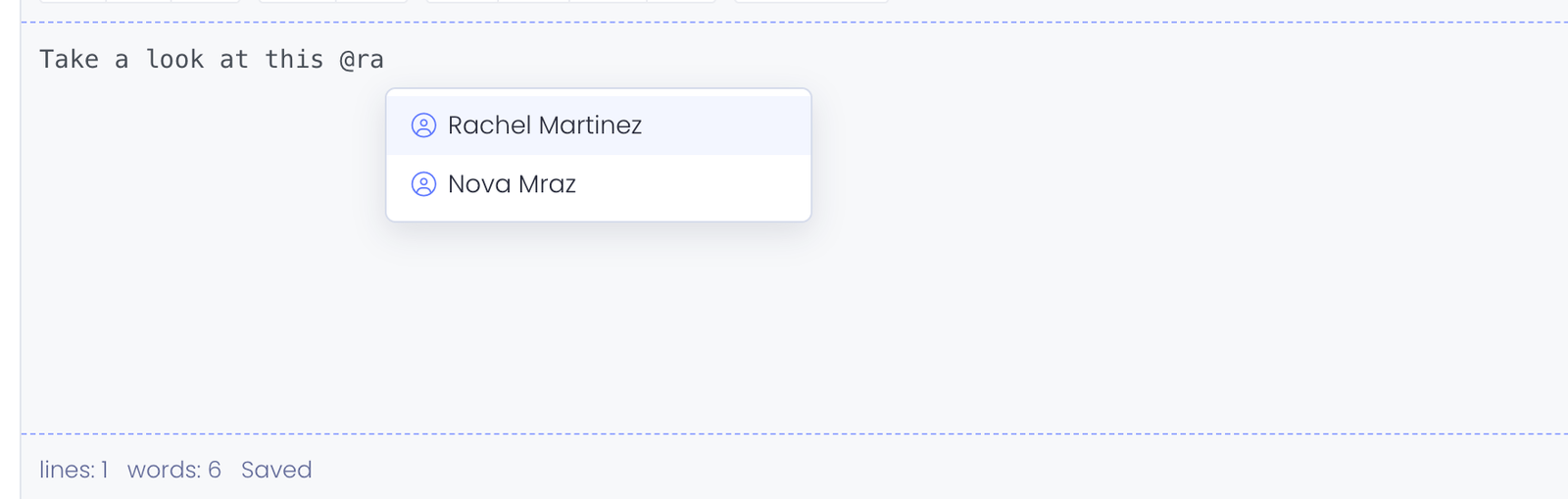
Two practical things about the dropdown:
- Department fit ranks higher than name match. Admins assigned to the ticket's department appear above out-of-department admins, even if both match the search text. The reasoning: you're more likely to mention someone who can take ownership of the ticket.
- Mentioning someone who's already a watcher still works. The dropdown includes existing watchers — mentions are about flagging attention, not just subscribing. The mention email goes through; the watcher row is a no-op (already there).
Inserting a mention
Use Arrow Up / Down to navigate, Enter or Tab to insert, Escape to dismiss. Selecting an admin inserts a styled chip into the editor — what shows in the saved reply or note looks like:

Hover the chip to see the admin's full name and the departments they're assigned to. That's helpful when there are multiple admins with similar names, or when you're not sure whether a mentioned admin can actually act on the ticket.
What happens when you mention someone
Three things happen the moment your reply or note is saved:
- The mentioned admin is auto-added as a watcher with the source recorded as Mentioned (the small label on their chip in the strip)
- A one-time mention email is sent to them — separate from the regular ticket-change pipeline. The subject reads "[your name] mentioned you on Ticket #TID" and the body explains they've been added as a watcher. This email is configurable in Settings → Email Templates under the Ticket Mention template.
- They get per-ticket view access, even if they aren't normally in this ticket's department. So a cross-department mention can actually click the email link and open the ticket. (If they later un-watch themselves, that view access goes away.)
Why no @all option
There's no @all shortcut to mention everyone in a department or every admin. Mentions are deliberately explicit, one admin at a time. If you need to bulk-notify a team, the right tool is a department-level workflow — see Ticket Workflows.
My Watched Tickets
The admin ticket list (Support Center → View Tickets) has a Watching quick-filter tab next to All / My Tickets / Unassigned. Click it to narrow the list to just the tickets you're currently subscribed to.
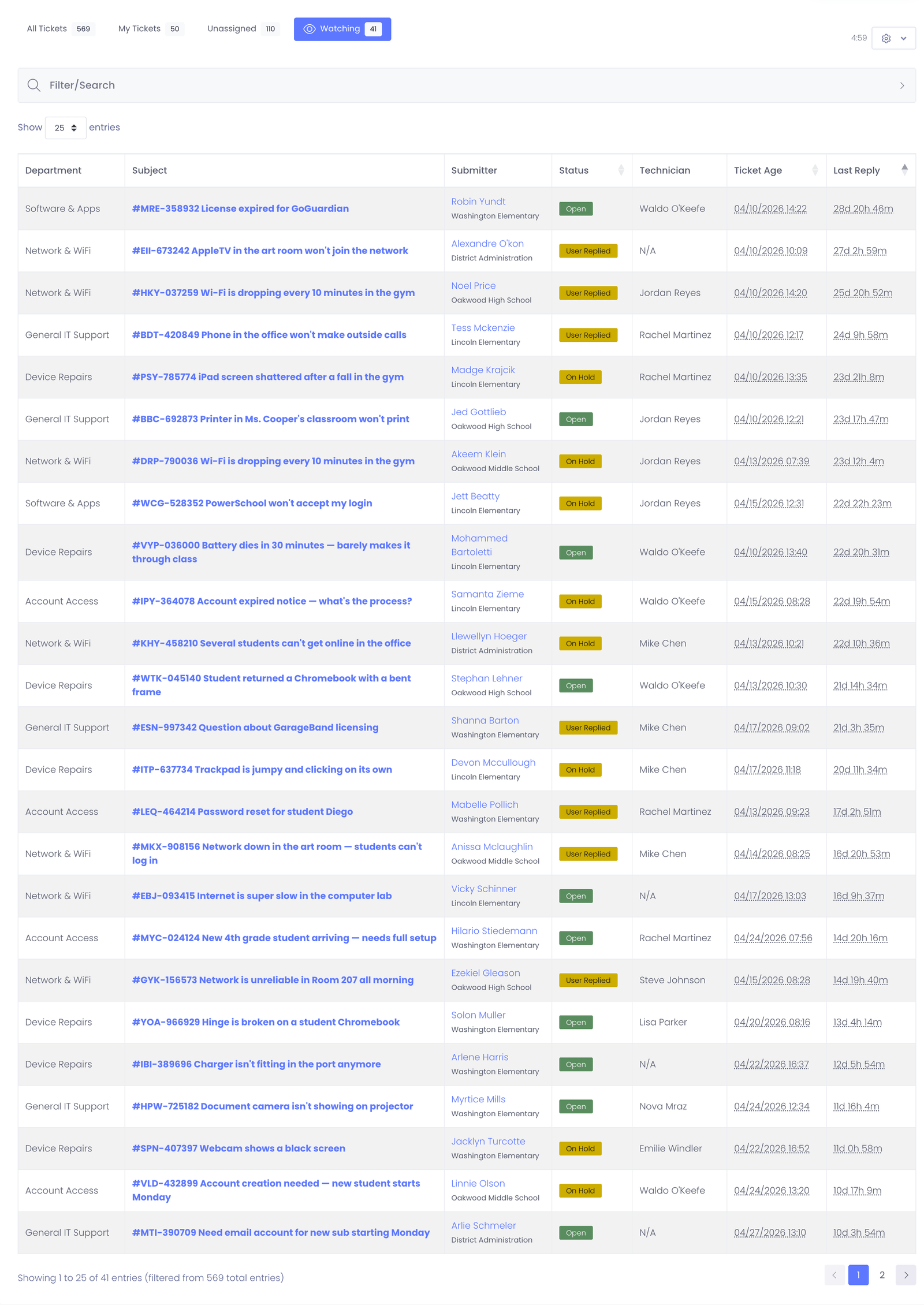
The badge next to the tab name shows your live watching count. The filter composes with everything else on the page — status pills, building, department, search box — so you can scope to "watched tickets in Hardware, status Open, last replied this week" with one click each.
Permissions
Two permission levels matter for watchers:
| Permission | Who can do what |
|---|---|
| View Tickets (existing) | Required to even see a ticket. Can watch / unwatch tickets they have view access to. Can remove themselves from any ticket they're on. |
| Manage Ticket Watchers (new, in Help Desk category) | Adds: ability to add other admins manually via the +Add picker, and ability to remove anyone (not just yourself) from a ticket's watcher list. |
The Manage Ticket Watchers permission is default-deny — it isn't auto-granted to any role. Pick the admins who should manage other people's subscriptions and grant it explicitly under Settings → Roles & Permissions.
How watchers interact with assignment
Watching a ticket is completely independent of being the assigned admin. A ticket has at most one assignee but can have any number of watchers, and the assignee doesn't have to be a watcher of their own ticket (though they always receive change notifications either way — that's the existing assigned-admin-notify behavior).
Practically:
- Reassigning a ticket to a different admin doesn't change its watcher list. The previous assignee can stay subscribed if they want; the new assignee can subscribe themselves to acknowledge ownership.
- An admin can be both assigned AND a watcher. No double-emails — the notify pipeline deduplicates by recipient before sending.
- Watchers who lose access to a department (because their role changed, or they were moved out of a department) are automatically dropped from the notification list at send time. Their watcher row stays in the database but they stop receiving emails. If they regain access, notifications resume.
Common Questions
Q: I unwatched a ticket but I'm still getting emails. Why? You may also be the assigned admin, or you may be a member of the ticket's department-level notification roster. Both of those are separate from the watchers feature. Check the Options tab on the ticket — if you're the Assigned To admin, reassign to clear that path. For department-level emails, see your role's Support Emails setting in Settings → Roles & Permissions.
Q: Can I see a list of who's watching every ticket I own? Open each ticket and look at the strip — that's the per-ticket view. There isn't a global "all my tickets and their watcher rosters" report yet. Let us know if that would be valuable.
Q: A teammate told me they were @-mentioned but I don't see their chip on the watchers strip. What happened? Their account may have been deactivated since the mention. The chip rendering filters to active admins, and the watcher row stays in the database but won't show up or trigger emails until the account is reactivated. Reserved internal accounts (Manage1to1 admin IDs 1 and 2) are also filtered from every customer-facing watcher list.
Q: Will my client see the @-mention markup in their email when an admin replies to a ticket and tags another admin?
The chip renders in the admin ticket profile — but for the email that goes out to the client, the mention is rendered as plain text (the chip styling doesn't carry to email). The client sees something like "Looking into this — @Steve Johnson can you confirm next steps?" — the @Name shows but with no special formatting.
Q: Can I @-mention an end user (a client)? No — mentions are admin-only. End users don't appear in the autocomplete dropdown. If you need a client to see something, reply to the ticket directly.
Q: How do I customize the mention notification email? Go to Settings → Email Templates and edit the Ticket Mention template. The available merge fields are listed alongside the editor — they include the mentioner's name, the ticket TID/subject/department, the recipient's first/full name, and the absolute URL to the ticket.