Building Actions
The Actions tab is where you describe what the rule does when its conditions match. Actions run in the order you've listed them, top to bottom.
A rule with no actions does nothing — it'll match tickets, log a "matched" entry to its run history, but won't change anything. That's occasionally useful for monitoring (see the Common Questions below), but most rules have at least one action.
Layout
The Actions tab mirrors the Conditions tab in shape:
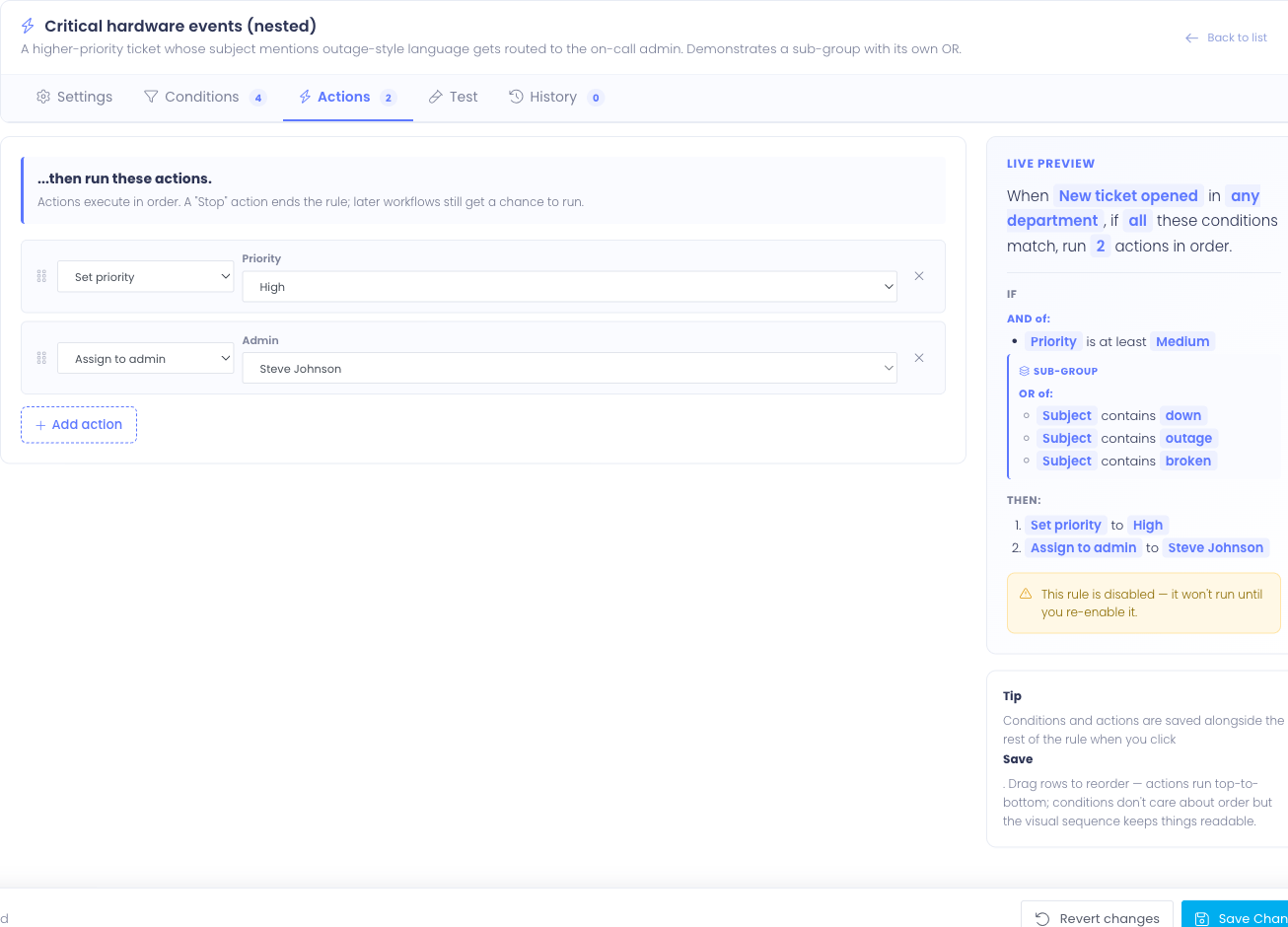
- Action rows — a stack of configured actions
- Add action button at the bottom
- Drag handles on the left to reorder
Unlike conditions, action order matters. The first action runs first, then the second, then the third. If one action depends on a result from another (or you want a Stop to interrupt later actions), that ordering is the only thing controlling it.
Anatomy of an action
Each row has two parts:
- Type picker — which action this row is (Assign to admin, Set priority, etc.)
- Per-type params — the action-specific configuration that appears once a type is picked
The parameter fields change per action type — assigning to an admin shows an admin picker, routing to a department shows a department picker, setting priority shows a priority dropdown.

Action types
Assign to admin
Sets the ticket's assigned technician to a specific admin.
- Admin picker — required. The dropdown lists every active admin, sorted by name.
- Useful for departments with a single point of contact, or rules that route a specific topic to a specific specialist.
If the admin you pick later becomes inactive, the rule will skip the assignment with an entry in run history rather than fail loudly.
Round-robin assign
Distributes incoming tickets evenly across a pool of admins. Useful when a team shares the queue and you want fair distribution rather than always landing on the same person.
- Admin pool — required. Pick one or more admins; the rule rotates through them in the order you list them.
- The pool is explicit — admins not in the pool are never considered, even if they share the same department as the pool members.
Each fire of the action assigns the next admin in the pool. Inactive admins are skipped automatically; the next available admin in the pool gets the ticket.
Each round-robin action keeps its own pointer into its pool. So a workflow that uses round-robin twice in different rules has two independent rotations — one rule won't "use up" assignments that another rule should have made.
Route to department
Moves the ticket to a different department.
- Department — required. The destination department.
- Clear current admin assignment — checkbox, default on. When the ticket moves to a new department, the previously-assigned admin (if any) is usually no longer the right person, so the assignment is cleared. Uncheck only if you have a specific reason to keep the prior admin attached.
Routing is the typical fix when tickets land in the wrong queue — for example, a ticket filed under General whose subject is clearly a network issue. The rule detects the misfile and reroutes to Networking.
Set priority
Changes the ticket's priority level.
- Priority — required. Low, Medium, or High.
Use this to escalate urgent tickets automatically (subject contains "down" or "outage" → Set priority to High) or to triage low-importance tickets out of the way (subject starts with "FYI" → Set priority to Low).
If the ticket already has the target priority, the action is a no-op and is logged as such in run history.
Set status
Changes the ticket's status.

- Status — required. The dropdown lists every status configured in your help desk (Open, Closed, On Hold, Answered, etc.). Custom statuses you've added in
Settings → Ticket Statusesappear here automatically.
Common uses:
- Auto-acknowledge — when a routing action picks up a new ticket, also set status to Answered so the user sees it's been received
- Auto-close junk — match tickets with a known spam pattern, set status to Closed with a Stop afterward
- Park stale — match tickets that haven't been replied to in N days (when later triggers ship) and set status to On Hold
If the chosen status no longer exists (renamed/deleted in Ticket Statuses settings) the action is recorded as a failure in run history rather than silently leaving the ticket alone.
Add internal note
Posts a private note to the ticket — visible to staff on the ticket profile, hidden from the end user.

- Note text — required. Free-form text. The note is attributed to Workflow in the ticket's note history so the audit trail makes the automation visible.
Useful for leaving context with the assignee. For example, after a round-robin action, an internal note that says "Auto-assigned via the Tier 1 round-robin rule — please verify with the building tech before reassigning."
Notify admins
Sends an email to one or more admins when the workflow matches.

- Admins to notify — required. Multi-select. Inactive admins are skipped at send time, with the skip recorded in run history.
- Additional context — optional. Free-form text inserted into the email body as a quoted block. Useful for leaving instructions specific to this rule.
- Email template — optional. Pick one of your Admin & Automation-type email templates to control the look and wording of this notification. Leave it on Default — Workflow Notification to use the built-in template.

By default the email body is rendered from the Workflow Notification template in Settings → Email Templates. To send a different message — for example a more urgent layout for a high-priority rule — create a custom Admin & Automation-type template and select it in the Email template field. Edit the chosen template to change subject text, layout, branding, etc. — the merge variables ({$workflow_name}, {$ticket_tid}, {$ticket_subject}, {$ticket_priority}, {$ticket_department}, {$ticket_url}, {$admin_first_name}, {$workflow_extra_block}) are populated by the action at send time.
If the template is disabled, no email is sent and the action records a skip in run history. The rule continues to run its other actions.
Department-level email notifications already exist (per-department under Settings → Departments). Use the workflow Notify action when:
- You want a specific admin or small group notified, regardless of department
- You want notifications scoped to matched tickets, not every ticket in a department
- You want each rule to carry its own custom note in the email
For "every ticket in this department, notify the assigned admin," stick with the department setting — it's simpler.
Wait
Pauses the workflow chain for a configurable number of minutes before running the actions that follow.

- Delay (minutes) — required. How long to wait before resuming. Maximum is roughly 30 days (43,200 minutes) — beyond that, write a separate scheduled rule rather than a single workflow.
When a Wait runs, the engine queues the wait and every action below it for later. A background cron task picks up the queue every few minutes and resumes processing once the delay has elapsed.
Important — re-evaluation on resume: before the queued actions fire, the engine re-checks the rule's conditions against the ticket's current state. If the ticket has changed during the wait such that the rule no longer applies, the queued actions are silently skipped (recorded in run history). This is intentional — a "wait 30 minutes then notify" rule shouldn't notify after the user already replied and resolved the ticket during the wait.
If the rule itself is disabled or deleted while a chain is paused, every queued action for that rule is marked superseded on the next cron sweep. Nothing fires after the rule is turned off.
Conditions: Subject contains "urgent"
Actions:
- Assign to admin — Tier 1 lead
- Wait — 30 minutes
- Notify admins — the lead's manager
If the lead picks up the ticket and resolves it within 30 minutes (changing status to Closed), the manager doesn't get notified. If the ticket is still hanging open at the 30-minute mark, the manager hears about it. The wait turns the rule into a soft escalation timer.
Wait nests fine — a workflow can have multiple waits in sequence (wait 15, do stuff, wait 60, do other stuff). Each wait extends the chain by its delay, and conditions are re-evaluated every time the cron resumes processing.
Stop
Halts further rule processing for this ticket on this trigger.
- No parameters — Stop is a single line with no configuration.
- This action is terminal: when it runs, no remaining rules with the same trigger evaluate against the ticket.
Stop is the cleanest way to make a rule "win" over later, more general rules. Arrange the most specific rule first, end it with a Stop action, and any general fallback rule below won't fire on the matched ticket. Without Stop, every matching rule runs in priority order — sometimes that's what you want, sometimes it isn't.
The classic pattern: a high-priority emergency rule and a default round-robin rule.
Rule 1 (priority 10): If subject contains "outage", set priority to High, route to Networking, then Stop.
Rule 2 (priority 100): Round-robin every ticket to the Tier 1 pool.
Without Stop on Rule 1, the outage ticket would also get round-robin'd to Tier 1, which isn't who should be looking at it. Stop on Rule 1 makes it the final say for outage tickets.
Ordering actions
Drag the handle on the left of any action row to reorder. The visual order is the execution order.
Common ordering patterns:
- Modify, then route — Set priority first, then Route to department. The new department sees the ticket with the corrected priority.
- Route, then assign — Route to department first, then assign within the new department. Assigning before the route doesn't make sense — the assignment is to an admin in the original department, who might not be visible after the route.
- Action, then Stop — When you want this rule to be the last word, end with Stop.
If two actions in the same rule conflict (for example, two Set priority actions with different values), the second one overwrites the first. The first action's effect is still recorded in run history.
Live Preview
The Live Preview card on the right of the editor includes a numbered list of every action in the rule, in their configured order. As you drag actions to reorder, add new ones, or change parameters, the preview rewrites to match.
If the rule has no actions yet, the preview reads "do nothing" so you know to come back and add some.
Common Questions
Q: What happens if an action fails? The action is recorded in run history with its failure reason — for example, "Department id 7 no longer exists; route skipped." Subsequent actions in the same rule still run; one bad action doesn't halt the chain. If you want a rule to halt on failure, the engine doesn't currently support that — write the rule's actions defensively (don't depend on prior actions' results).
Q: Can I send an email or notification as an action?
Yes — the Notify admins action sends email via the Workflow Notification template (editable in Settings → Email Templates). Recipients are picked per-rule from the active admin list.
Q: Can I add an internal note or change ticket status as an action?
Yes. The Set status action overwrites the ticket's status (using whatever titles you've configured in Settings → Ticket Statuses), and the Add internal note action posts a staff-only note to the ticket. Both run as ordinary actions and are logged in run history.
Q: Can I write a rule that does nothing but log to run history? Yes. A rule with conditions but no actions still evaluates, and matches are recorded in run history. This can be useful for "watch for this pattern" monitoring without making automatic changes — review the matches in run history and act on them manually.
Q: If two rules both assign the same ticket, which assignment wins? The rule that runs later (higher priority number) wins, since each assignment overwrites the previous one. If you want the first match to win, end the higher-priority rule with a Stop action.
Q: Will an action run on a ticket the rule already acted on? Each rule evaluates once per trigger event per ticket. A "Ticket Created" trigger fires once when the ticket is opened, so each rule's actions run at most once per ticket. The rule won't re-fire on later updates (different trigger).