Building Conditions
The Conditions tab is where you describe which tickets your rule applies to. Conditions are tested against the ticket's content the moment its trigger fires, and only tickets where the conditions match continue to the actions.
A rule with no conditions matches every ticket that hits its trigger. This is occasionally what you want (a department-scoped rule that always rounds-robin), but most rules use at least one condition to narrow the scope.
Layout
The Conditions tab has three pieces:
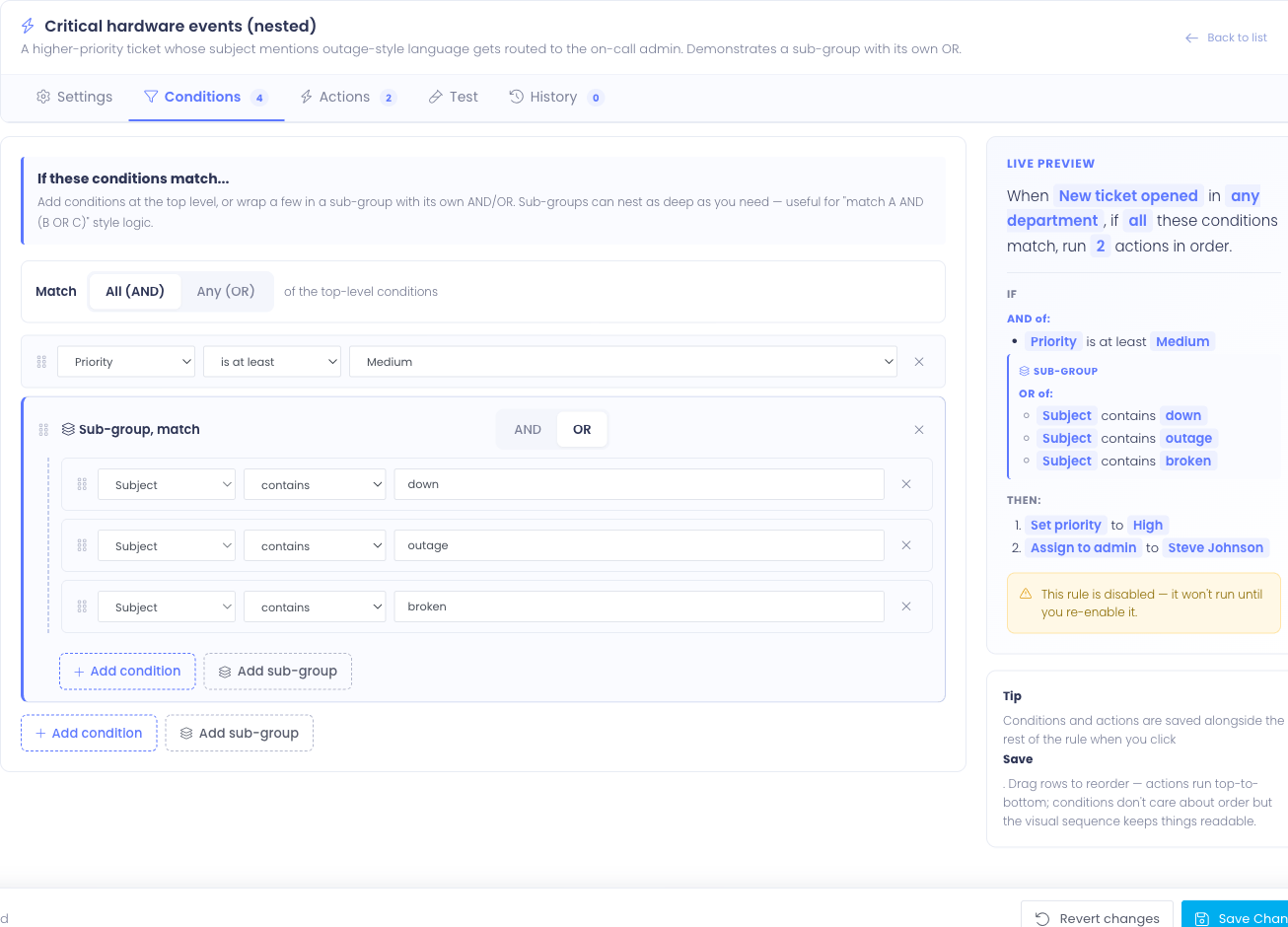
- Match selector at the top — All (AND) or Any (OR), controlling how top-level conditions combine
- Conditions list — a stack of condition rows and (optional) sub-groups
- Add buttons at the bottom — one for a new condition row, one for a new sub-group
Drag the handle on the left of any row to reorder. Conditions don't actually evaluate in any particular order (they're combined by AND or OR, not by position), but the visual order keeps the rule readable.
Anatomy of a condition
Each condition row has three parts:

- Field — what attribute of the ticket are we testing? (subject, priority, department, a custom field)
- Operator — how do we compare? (is, is not, contains, regex, …)
- Value — what are we comparing against?
The available operators and the value control change based on the field. Picking Subject gives you text-comparison operators and a free-form text input. Picking Priority gives you ranking operators and a dropdown of the priority enum.
Fields
Subject
Tests the ticket's subject line.
| Operator | Behavior |
|---|---|
| is | Exact, case-insensitive match |
| is not | Inverse of is |
| contains | Substring match anywhere in the subject |
| does not contain | Inverse of contains |
| starts with | Subject begins with the value |
| matches regex | Full regular-expression match (advanced) |
Subject conditions are typically the most useful — most "auto-route by topic" rules look for keywords in the subject.
The matches regex operator is powerful but easy to get wrong. Only use it when contains and starts with aren't expressive enough — for example, matching ticket numbers in a specific format. A poorly-written regex can fail silently on valid tickets.
Body
Tests the words in the ticket's message — the body the user typed (or the email they sent) when the ticket was opened. Use it to route on details that live in the description rather than the subject line, for example assigning any ticket that mentions "water damage" straight to a specific technician.
| Operator | Behavior |
|---|---|
| is | Exact, case-insensitive match of the whole body |
| is not | Inverse of is |
| contains | Substring match anywhere in the body |
| does not contain | Inverse of contains |
| starts with | Body begins with the value |
| matches regex | Full regular-expression match (advanced) |
The operators and the value input are the same as Subject — pick contains and type a word or phrase for the common "if the message mentions X" rule. The Body condition looks at the original message the ticket was opened with, not at later replies.
Priority
Tests the ticket's priority level. Priority is ranked: Low < Medium < High.
| Operator | Behavior |
|---|---|
| is | Priority is exactly this value |
| is not | Priority is anything other than this value |
| is at least | Priority is this value or higher (e.g. at least Medium matches Medium and High) |
| is at most | Priority is this value or lower |
Use is at least when you want a rule to fire on "anything above a threshold" without listing every level explicitly.
Department
Tests which department the ticket belongs to.
| Operator | Behavior |
|---|---|
| is | Ticket is in this department |
| is not | Ticket is in any department other than this one |
| is one of | Ticket is in any of the listed departments (multi-select) |
Don't confuse the Department condition with the Department scope on the Settings tab.
- Department scope (Settings tab) decides whether the rule even considers a ticket. A rule scoped to "Hardware" never looks at tickets in other departments.
- Department condition (Conditions tab) is one of many conditions that have to match before actions run.
For most rules you'll only need one or the other. Use scope when the rule is unambiguously department-specific. Use a condition when the department is just one factor among several.
Department changed
Available only on the Ticket updated trigger. Fires when the ticket's department changes as part of the update — useful for re-routing when a ticket is re-categorized. For example, "When a ticket is moved into Chromebook Repairs, reassign it to the Chromebook tech."
| Operator | Behavior |
|---|---|
| changed | The department changed to anything (no value needed) |
| changed to | The department changed to the one you pick |
| changed from | The department changed away from the one you pick |
This condition looks at this update only — it matches the moment the department changes, not every later update. Because it depends on a field changing, it appears only when the rule's trigger is Ticket updated; it's hidden on the other triggers.
Building
Tests which building the ticket's requester is assigned to. The building picker groups your locations into Buildings and Warehouses so the right scope is easy to find.

| Operator | Behavior |
|---|---|
| is | Requester is in this building |
| is not | Requester is in any building other than this one |
| is one of | Requester is in any of the listed buildings |
Useful for routing rules that send tickets to the right campus tech: "If the requester is in High School East, assign to the East tech team." The building is read from the user who filed the ticket — if the ticket was filed by someone with no building set, the condition won't match.
Requester type
Tests whether the person who filed the ticket is a student or a staff member.
| Operator | Behavior |
|---|---|
| is | Requester is a student / staff member |
| is not | Requester is anything other than the chosen type |
Handy for splitting a queue by audience — for example, "If the requester is staff, route to the Staff Support department." Like the Building condition, this reads the person who filed the ticket.
Requester grade
Tests the grade of the person who filed the ticket. The grade picker shows your district's grade labels (the same ones used on user profiles).
| Operator | Behavior |
|---|---|
| is | Requester is in this grade |
| is not | Requester is in any grade other than this one |
Useful for grade-specific routing or escalation — for example, "If the requester is in Kindergarten, add a note reminding techs to coordinate with the classroom teacher." Staff members don't have a student grade, so grade conditions only match student requesters.
Ticket age
Available only on the On a schedule trigger. Tests how many minutes have passed since the ticket was created.
| Operator | Behavior |
|---|---|
| is at least | Ticket was created at least N minutes ago |
| is at most | Ticket was created at most N minutes ago |
Useful for rules like "if a ticket has been open for at least 60 minutes and is still unassigned, notify the lead."
Idle time
Available only on the On a schedule trigger. Tests how many minutes have passed since the last activity on the ticket (anyone's reply — admin or user). Idle time resets to zero whenever someone posts to the ticket. If a ticket has no replies yet, idle time is measured from the ticket's creation.
| Operator | Behavior |
|---|---|
| is at least | No activity for at least N minutes |
| is at most | No activity for at most N minutes |
This is the workhorse condition for escalation rules:
Match if idle time is at least 30 minutes AND priority is at least High → notify on-call lead
Combined with a 24-hour built-in per-ticket cooldown, that escalation rule fires at most once per ticket per day — so the on-call lead gets a single nudge, not a stream of alerts as the cron sweeps every 15 minutes.
Custom field
Tests the value of a ticket custom field.
| Operator | Behavior |
|---|---|
| is | Custom field value matches exactly |
| is not | Inverse of is |
| contains | Substring match |
| is empty | Field has no value (blank or unset) |
| is not empty | Field has any value |
Custom field conditions need a department picked first — custom fields are scoped to departments, so the picker filters to the fields that exist in your selected scope.
If your rule's department scope is "All departments", the custom field picker shows every custom field across every department. If it's set to specific departments, only fields belonging to those departments appear.
All (AND) vs Any (OR)
The match selector at the top of the tab decides how the top-level conditions combine:
- All (AND) — every condition has to match
- Any (OR) — at least one condition has to match
For example, with two conditions Subject contains "Chromebook" and Priority is High:
- All (AND) matches only tickets whose subject contains "Chromebook" and whose priority is High
- Any (OR) matches any ticket that's either about Chromebooks or high priority (or both)
The Live Preview sentence on the right of the editor reflects the chosen mode in plain English so you can sanity-check the logic without re-reading every condition.
Sub-groups
A flat list of conditions joined by AND or OR is enough for most rules, but some real-world cases need both at once. Take this rule:
Match if the subject contains Chromebook AND (priority is High OR subject also contains broken).
A flat AND list can't express the inner OR. That's where sub-groups come in.
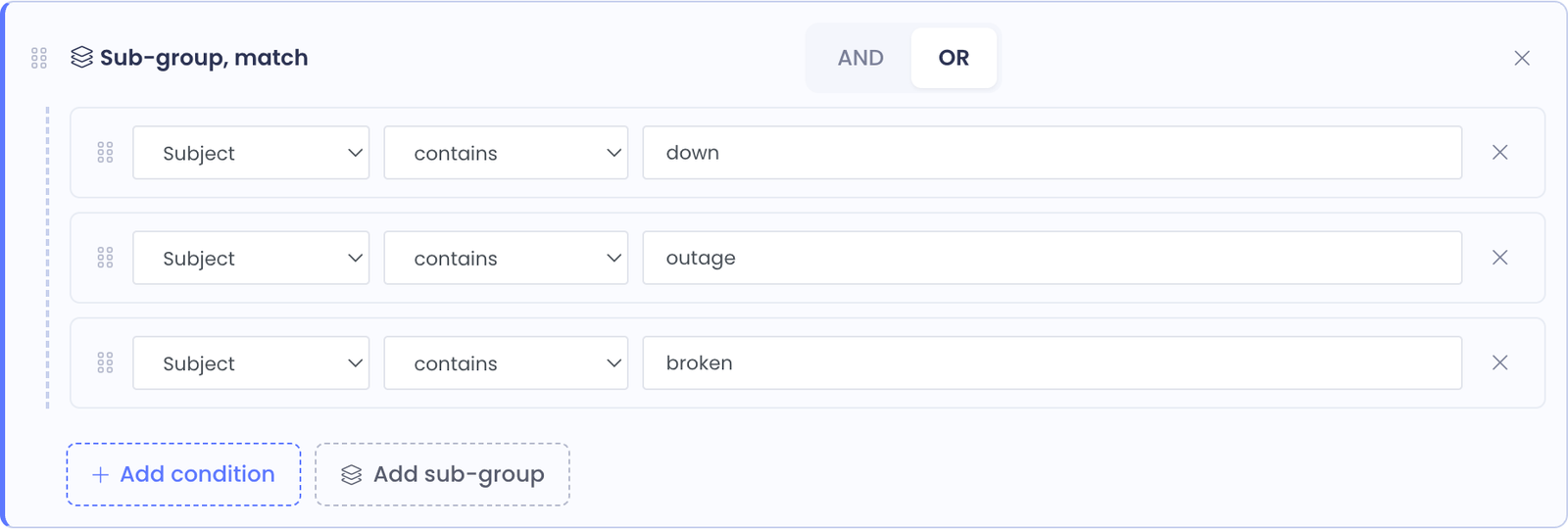
A sub-group is a wrapper around a few conditions that has its own All (AND) or Any (OR) selector, independent of the parent. The sub-group itself acts as a single combined condition in the parent group.
To add one, click Add sub-group at the bottom of the conditions list. The new sub-group appears empty with its own match selector and its own Add condition / Add sub-group buttons inside.
Nesting
Sub-groups can themselves contain sub-groups, up to a maximum nesting depth of two levels. This lets you write logic like:
Match if A AND (B OR (C AND D))
The "Add sub-group" button hides automatically when you've reached the maximum depth, so the editor won't let you create a structure that breaks the rule.
In practice, two levels of nesting cover virtually every triage rule we've seen written. If you find yourself wishing for deeper nesting, the rule is probably too complex and would be clearer split into two separate rules.
Reordering
Sub-groups can be dragged like any other row. They keep all their child conditions when moved. Drag a sub-group to the top of the conditions list to make it the first thing the engine evaluates (though for matching purposes, order doesn't matter — only AND/OR logic does).
Live Preview reflects the structure
As you build the conditions list, the Live Preview card on the right rewrites itself to show the rule in plain English. AND/OR words appear, sub-groups are visually nested with indentation and their own match-type label.
If you've structured a complex rule, the preview is the fastest way to confirm the logic does what you mean before you click Save.
When to split conditions across rules
Sometimes a rule's condition list grows too long to be readable. As a rule of thumb, if you've got more than four or five top-level conditions or are using more than one level of sub-group nesting, consider whether the rule is doing two distinct jobs.
Two simpler rules are almost always easier to maintain than one complex rule. They also give you per-rule run history, so you can answer "did this rule fire?" for each piece of logic independently.
Common Questions
Q: Why is the custom field picker empty?
The picker filters to custom fields belonging to the rule's department scope. Either the rule's scope is set to specific departments that have no custom fields, or the rule's scope is correct but no custom fields are configured in those departments. Check Settings → Custom Fields for the support module.
Q: My regex condition isn't matching what I expect.
The regex is matched against the entire subject — so ^Chromebook matches subjects beginning with that word, while Chromebook (no anchor) matches anywhere. The match is case-sensitive by default; use a regex flag like (?i) at the start for case-insensitive matching.
Q: Can I check whether a ticket has been assigned, or who it's assigned to? Not from conditions on the Ticket Created trigger — at the moment the trigger fires, the ticket has just been opened and isn't yet assigned. Conditions that depend on assignment will be added when later triggers (such as ticket-update events) land.
Q: Can I match against the user who opened the ticket? Partially. The Building condition matches on the requester's assigned building. Other user attributes (role, the requester's own department) are not yet exposed as condition fields.
Q: Will adding more conditions slow my system down? Conditions are designed to be cheap. Even a rule with several conditions evaluates in milliseconds. Don't avoid conditions for performance reasons — write whatever's clearest.