Pending Actions Queue
When a workflow uses a Wait step — for example, "wait 1 hour, then escalate if the ticket is still unassigned" — the action doesn't run right away. It's queued and fires when its timer is up. The Pending Actions queue shows everything currently waiting to run across all your workflows, so you can see what's about to happen and cancel anything you don't want.
Opening the Queue
- Go to Help Desk → Ticket Workflows.
- Click Pending Queue in the top-right corner.
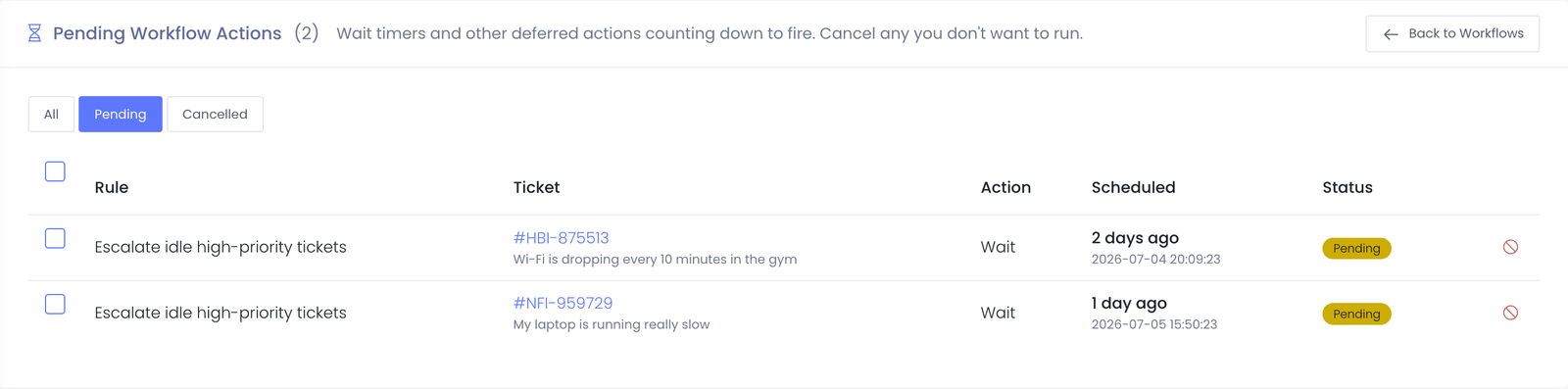
What You'll See
Each row is one action waiting to run:
- Rule — the workflow that queued the action
- Ticket — the ticket it will act on (click to open it)
- Action — what will happen (for example, Wait, Notify, Set Priority)
- Scheduled — when it's due to run, shown as a friendly countdown with the exact time underneath
- Status — Pending (waiting to run) or Cancelled
The next action to fire is always at the top.
Filtering
Use the pills at the top to switch between:
- All — every queued action
- Pending — only actions still waiting to run
- Cancelled — actions that have been cancelled
Cancelling Actions
To stop an action from running:
- One action — click the cancel icon at the end of its row.
- Several at once — check the boxes next to the actions you want to stop, then click Cancel selected.
You'll be asked to confirm. Cancelled actions move to Cancelled status and won't run when their timer is up — the easy way to stop a queued action without disabling the whole workflow.
Related articles
Loading…