Testing and Run History
A workflow runs automatically on every ticket that hits its trigger — which makes it important to verify the rule does what you expect before turning it loose. This page covers two tools that work together:
- The Test tab — dry-run the rule against a synthetic ticket without touching real data
- The History tab — review every time the rule has been evaluated and what it did
Both tabs are only available on saved rules. They're disabled in the editor when you're creating a brand-new rule, until you've clicked Save for the first time.
Testing a rule
The Test tab lets you describe what an inbound ticket might look like, run the rule against it in your head — well, in the engine's head — and see exactly what would have happened. No tickets are created, no actions execute, and no entries are written to run history.
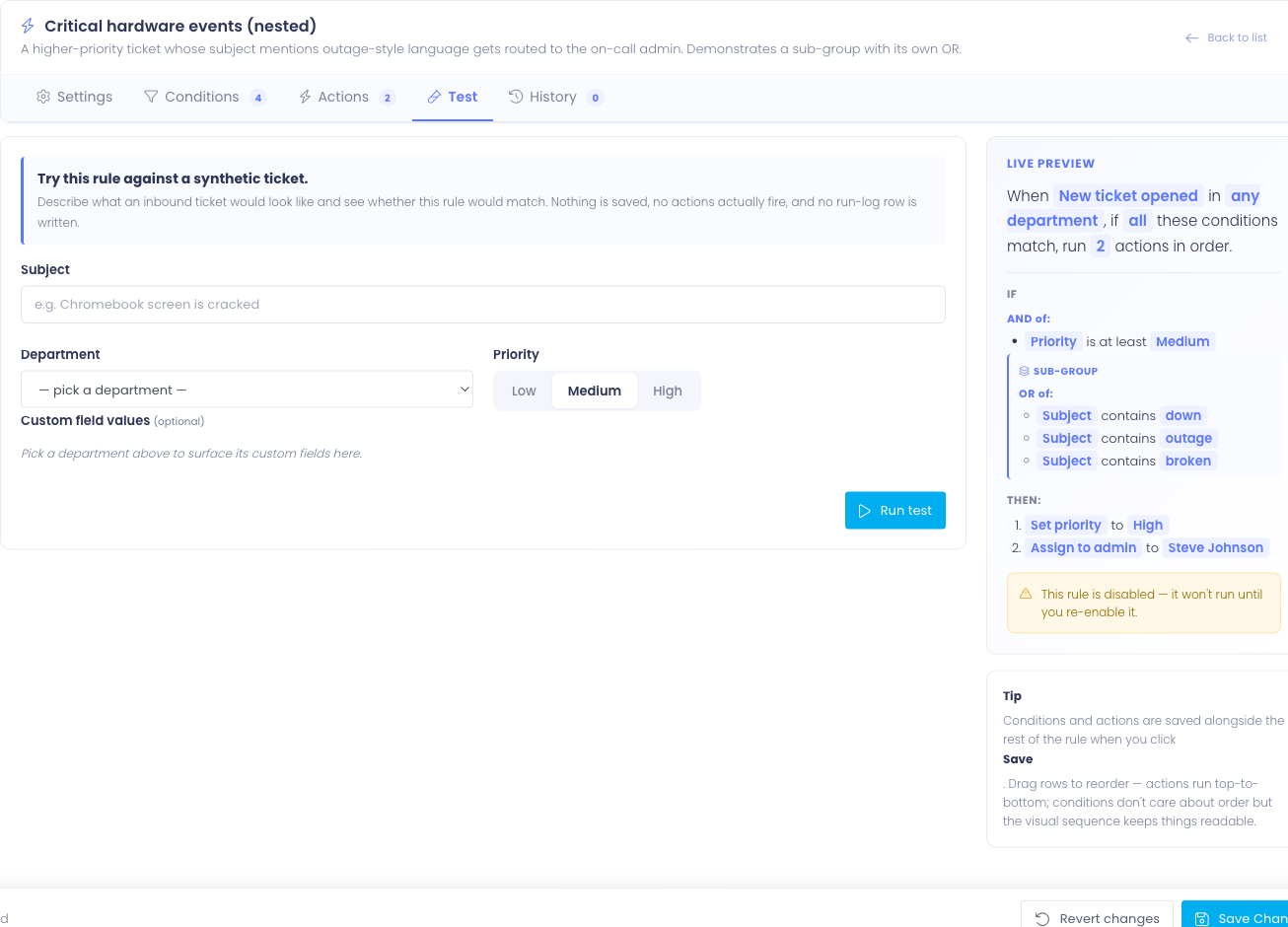
The synthetic ticket form
Fill in the parts of a hypothetical ticket the rule cares about:
- Subject — the ticket title text. Used by Subject conditions.
- Department — which department the ticket would be filed under. Used both by department-scope filtering and by Department conditions.
- Priority — the priority level (Low / Medium / High). Used by Priority conditions.
- Custom field values — once you pick a department, the form surfaces the custom fields configured for that department. Fill in any values your rule's conditions test against.
You don't need to fill in everything — only what your rule's conditions actually look at. Conditions that test fields you haven't filled in will see them as blank or unset, which is sometimes exactly what you want to test.
Running the test
Click Run test. The rule's conditions are evaluated against the synthetic ticket and the result panel appears below the form.
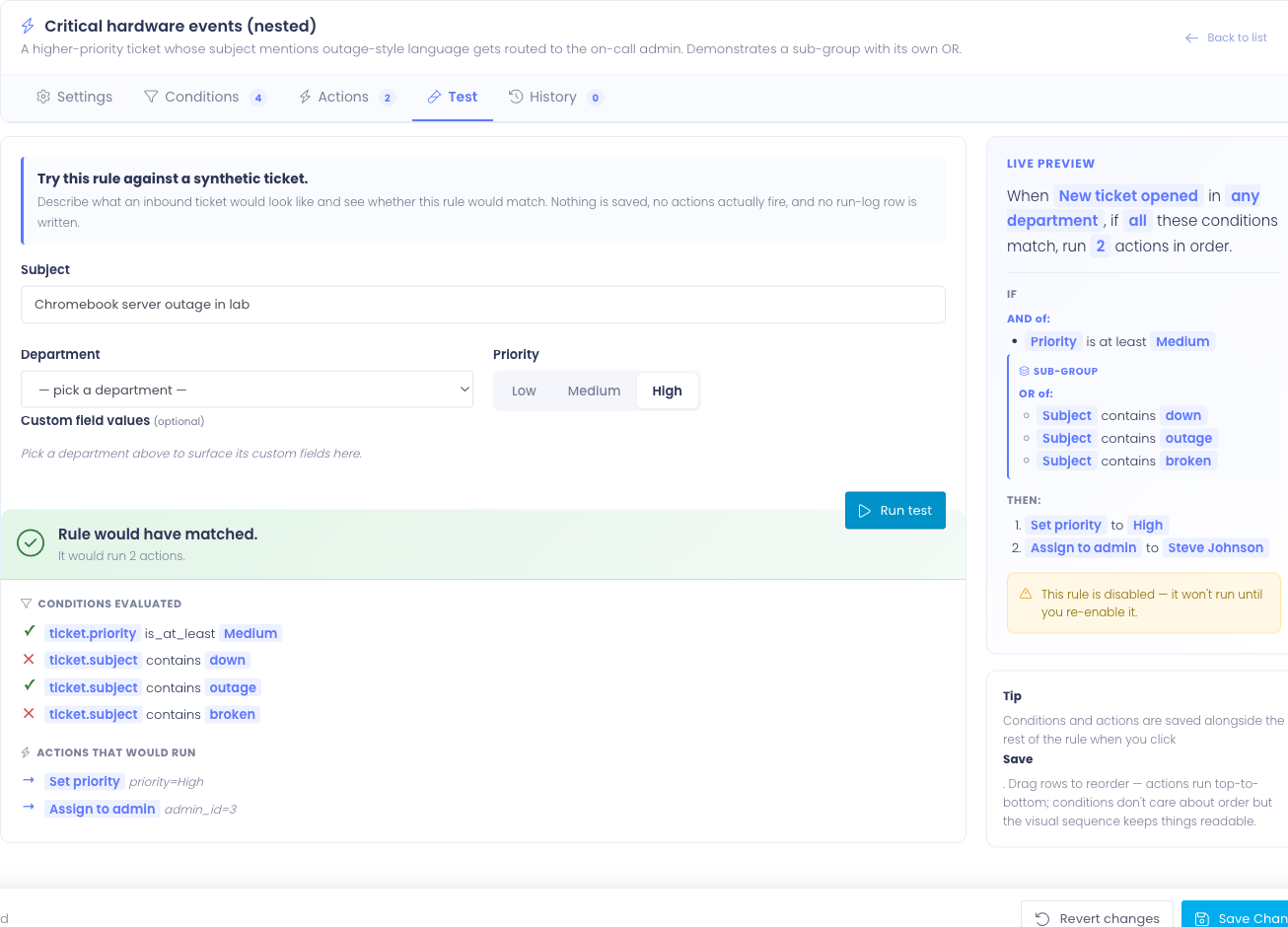
The result panel shows:
- Verdict headline — Rule would have matched (green) or Rule would NOT have matched (gray)
- Subhead — a one-line summary, e.g. "It would run 2 actions" or "No conditions matched, so the rule's actions would be skipped"
- Conditions section — every condition the rule would have evaluated, with a check or X showing the result. Sub-groups appear nested under their parent.
- Actions section — only shown when the verdict is matched. Lists the actions in the order they would have run, with each action's parameters resolved (so you can see which admin would have been assigned, which department it would have routed to).
If the verdict is "would not have matched," the actions section is omitted — the engine wouldn't have run them, so showing them would be misleading.
The "unsaved changes" warning
If you have edits on the Settings, Conditions, or Actions tabs that you haven't saved, a yellow banner appears at the top of the Test tab:
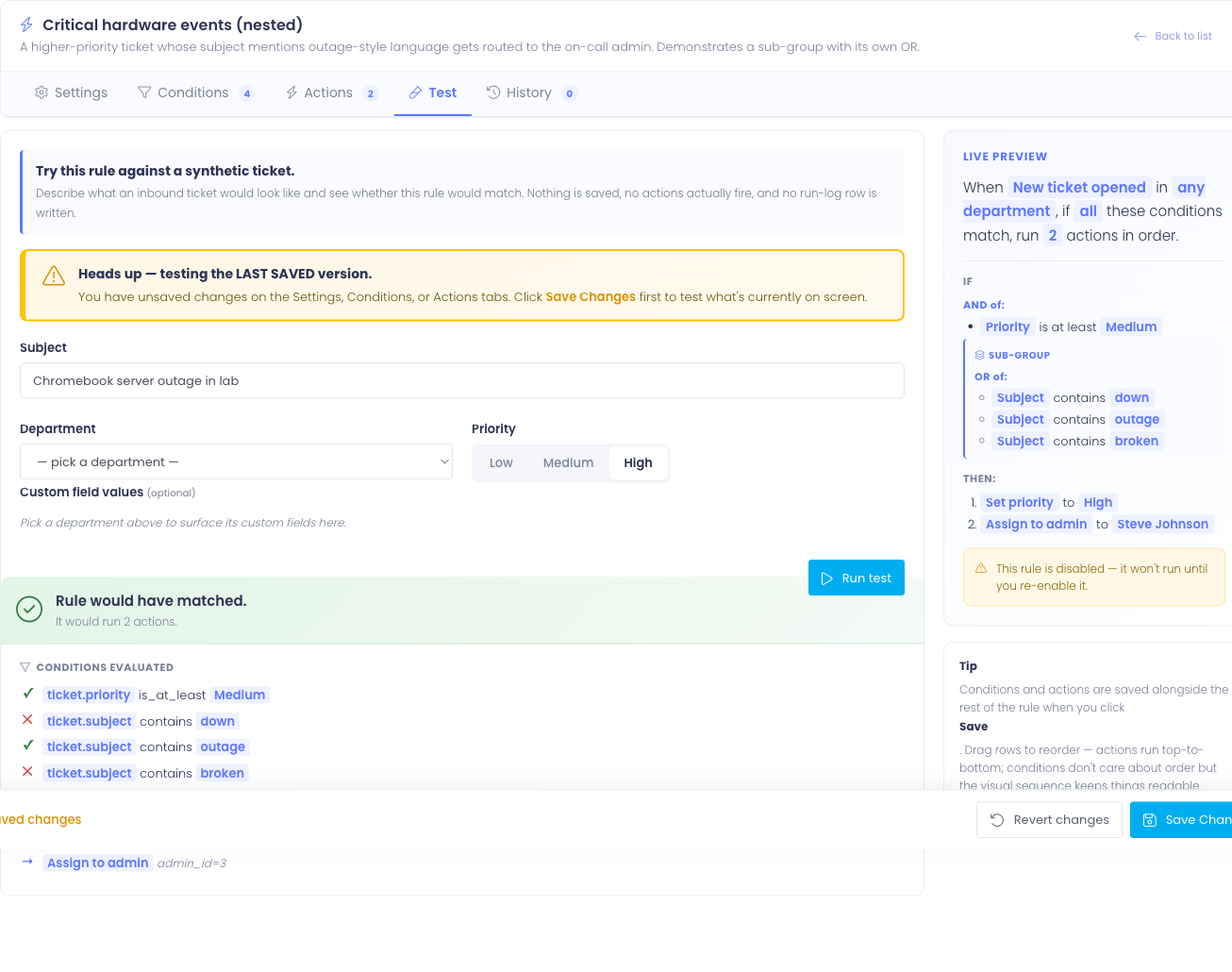
Heads up — testing the LAST SAVED version. You have unsaved changes on the Settings, Conditions, or Actions tabs. Click Save Changes first to test what's currently on screen.
The dry-run uses whatever is stored in the database — not what's on screen. So if you're mid-edit and click Run Test, you'll be testing the previous version of the rule, not your draft. Save first, then test.
The banner hides automatically the moment everything's in sync.
Tips for effective testing
- Test the negative case — write a synthetic ticket that shouldn't match the rule and confirm the verdict is "would not have matched." Catching false positives is easier here than after the rule's been live.
- Test edge values — if your rule says priority is at least Medium, test with Low (should not match), Medium (should match), and High (should match).
- Test against your existing tickets in spirit — pick a real ticket that you know how the rule should treat, and reproduce its shape in the form. If the verdict surprises you, the rule needs a tweak before going live.
Run history
The History tab shows every prior evaluation of this rule — both matches and non-matches — with the per-condition and per-action detail captured at evaluation time. This is the audit trail for "why did this ticket end up the way it did?"
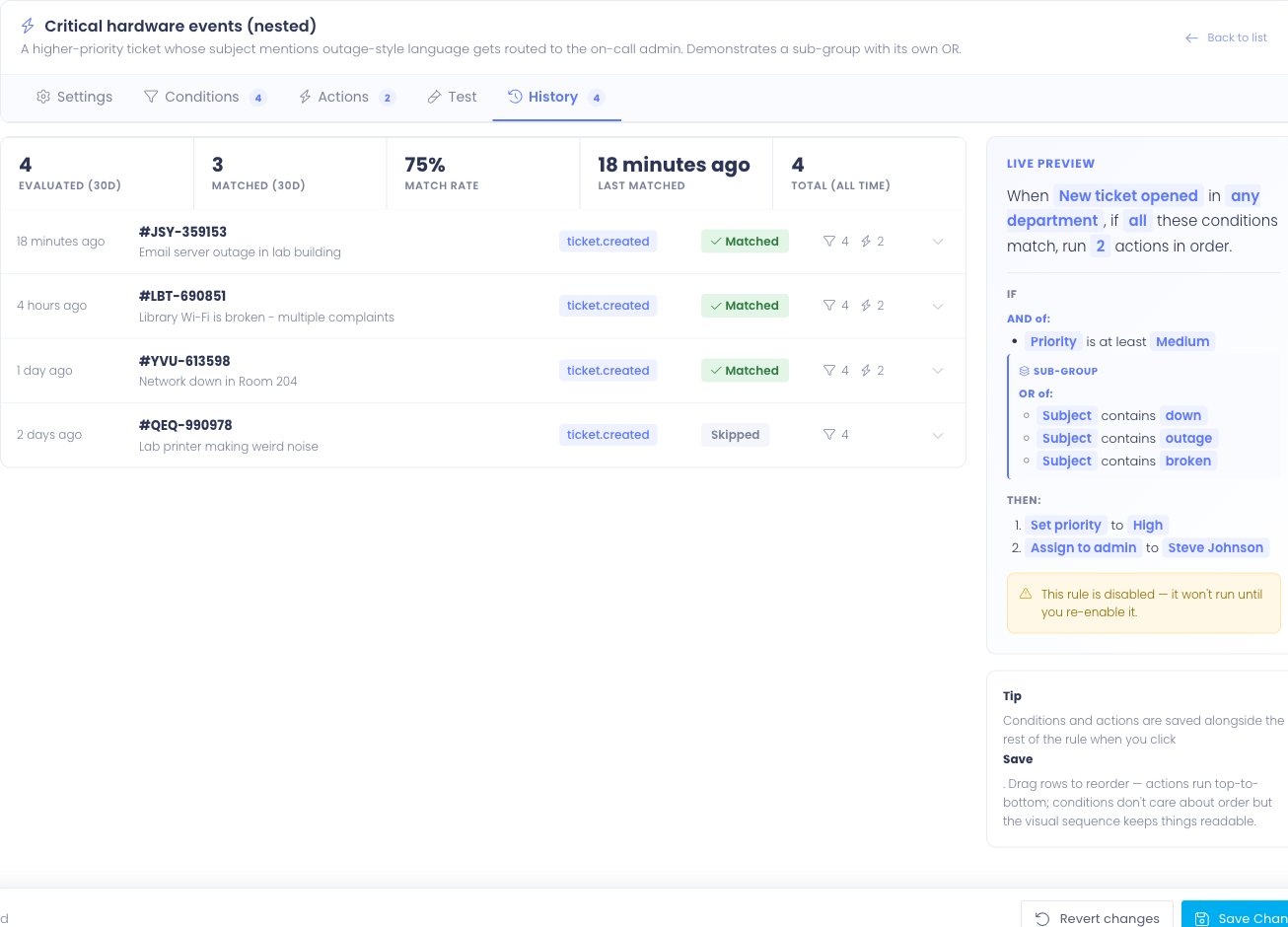
Stats strip
Across the top of the tab is a strip of summary stats:
- Evaluated (30d) — total times this rule was evaluated against a ticket in the last 30 days
- Matched (30d) — of those, how many actually matched and ran their actions
- Match rate — matched ÷ evaluated, as a percentage
- Last matched — relative timestamp of the most recent successful match
- Total (all time) — every evaluation ever recorded for this rule
A consistently low match rate (e.g. 2%) often means the rule's conditions are stricter than they need to be — the trigger is firing the rule a lot but it rarely actually applies. A 100% match rate means the rule is matching every ticket it sees, which is fine but worth noticing — if that wasn't your intent, the conditions might be too loose.
History rows
Below the stats, each evaluation is a row showing:
- When — relative time (e.g. 3 hours ago) with the exact timestamp on hover
- Ticket — the ticket ID with a link to its profile (when the ticket still exists)
- Trigger — which trigger fired (e.g. Ticket Created)
- Result badge — Matched (green) or Skipped (gray) for non-matches
- Counts — how many conditions evaluated and (if matched) how many actions ran
- Toggle chevron — click to expand the row
Click any row to expand it and see the full detail.
Expanded run detail
The expanded view shows two sections:
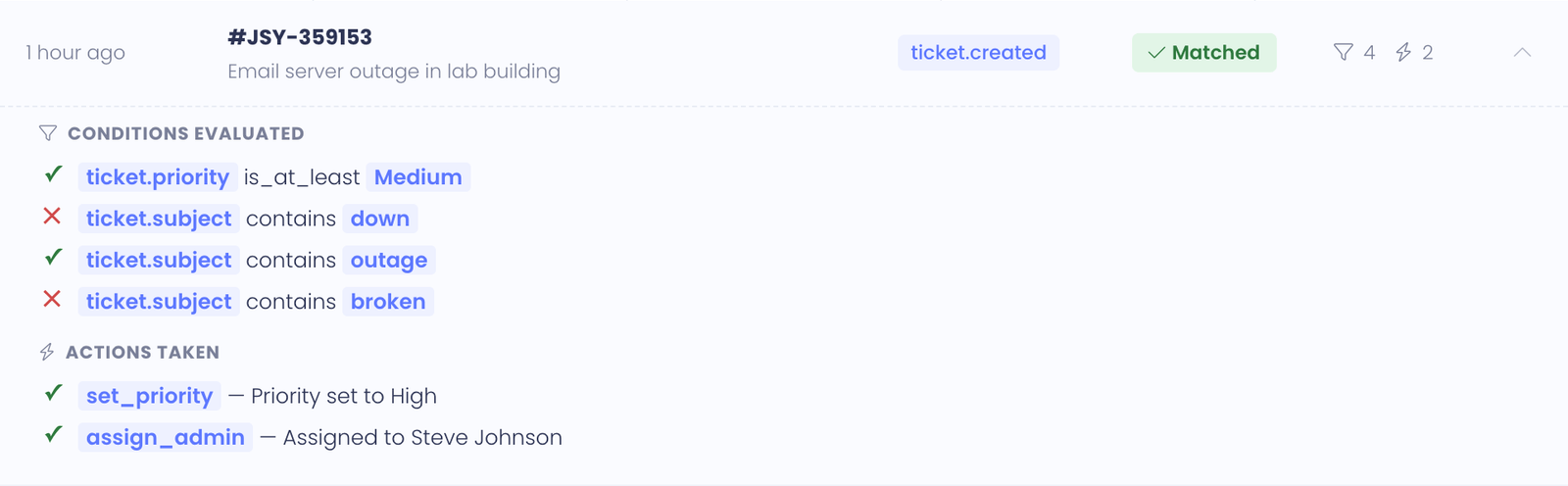
Conditions — every condition the engine looked at, in evaluation order, with the result of each. For example:
✓ Subject contains "Chromebook" ✗ Priority is at least High
This is the answer to "why didn't this rule match?" — the failing condition is right there with an X next to it.
Actions — only shown for matched runs. Lists every action in the order it ran, with the action's outcome captured. For example:
✓ Round-robin assigned to Pat Chen ✓ Set priority to High ✓ Stopped — no further rules evaluated
If an action failed, the failure reason is shown — for example, "Department id 7 no longer exists; route skipped." This is how you spot configuration drift when something has been renamed or removed.
Filtering and search
A busy rule can rack up dozens of evaluations a day, so the History tab has a four-knob filter bar above the list:

- Result — show only Matched runs, only Skipped (didn't match), or All (the default).
- From / To — restrict the list to a date range. Both bounds are inclusive — From
2026-04-01and To2026-04-30shows everything in April. - Ticket # — substring search against the ticket TID. Type
T-1234to find every evaluation against that one ticket, or partial like1234to find every TID containing those digits.
Filters combine, so you can answer questions like "every time this rule actually fired against a ticket whose TID starts with NET in the last week" without scrolling.
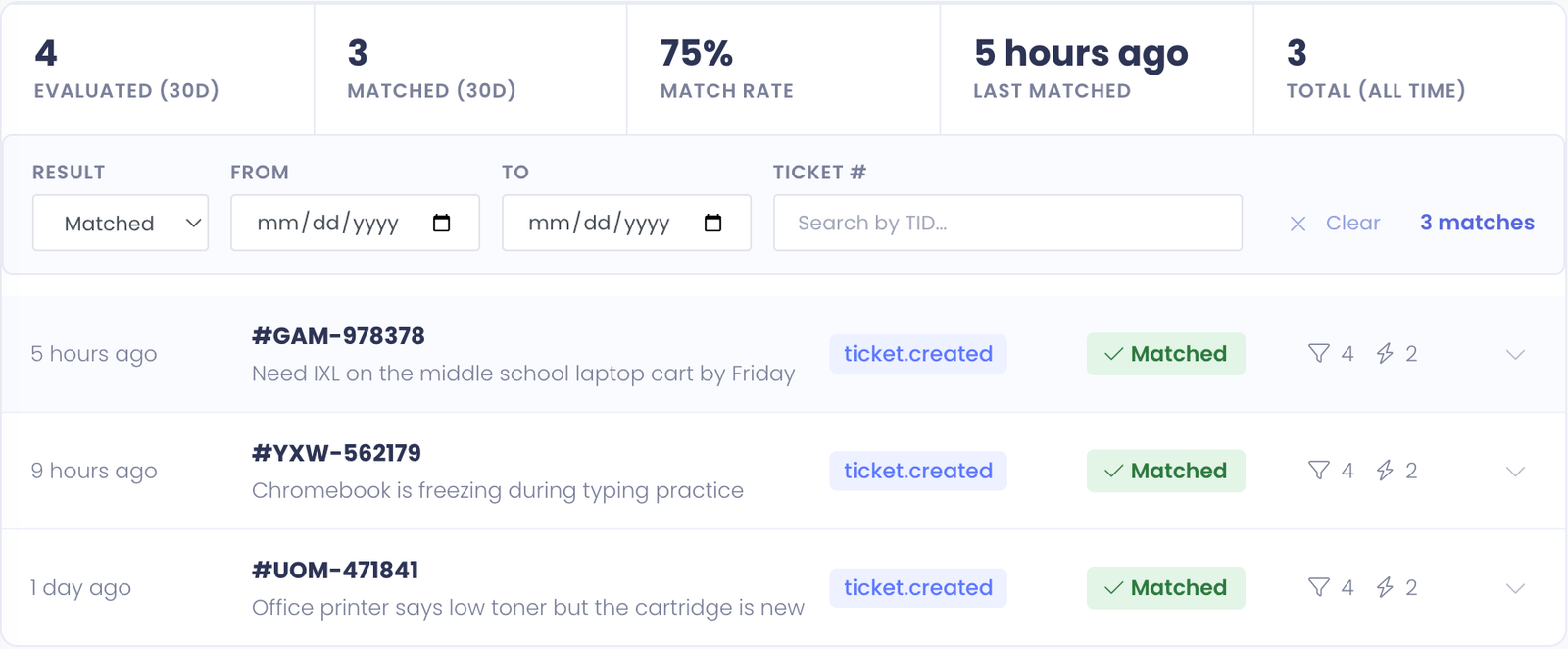
When any filter is active, the bar shows a match count on the right and a Clear button that wipes all four fields at once. The list resets to page 1 every time a filter changes — you won't end up looking at page 4 of a filtered set you already changed.
If your filter combination returns zero rows, the list shows a separate "No runs match these filters" message (different from the empty state for a rule that's never run):
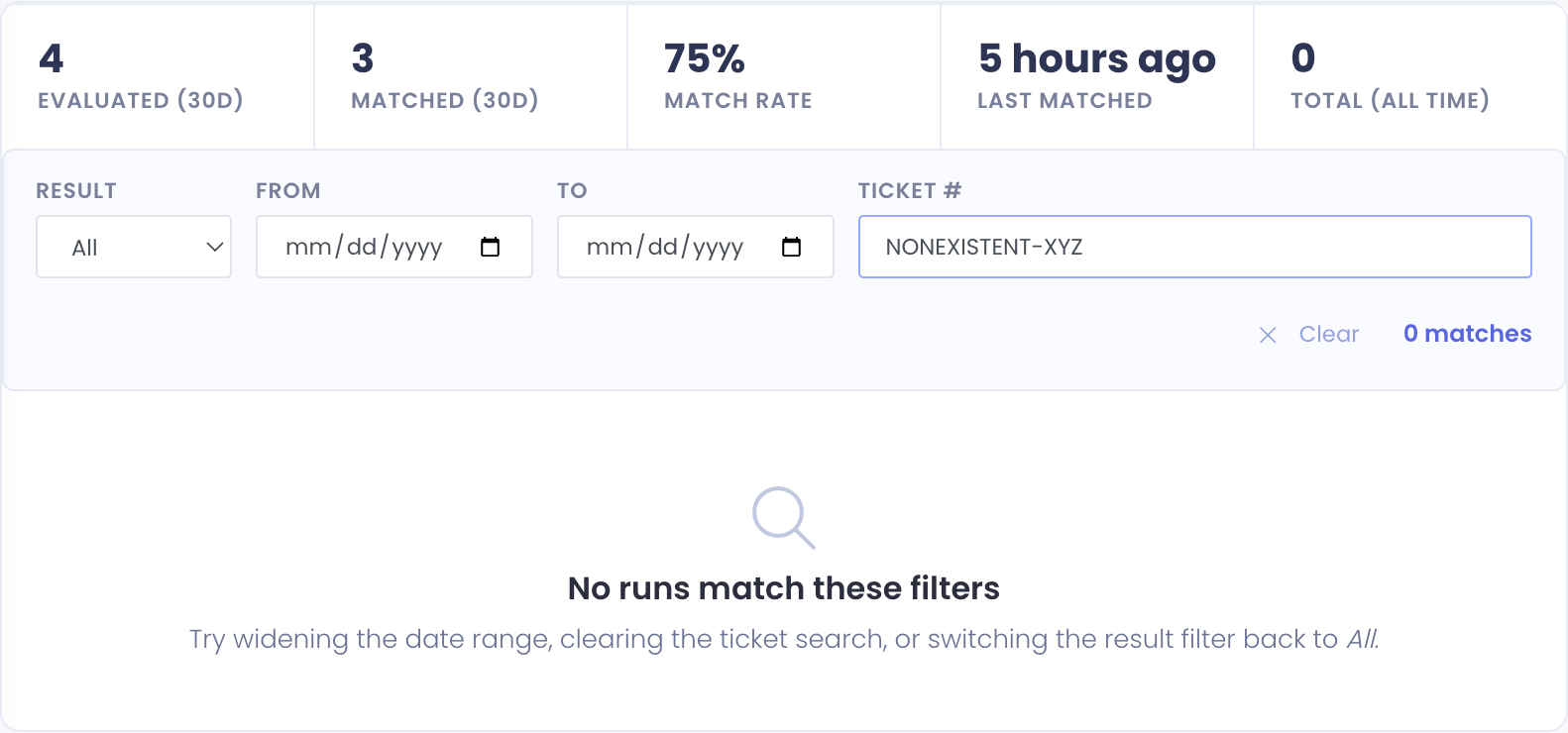
That message is your cue to widen the date range, clear the ticket search, or switch the result filter back to All.
Pagination
Run history is paginated 25 rows per page. Use the Prev and Next buttons at the bottom of the list to navigate. The page counter shows your position.
Pages are loaded on demand without a full page reload, so paging through a busy rule's history is fast.
Empty state
A rule that hasn't evaluated yet shows an empty state with a hint:
This rule hasn't evaluated against any ticket yet. Once tickets start hitting its trigger, every evaluation (matched or not) will land here.
This appears for brand-new rules and for rules whose trigger hasn't fired since enabling.
Using Test and History together
The two tabs are complementary, and a typical authoring workflow uses both:
- Build the rule on Settings, Conditions, and Actions
- Save the rule
- Test with several synthetic tickets covering positive cases, negative cases, and edge values
- Enable the rule (if it wasn't already) and let it run on real tickets
- Review run history after a day or two to confirm the rule is firing where you expect and not where you don't
A rule that tests well but behaves unexpectedly in production is rare — it almost always means the rule was tested against a synthetic ticket that didn't accurately reflect real-world inputs. Run history is the corrective: real evaluations against real tickets.
Common Questions
Q: Why is my Test tab disabled? The Test tab needs a saved rule. If you're creating a new rule, click Save first — even with empty conditions and actions — and the tab unlocks.
Q: A test says the rule would match, but it didn't fire on a real ticket. What gives? Most often, the real ticket's department doesn't match the rule's department scope (Settings tab), so the engine skipped the rule entirely. Check the Settings tab's department scope — if it's set to "Specific departments" and the real ticket was in a different department, the rule never even looked at it. Department scope is enforced before conditions, and is not visible in the Test form (the Test form already knows you're testing this rule).
Q: Can I export run history to a spreadsheet? Not currently. History is browsable in the editor but doesn't have a CSV export. If this is important for your reporting, let us know.
Q: How long is run history kept? History older than 90 days is trimmed automatically by a daily cleanup task, with a floor of the 25 most recent rows kept per rule regardless of age. So a rule that fired once two years ago still has that row visible. Deleting a rule removes all its history.
Q: Can I delete individual history rows? No. History is append-only by design — it's an audit trail. Old rows stay even when the rule's logic changes.
Q: A history row links to a ticket that doesn't exist anymore. What happened? The ticket was deleted after the rule evaluated against it. The run history row stays, but the ticket link becomes inert.