Home / Dashboard
After signing in, you land on the User Area home page. It's a small, focused dashboard — no clutter, just the things end users actually use.
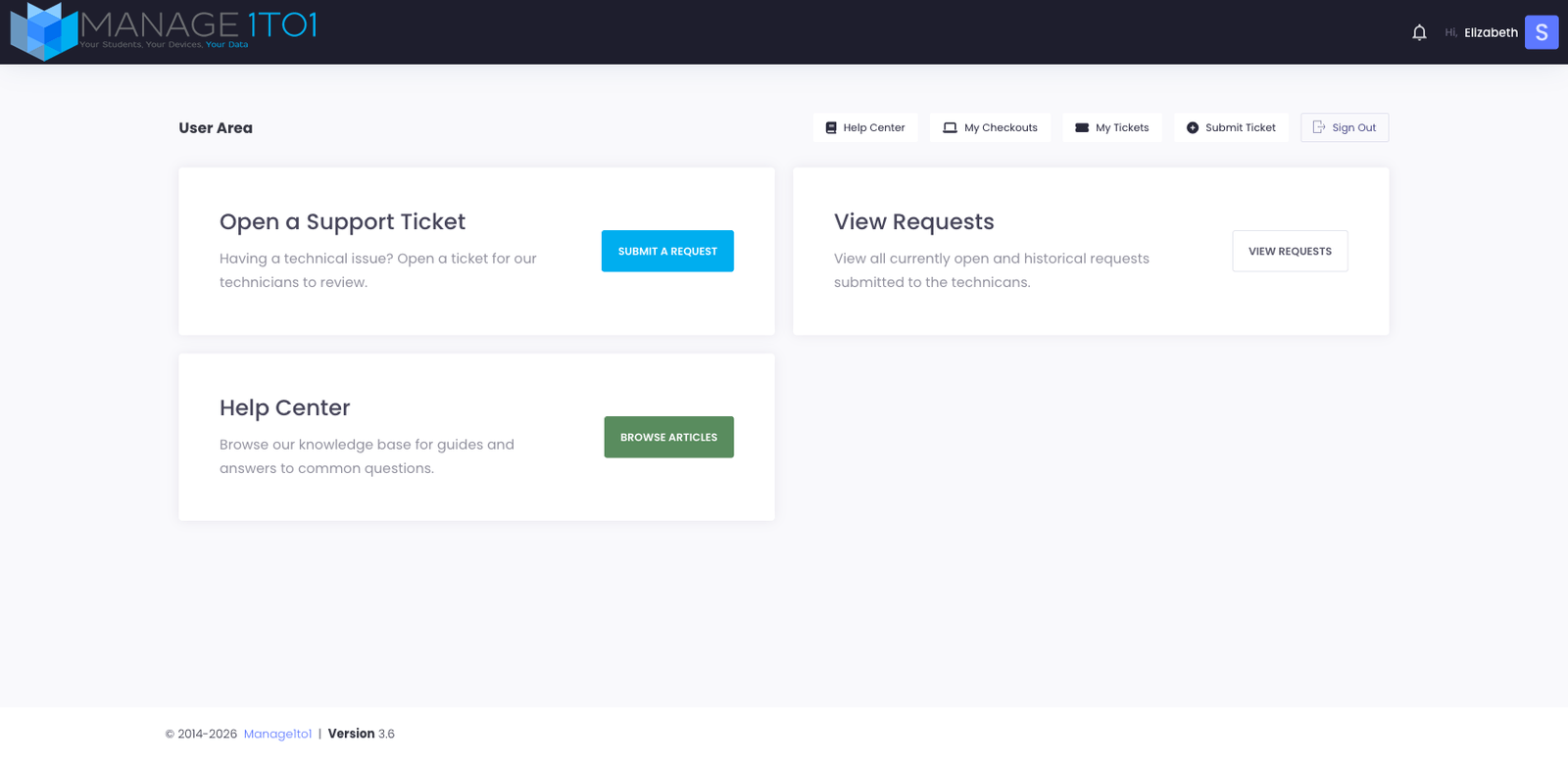
What's on the page
Sidebar menu
The left sidebar is your primary navigation. The items you see depend on what your district has turned on, but the typical set is:
- Help Center — browse the district's knowledge base articles (how-tos, FAQs, troubleshooting guides).
- My Checkouts — devices and accessories currently issued to you. See the My Checkouts page for details.
- My Tickets — every support ticket you've opened, with their current status.
- Submit Ticket — start a new support request.
- Sign Out — end your session.
Action tiles
Three large action tiles cover the most common "I need to do something" reasons for visiting the portal:
- Open a Support Ticket — opens the ticket submission flow. Pick a department (Help Desk, Library, Athletics, etc.), describe your issue, and submit. The ticket submission walkthrough covers the full picker flow including the cart-slot picker for shared-device districts.
- View Requests — same destination as My Tickets in the sidebar, but reachable with a single click from the dashboard.
- Help Center — browse the district's knowledge base. Often the fastest path to a fix without waiting on a ticket.
Who you're signed in as
Your name shows in the top-right corner with your initial in a colored circle. Clicking your name opens a small menu (preferences, sign-out) — useful if you share a computer and want to confirm whose account you're using.
What you won't see (and why)
The User Portal is intentionally minimal:
- No admin features — district tech staff sign in through the admin area, not here.
- No editing your own profile — your district controls your name, email, building, and grade. If something is wrong, ask your tech office to update it.
- No history of devices you've used in the past — only what you currently have. Past checkouts live in the admin area.
What if a tile is missing?
The dashboard shows tiles only for features your district has enabled. Examples:
- If your district hasn't turned on the support ticket module, you won't see Open a Support Ticket / View Requests / My Tickets.
- If your district doesn't track checkouts publicly, the My Checkouts entry may not appear.
Ask your tech office if you expected to see something that isn't there — they can confirm whether the feature is enabled.