Help Center / Knowledge Base
The Help Center (also called the Knowledge Base, or just KB) is your district's self-service library — how-tos, FAQs, troubleshooting steps, and policy reminders that the tech team publishes so you can solve common things on your own without opening a ticket.
Click Help Center in the sidebar or Browse Articles on the dashboard to land here.
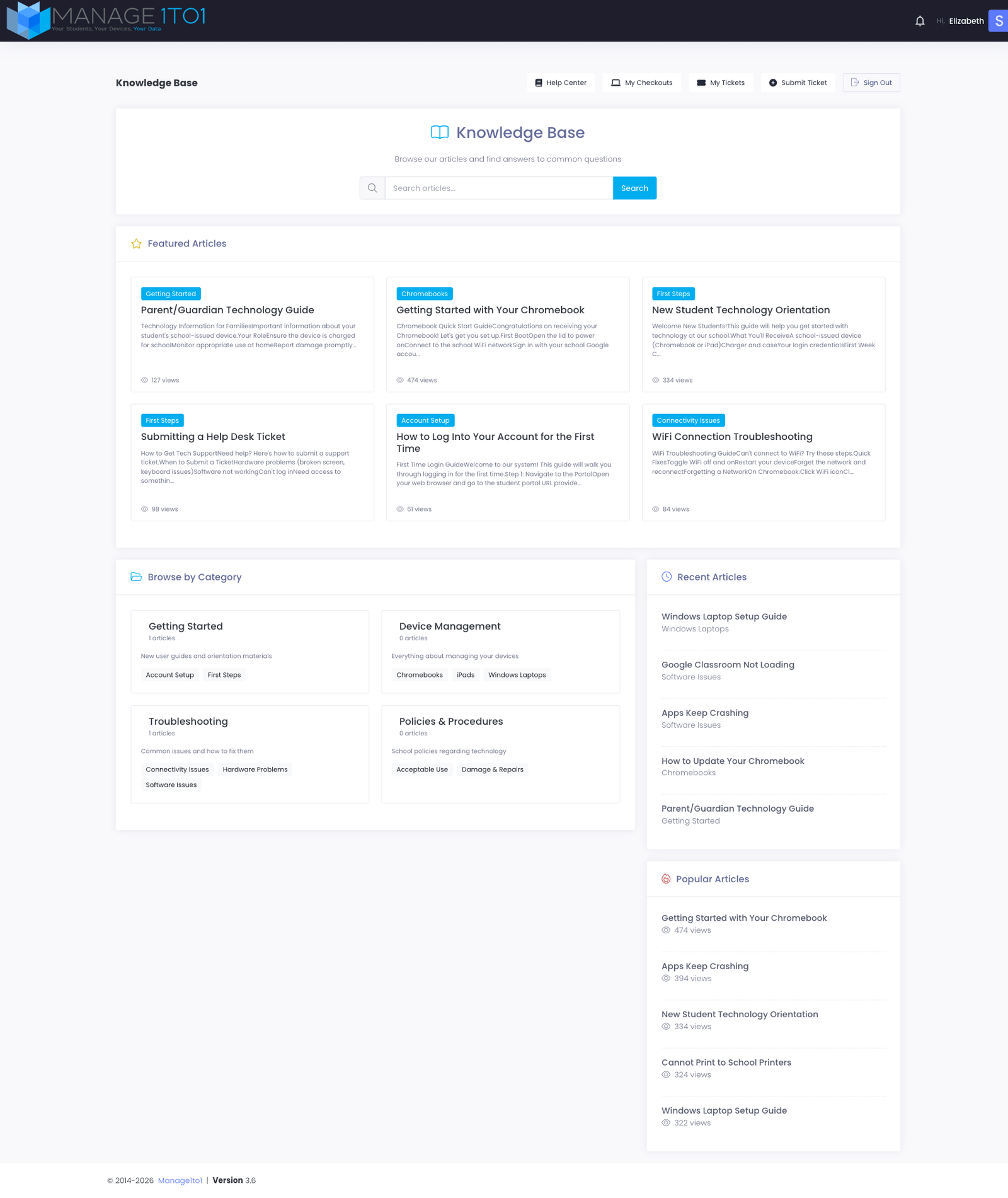
How the page is laid out
Search
The fastest way to find what you need, powered by Smart Search. Type your question in plain language into the search box at the top of the page and press Enter (or click the search button). You don't have to guess the exact words an article uses — Smart Search understands what you mean and surfaces the most relevant articles, even when your wording doesn't appear in them word-for-word.
For example, searching "my internet keeps dropping" will still find a "Wi-Fi Connection Troubleshooting" article, even though that article never uses the word "internet." Small typos are handled too, so you don't have to be exact.
The results page lists articles ranked by how well they answer your question, closest matches first. As you type, a quick suggestions list also drops down so you can jump straight to an article without leaving the page.
Describe your problem the way you'd say it out loud. "can't print to the school printers" works better than guessing at technical terms like "printer driver configuration" — though either will get you there.
Featured Articles
Articles your district has decided to highlight — usually because they're either brand-new or asked about constantly. Typical featured articles include onboarding guides, network/Wi-Fi connection how-tos, and policy reminders.
Each featured tile shows the article's category, title, view count, and a short preview. Click anywhere on the tile to open the full article.
Browse by Category
If you'd rather explore than search, the Browse by Category section lists every category your district has organized articles into. Examples:
- Getting Started — onboarding-flavor articles for new students/staff
- Device Management — how to do common things with your district-issued device
- Troubleshooting — fix-it guides for things going wrong
- Policies & Procedures — what your district expects regarding device use, lost/stolen reports, AUP compliance, etc.
Each category card shows a count of articles in it. Click the category to see the full article list for that topic.
Recent Articles & Popular Articles
Two short lists in the right rail:
- Recent Articles — newest first. Useful for "did the district publish anything new I should know about?"
- Popular Articles — most-viewed. Often a fast shortcut to the answer you're looking for, because if everyone else asked it too, the answer is well-trodden.
Reading an article
Click any article title to open it. The article view shows:
- The full content (headings, images, embedded videos if your district uses them)
- The article's category and tags
- A "Was this article helpful?" feedback prompt at the bottom — your district uses the responses to figure out which articles need rewriting
If an article doesn't answer your question, the feedback prompt has a No, open a ticket option that takes you straight to the ticket submission flow with the article pre-referenced. Faster than copy-pasting the URL into a new ticket.
What if Help Center is missing from the menu?
Two reasons it might not be there:
- Module disabled. Your district hasn't enabled the support center module, or has disabled the public KB section specifically.
- Region not public. Your district may have published articles internally for tech staff only — they show on the admin side but not in your portal.
Either way, ask your tech office which category your question falls into. They can either share an internal article or open a ticket on your behalf.