My Checkouts
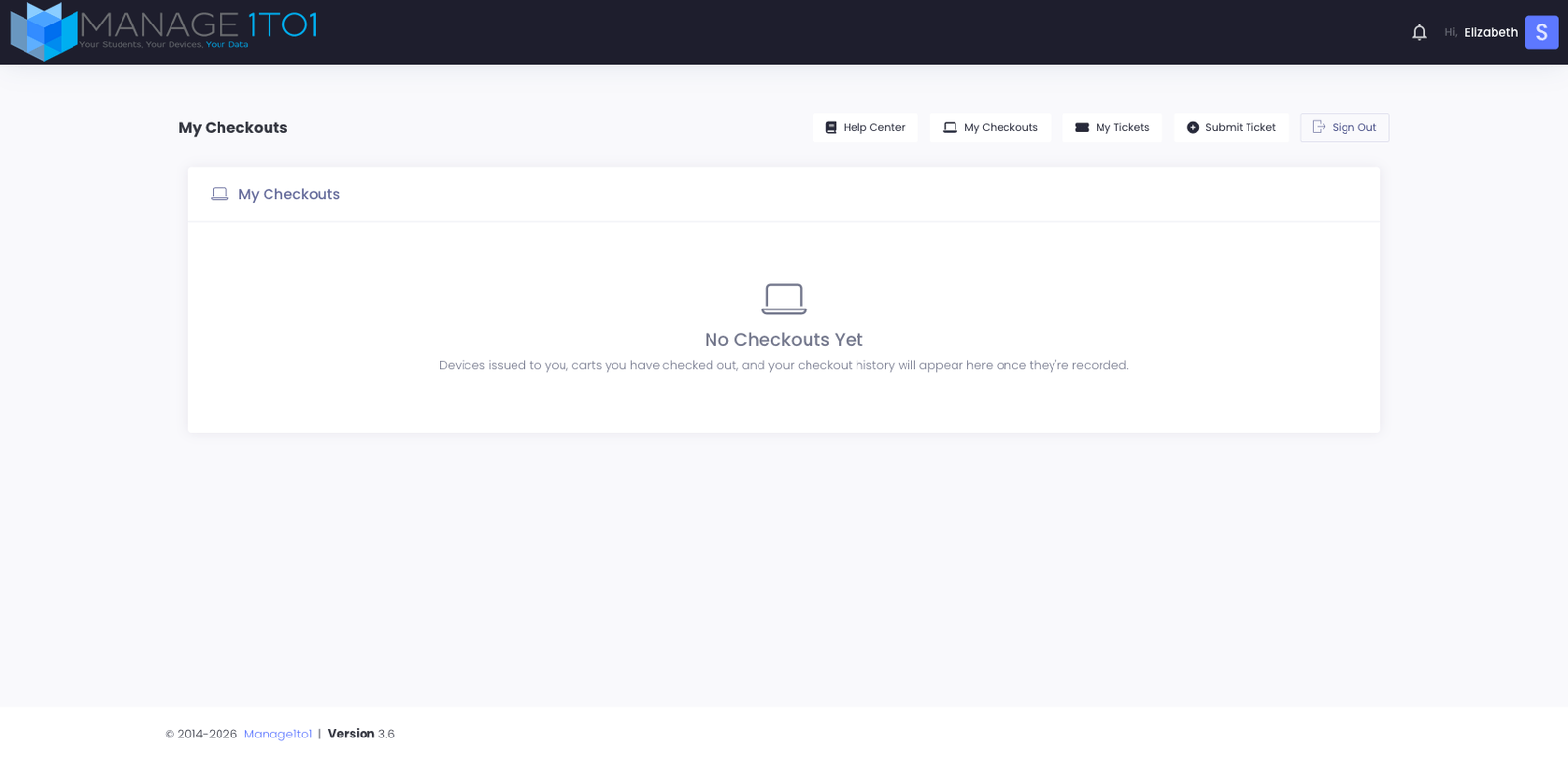
My Checkouts shows the devices and accessories your school district has issued to you and that you currently have. It's the answer to "is that Chromebook really still on my account?" without calling the help desk.
Reach it from the My Checkouts entry in the sidebar menu.
What you see
If you have nothing currently issued, the page shows a friendly "No Checkouts Yet" empty state — same as the screenshot above.
When you do have something checked out, each row shows:
- Asset Tag — your district's label for the specific device (e.g. OAK-CB-2026-0184).
- Make / Model — what the device actually is.
- Date issued — when it was checked out to you.
- Accessories bundled with this device — chargers, cases, headphones, etc. that left the desk with the device.
- Lost flag — if a device has been reported lost but is still on your account, a yellow "Lost" badge shows.
For the full reference covering every column, badge, and the public lookup flow for guardians, see the deep-dive page in the support docs: My Checkouts (User Portal reference).
What if something looks wrong?
A few common situations and what to do:
- "I returned this — why is it still here?" The tech office may not have processed the check-in yet. Wait a school day; if it's still showing, open a support ticket so they can investigate.
- "This isn't my device." Asset-tag mix-ups happen at large hand-out events. Open a ticket with the asset tag from the row that's wrong, and the district can correct the record.
- "My accessories aren't listed." Districts started tracking accessories per-checkout in version 3.6.2; older checkouts may pre-date that and only show the device. The accessory record exists separately if your district is tracking it — ask the tech office to confirm.
- "Lost badge — I didn't lose it." Sometimes a device is flagged lost during a school year audit. Open a ticket immediately so the flag gets cleared (and any associated fees voided).
Where to next
- Open a ticket for any of the above: Submit Ticket in the sidebar (or see the ticket submission walkthrough).
- Look up self-service answers: Help Center.
Related articles
Loading…