My Tickets
My Tickets is the single place to see every support request you've ever opened with your district's tech team — open, waiting, answered, or closed. You can reach it from the sidebar menu or by clicking View Requests on the dashboard.
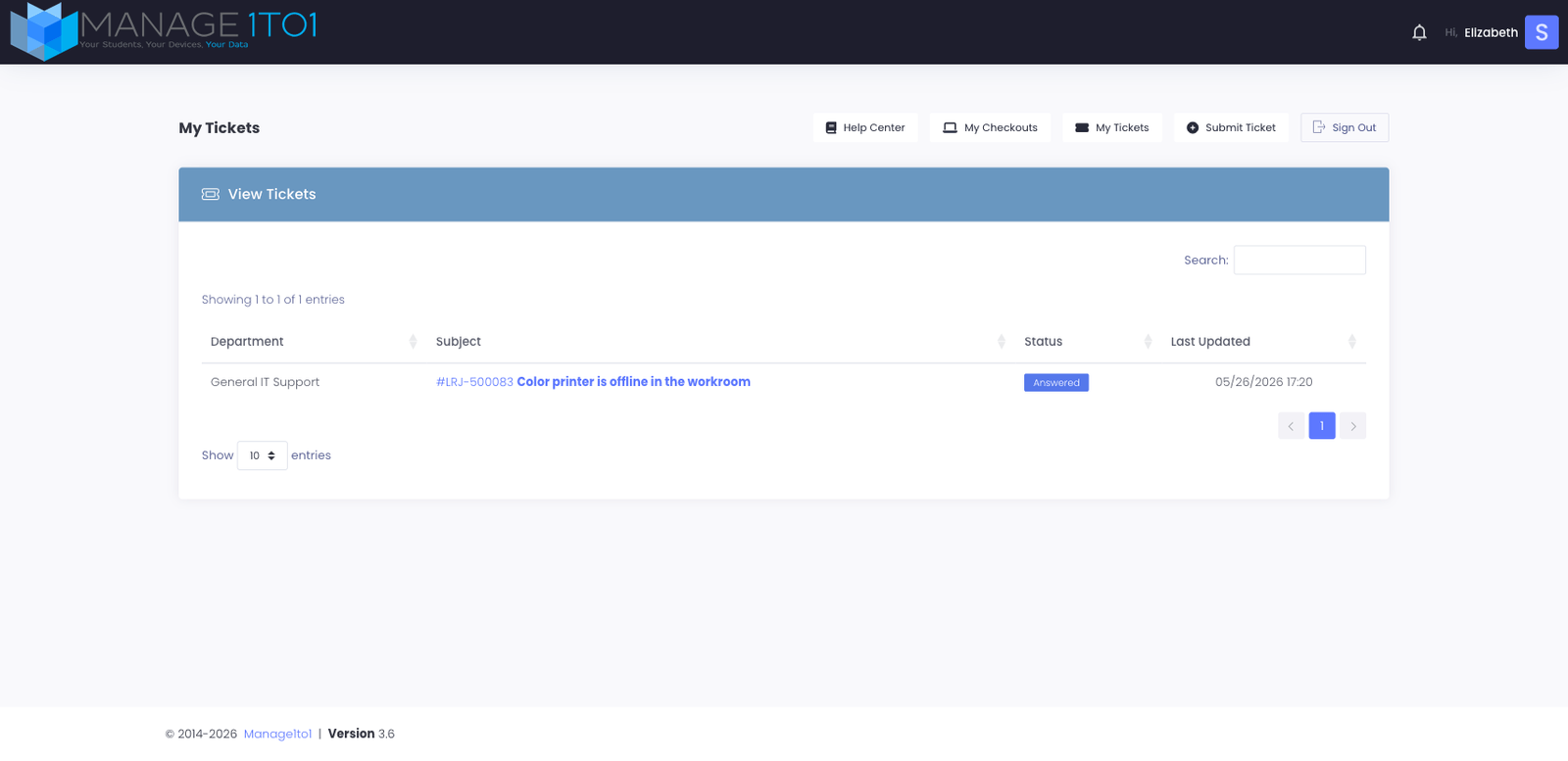
What you see in the list
Each row in the table is one ticket you've opened. Columns show:
- Department — which group at your district owns the ticket (e.g. General IT Support, Library, Athletics). Your district decides which departments are available when you submit a new ticket.
- Subject — the title you gave the ticket. Click the title (or the ticket number) to open the full conversation.
- Status — where the ticket is in its lifecycle. The common statuses:
- Open — your district has received the ticket but hasn't replied yet.
- Customer-Reply — you've added a reply; waiting for the district to respond.
- In Progress — a technician is actively working on it.
- Answered — the district has replied. Read the reply and either confirm it's resolved or ask a follow-up.
- Closed — the ticket is done. Closed tickets stay in your list so you can reference them later.
- Last Updated — the most recent activity timestamp (your reply, theirs, or a status change).
Finding a specific ticket
A few ways to drill in:
- Search — type any part of the subject, ticket number, or department into the search box top-right. The list filters as you type.
- Sort — click any column header to sort. Click again to reverse the order. Sorting by Last Updated descending is a common pattern when you're looking for "what changed recently."
- Pagination — by default 10 tickets show at a time. Use the page controls bottom-right to step through older tickets. Bump the Show entries dropdown if you'd rather see more at once.
Opening a ticket
Click the ticket number or subject. The ticket profile opens with the full conversation thread, every reply, every status change, and a box at the bottom for adding your own reply.
If your district has the email-reply feature enabled, you can also reply by responding to the email notifications — anything you write there appears in the ticket thread the same way as a portal reply.
Why don't I see tickets I know I opened?
A few possibilities:
- Submitted from a different account. The list only shows tickets opened by the account you're currently signed in to.
- Submitted by email. If you sent an email straight to your district's help desk address (instead of opening a ticket in the portal), the ticket might be linked to a different account or routed to a different department.
- Filter is hiding it. Clear the search box and reset any column sorts.
- Module disabled. If your district has turned off the support center module, the menu item itself won't appear.
Ask your tech office if a ticket you expected to see is missing — they can search the admin side directly.
Want to open a new ticket?
Click Submit Ticket in the sidebar (or Submit a Request on the dashboard). See the ticket submission walkthrough for the full department picker + cart-slot flow.