Parent / Guardian Portal
The Parent Portal is a separate sign-in experience for parents and guardians — different from the student/staff portal documented in the rest of this section. Parents see one consolidated view of every student in their family that the school district has linked to their email address.
This page covers what parents and guardians experience. For school district administrators who need to enable or configure the Parent Portal, see Parent Portal Settings.
How parents reach it
The Parent Portal lives at /portal on your district's Manage1to1 URL. If your district's portal is at https://mydistrict.manage1to1.com, parents go to https://mydistrict.manage1to1.com/portal.
From the student/staff sign-in screen, there's also a Parent? Click Here link below the email field that takes parents directly to the parent portal.
Signing in with a magic link
The Parent Portal does not use passwords. Instead, parents sign in by email — they type their address, the portal sends them a one-time sign-in link, and clicking the link signs them in.
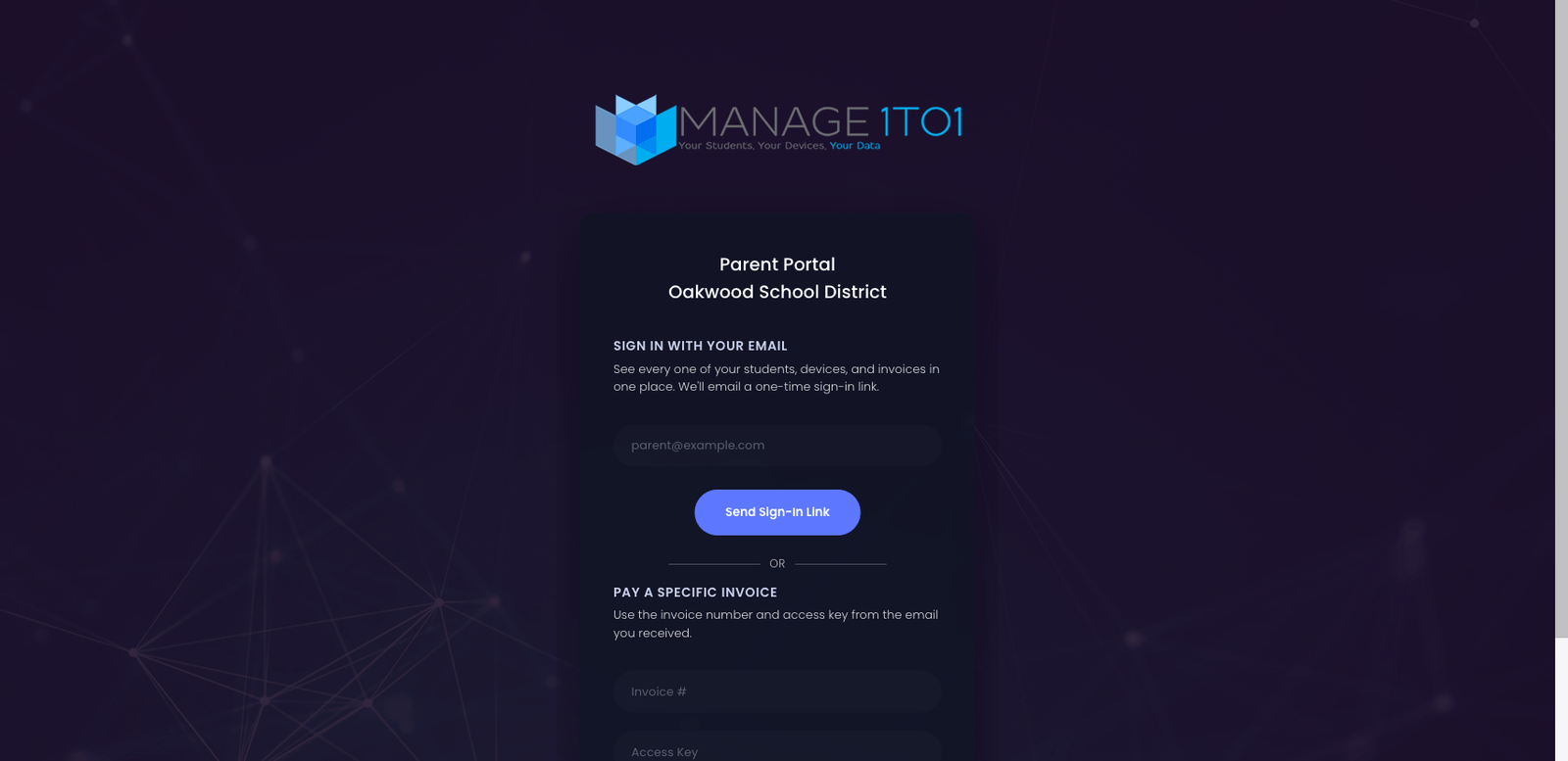
The flow:
- Parent types the email address the district has on file for them (the same one tied to their student's guardian contact record).
- They click Send Sign-In Link.
- The portal emails them a unique sign-in URL — usually within seconds.
- They click the link in the email and land on the parent portal dashboard, already signed in.
The magic link is single-use and expires after a short window (typically 15 minutes). If a parent clicks the link too late, they request a new one — same email field, no penalty.
Why magic links?
Two big reasons districts prefer them over passwords:
- No password reset support load. "I forgot my Parent Portal password" never becomes a help-desk ticket if there's no password.
- Stronger email verification. Receiving the magic link is itself proof the parent can read mail at the address on file — useful for FERPA compliance.
Paying a specific invoice (no sign-in needed)
If a parent only wants to pay one invoice — they got the email, they don't need the whole dashboard — there's a shortcut on the same /portal page:
- Scroll past the email sign-in to the Pay a Specific Invoice section.
- Enter the invoice number (e.g. INV-2026-0184) and the access key from the original invoice email.
- Continue to the payment screen.
This path skips the magic-link step entirely. Useful when a parent is paying a fee for a student they don't have email-on-file linkage to — the access key on the invoice acts as the credential.
What the parent dashboard shows
Once signed in via magic link, the parent sees a unified view of every student of theirs the district has linked. For each student:
- Devices currently checked out — same My Checkouts data the student sees, but for every one of their kids in one place.
- Outstanding invoices — what they owe and a Pay Now button per invoice.
- AUP status — whether the Acceptable Use Policy has been acknowledged for the current school year. Unsigned policies surface a prominent prompt.
- Incident history — repair tickets and damage charges that have affected their student's device this year.
The dashboard is the parent's one-stop view — no separate per-student logins, no swapping accounts.
Signing the Acceptable Use Policy (AUP)
When your school year requires a fresh AUP signature — typically at the start of each year — the parent's dashboard surfaces an AUP Action Required prompt for each unsigned student. Tapping the prompt opens the AUP signing flow:
- The full text of your district's current AUP renders on-screen for them to read.
- They scroll through the policy. Districts that want stricter compliance can configure the Continue button to only enable after the parent has scrolled to the bottom.
- They type their full name into a signature field as electronic acknowledgement, and click I Acknowledge and Accept.
- The portal records the acknowledgement with the parent's name, the date and time, the IP address it came from, and the version of the AUP that was signed — the audit trail your district needs for compliance.
Once signed, the student's record flips to AUP Current for [School Year] and the prompt disappears.
What if a parent disagrees?
Refusing the AUP is a school-policy conversation, not a portal one. The parent skips the signing flow (no Decline button — the portal doesn't try to negotiate); the prompt stays on their dashboard until the district resolves the situation directly.
Family Portal: multiple students, one view
If a guardian has more than one student in the district (or across linked districts), the parent portal shows each student on the same dashboard. Devices, invoices, AUP status — all grouped per-student, no switching accounts.
The match is by guardian email: when the district imports student records from their SIS, every guardian email address ties that parent to that student. Same email on multiple students → consolidated dashboard.
Trouble signing in?
The most common causes:
- Email not recognized. The district doesn't have your address on file for any student. Contact your school registrar.
- Magic-link email never arrived. Check spam first. Beyond that, request a new link — sometimes a transient email-delivery hiccup means the second try works. If it persistently fails, contact the tech office; they can verify the email address.
- Magic link says "expired." They take 15 minutes to use. Request a new one.
- You're paying an invoice without an account on file. Use the Pay a Specific Invoice shortcut with the invoice number + access key from your email — no magic link needed.