Signing In
The User Portal is the end-user side of Manage1to1 — what students, staff, and parents see when they need to check what device they have out, open a support ticket, or look something up in the knowledge base. It's separate from the admin area your tech team uses.
Where to go
Your district's portal lives at the same web address as the admin area, just without /admin on the end. If your tech office signs in at https://mydistrict.manage1to1.com/admin, you sign in at https://mydistrict.manage1to1.com/login.
If you're not sure of the address, ask your tech office or check any link they've sent you (incident emails and password-reset notifications include the portal link in the footer).
The Sign-In Screen
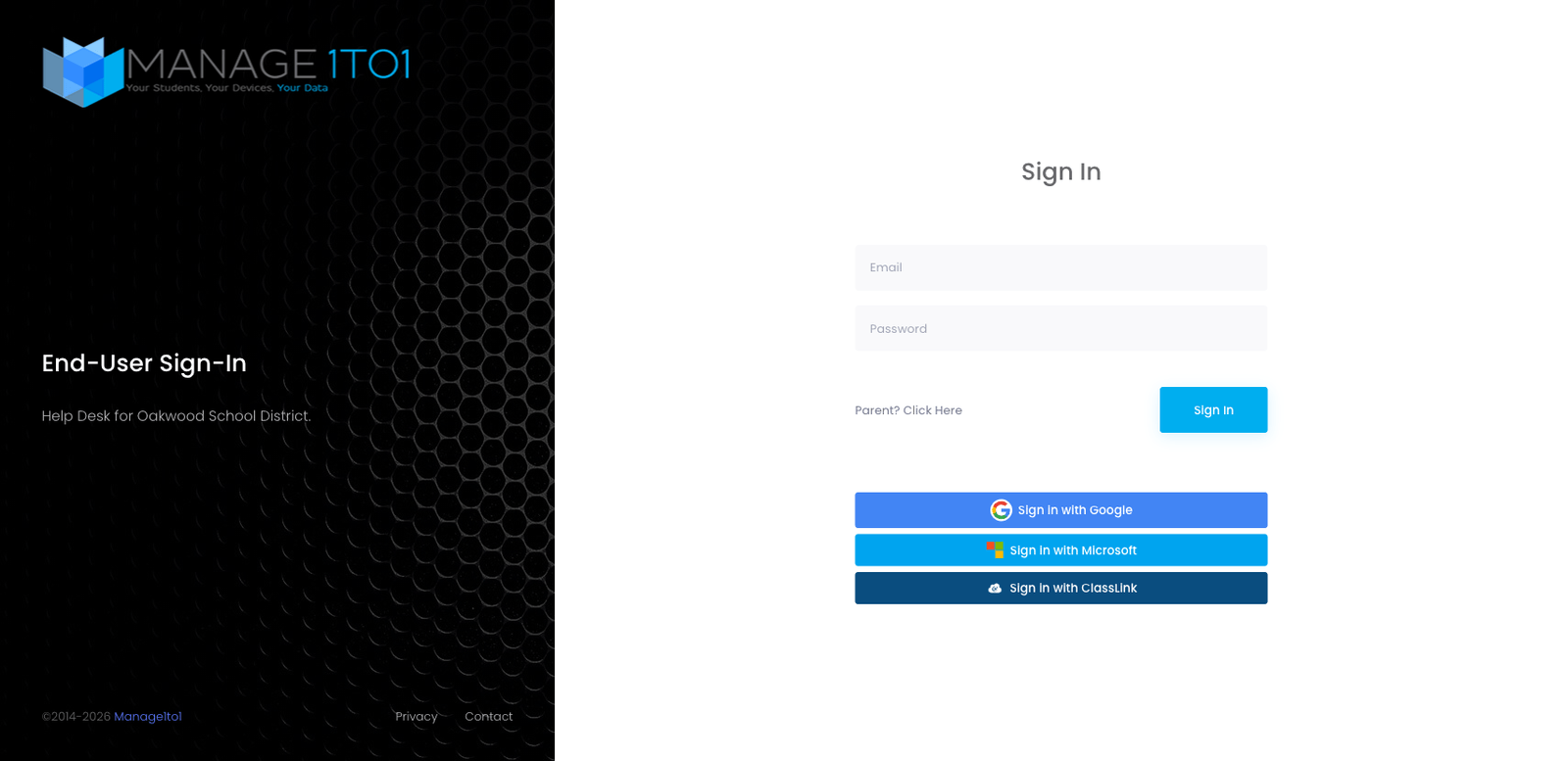
The screen offers two ways to sign in:
- Email + password — type the address your district has on file for you, and the password your tech office issued (or that you set when you reset your password).
- Single Sign-On (SSO) — click one of the three buttons below the form to sign in with an account you already have.
Single Sign-On options
Your district may not enable all three. The buttons only appear when SSO has been turned on for your district.
- Sign in with Google — for districts using Google Workspace for Education. Click the button, pick your school Google account, and you're in.
- Sign in with Microsoft — for districts using Microsoft 365 (Office 365). Same flow: click the button and sign in with your school Microsoft account.
- Sign in with ClassLink — for districts that use ClassLink LaunchPad as a single sign-on hub.
With SSO you don't need a separate password for Manage1to1 — the portal trusts whoever your Google/Microsoft/ClassLink account says you are.
Forgot your password?
If your district uses email + password (not SSO), and you don't remember your password:
- Ask your tech office to send you a password reset link, OR
- If self-service password reset is enabled at your district, click Forgot Password? on the sign-in screen and follow the email link.
Reset emails come from the same address your district's notifications come from — check your spam folder if you don't see it after a couple of minutes.
Parents and Guardians
If you're a parent or guardian and your student's district has the Parent Portal enabled, use Parent? Click Here below the sign-in fields. The parent portal uses a magic-link sign-in by email — no password to remember. See the Parent Portal page for how that flow works.
Trouble signing in?
The most common causes:
- Email not recognized — your district may not have your address on file yet. Contact your tech office.
- SSO button missing — your district hasn't enabled that SSO provider. Use email + password instead.
- Caps Lock — passwords are case-sensitive.
- Account is restricted — if you've been flagged on a restriction plan (for example, an unpaid fee), the sign-in still works, but some features may be hidden. Your tech office can explain.