Schedule Tab
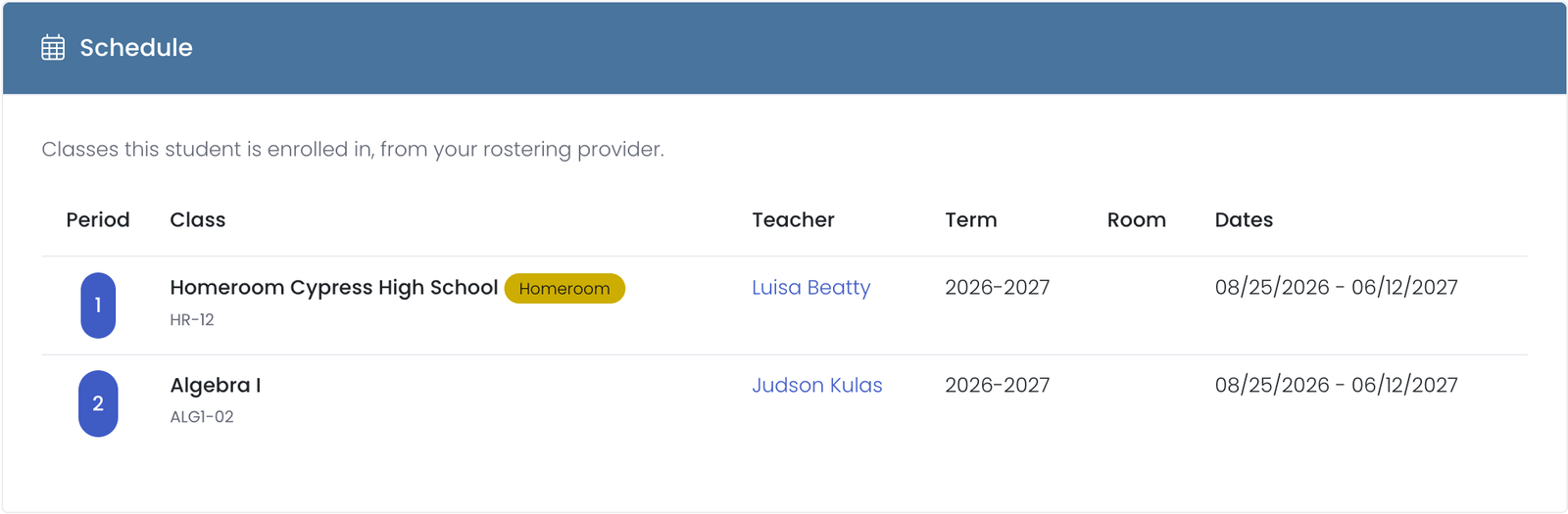
The Schedule tab lists the classes a student is enrolled in, pulled from your rostering provider (OneRoster). It gives you a quick picture of a student's day without leaving their profile: the period each class meets, which classes they are in, who teaches each one, the term, and the dates they are enrolled.
When the tab appears
The Schedule tab shows only for students who have classes synced from your rostering provider. If a student has no synced classes, or your district has not connected rostering, the tab is hidden.
What it shows
Each class the student is enrolled in is listed with:
- Period: the class period, when your provider sends one. Classes are ordered by period, with the homeroom first, so the schedule reads top to bottom like a bell schedule.
- Class: the course or section name. The student's homeroom is listed first and tagged so it is easy to spot.
- Code: the class or section code, when your provider sends one.
- Teacher: the teacher of record for the class.
- Term: the school year or term the class belongs to.
- Room: the room or location, when available.
- Dates: the start and end dates the student is enrolled in the class, when your provider sends them.
The information is read-only and refreshes automatically as your rostering data syncs. To change a student's classes, update them in your rostering provider or student information system.
Browsing all classes
To see classes across your buildings rather than one student at a time, use Classes under the Users menu. It lists the classes in a building you have access to, and opening a class shows its teacher and the students enrolled in it.
Frequently asked questions
A student's classes look out of date. How do I fix them? Class data comes from your rostering provider, so update it there. The Schedule tab reflects the most recent sync.
Why does one student have a Schedule tab and another does not? The tab appears only when that student has classes synced from rostering. Students who are not in the roster feed, or who have no class enrollments, do not show the tab.