Administrator MFA Setup Guide
This guide walks administrators through enrolling in Multi-Factor Authentication (MFA) to add an extra layer of security to their Manage1to1 account.
Setting up MFA takes about 5 minutes. Have your smartphone ready before beginning.
Before You Begin
What You'll Need
-
A smartphone (iPhone or Android)
-
An authenticator app installed on your phone:
- Google Authenticator (recommended)
- Microsoft Authenticator
- Authy
- 1Password (if you use it)
- Any TOTP-compatible authenticator
-
A secure place to store backup codes (password manager, secure note, or safe location)
Check if MFA is Available
MFA must be enabled by your system administrator before you can enroll. If you don't see MFA options in your profile, contact your district's Manage1to1 administrator.
Step 1: Install an Authenticator App
If you don't already have an authenticator app on your phone:
For iPhone:
- Open the App Store
- Search for "Google Authenticator" or "Microsoft Authenticator"
- Tap Get to install
- Open the app after installation
For Android:
- Open Google Play Store
- Search for "Google Authenticator" or "Microsoft Authenticator"
- Tap Install
- Open the app after installation
Skip to Step 2 if you already use an authenticator app for other services.
Step 2: Access Your Profile Settings
- Log in to Manage1to1 as an administrator
- Click your name in the top-right corner
- Select My Profile from the dropdown menu
- Click the Security tab
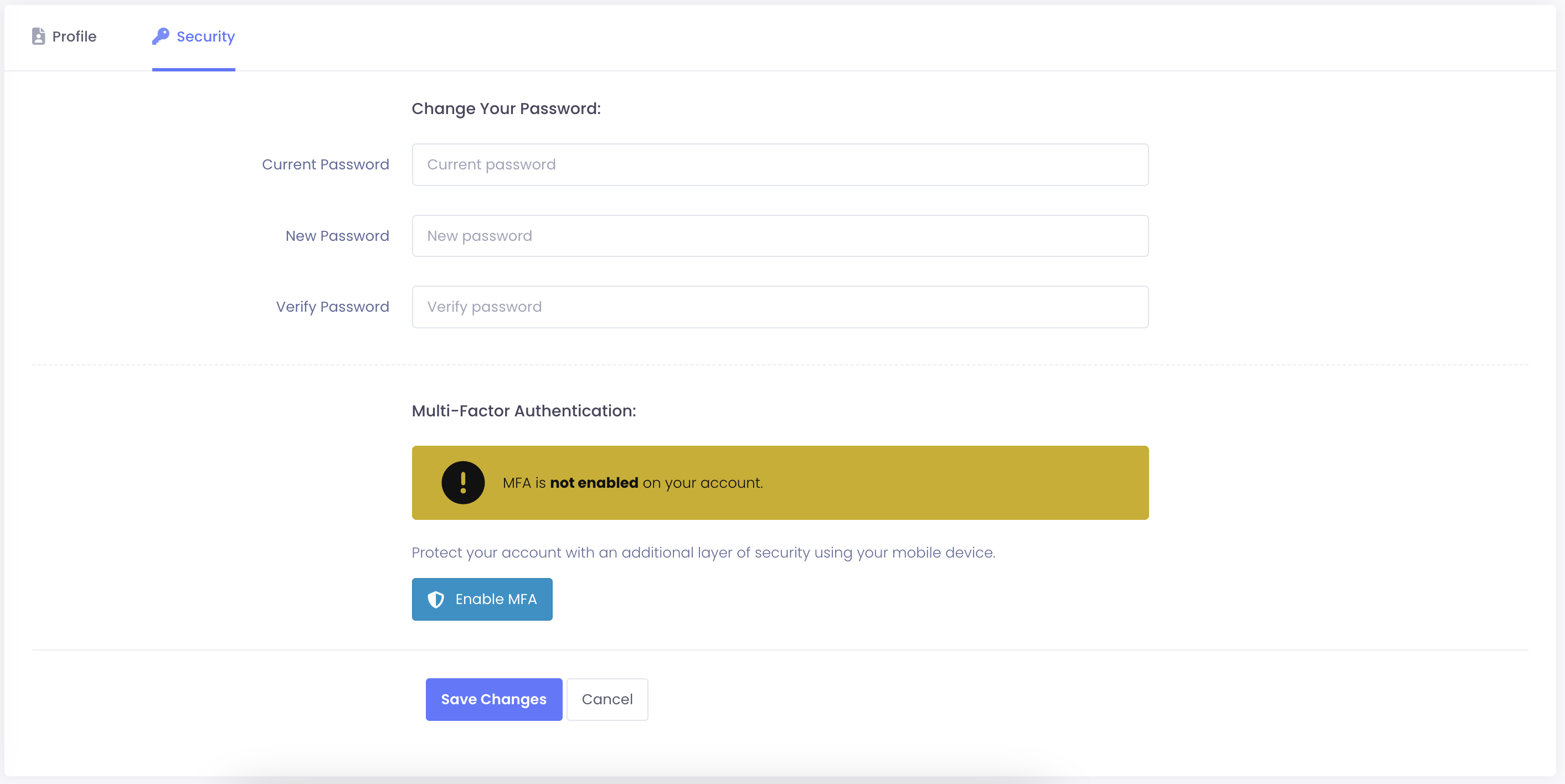
Step 3: Start MFA Enrollment
In the Multi-Factor Authentication section:
- Click the Enable MFA button
- A modal window will appear with a QR code
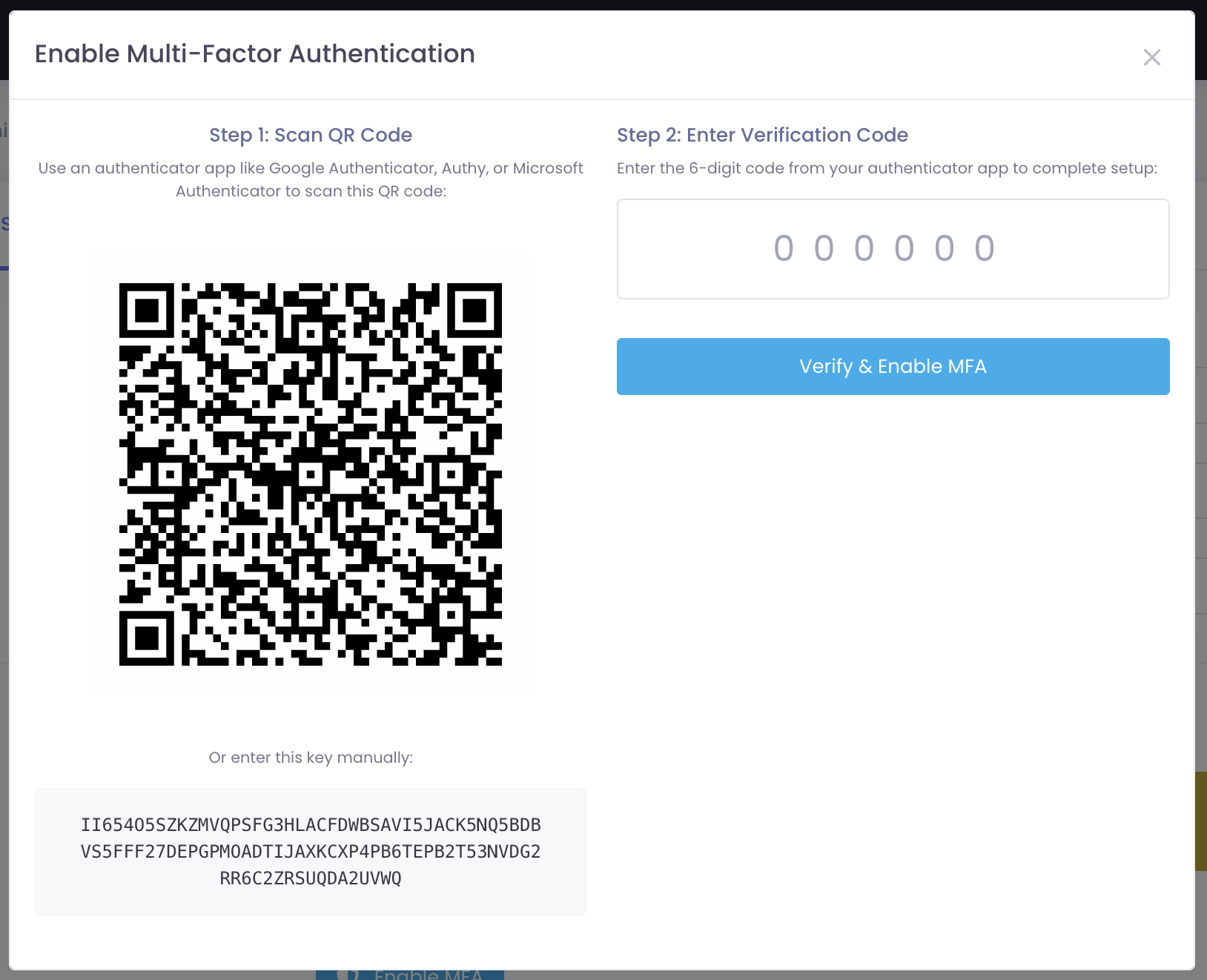
Don't close the modal until you've completed the entire setup process.
Step 4: Scan the QR Code
- Open your authenticator app on your phone
- Tap the + or Add button (usually at the bottom)
- Select Scan QR Code (you may need to allow camera access)
- Point your camera at the QR code on your screen
- The app will automatically add a "Manage1to1" entry
Alternative method (if QR code won't scan):
- In your authenticator app, select Enter a setup key instead
- Copy the text code shown below the QR code
- Paste it into your authenticator app
- Set account name to "Manage1to1"
- Ensure Time-based is selected (not Counter-based)
Step 5: Verify Your Setup
Your authenticator app now shows a 6-digit code that changes every 30 seconds.
- Look at your authenticator app
- Type the 6-digit code into the Verification Code field on screen
- Click Verify & Enable MFA
The code refreshes every 30 seconds. If you're close to the refresh, wait for the new code to avoid timeout errors.
If you see an error:
- Make sure you entered all 6 digits correctly
- Wait for a fresh code and try again
- Check that your phone's time/date is set to automatic
Step 6: Save Your Backup Codes
After successful verification, you'll see a list of 10 backup codes:
A3F8B2C9
D7E4F1A6
B9C2E5F8
6A3D8B1E
...
These codes are critically important!
Why Backup Codes Matter
Backup codes let you access your account if:
- You lose your phone
- Your phone breaks or is stolen
- You get a new phone and haven't transferred your authenticator yet
- Your authenticator app stops working
How to Store Backup Codes Safely
Choose ONE of these methods:
Option 1: Password Manager (Best)
- Copy all codes into your password manager
- Label them clearly: "Manage1to1 MFA Backup Codes"
- Examples: 1Password, Bitwarden, LastPass
Option 2: Secure Digital Note
- Save codes in an encrypted note app
- Store in a cloud service you control (Google Drive, OneDrive)
- Make sure the file is private/not shared
Option 3: Physical Copy
- Write codes on paper
- Store in a locked desk drawer or safe
- Don't leave on your desk or in plain sight
Option 4: Multiple Locations
- Save codes in TWO separate secure locations for redundancy
- Example: Password manager + printed copy in safe
- ❌ Don't email backup codes to yourself
- ❌ Don't store in an unencrypted text file on your desktop
- ❌ Don't save only in your phone's notes app (if you lose phone, you lose codes)
- ❌ Don't share codes with anyone else
After Saving
- Click Copy Codes to copy all codes to clipboard
- Paste into your chosen storage location
- Verify codes are saved correctly
- Click I've Saved My Codes to complete setup
Step 7: Test Your Setup
Now that MFA is enabled, let's make sure it works:
- Click Logout in the top-right menu
- Return to the login page
- Enter your email and password as normal
- You'll be redirected to the MFA verification page
- Open your authenticator app
- Enter the 6-digit code shown for Manage1to1
- Click Verify
You should now be logged in! 🎉
Every time you log in:
- Enter email + password (as usual)
- Open authenticator app
- Enter the 6-digit code
- Access granted
Managing Your MFA
View MFA Status
To check your MFA status anytime:
- Go to My Profile → Security tab
- The Multi-Factor Authentication section shows:
- "MFA is enabled" with green checkmark
- Last time you used MFA
- Number of remaining backup codes
Regenerate Backup Codes
If you've used some backup codes or want to create fresh ones:
- Go to My Profile → Security tab
- Click Regenerate Backup Codes
- Enter your password when prompted
- Save the new codes (old codes are now invalid)
When you regenerate backup codes, all previous codes become invalid immediately. Make sure to save the new codes!
Disable MFA (If Allowed)
If MFA is optional (not enforced by your district):
- Go to My Profile → Security tab
- Click Disable MFA
- Enter your password to confirm
- MFA is now disabled
If your district enforces MFA, the Disable MFA button won't appear. Contact your system administrator if you have concerns.
Using Backup Codes
When to Use a Backup Code
Use a backup code only when:
- You don't have your phone
- Your authenticator app isn't working
- You're locked out and need immediate access
How to Use a Backup Code
- At the MFA verification screen, click Use Backup Code
- Enter one of your saved backup codes (8 characters)
- Click Verify Backup Code
- You'll be logged in
Each backup code works only once. After using a code, cross it off your list. When you're down to 3 or fewer codes remaining, regenerate a fresh set.
Troubleshooting
"Invalid verification code" Error
Possible causes:
- Entered code incorrectly
- Code expired (they refresh every 30 seconds)
- Phone time/date is incorrect
Solutions:
- Wait for a fresh code and try again
- Double-check you're looking at the right account in your authenticator app
- Go to phone settings → Date & Time → Enable "Set Automatically"
Lost or Broken Phone
If you have backup codes:
- Use a backup code to log in
- Go to My Profile → Security
- Click Disable MFA
- Re-enroll MFA with your new phone
If you don't have backup codes:
- Contact your district's Manage1to1 super administrator
- Request an MFA reset for your account
- Re-enroll immediately after reset
New Phone / Transferring Authenticator
Option 1: Transfer Within Authenticator App
- Most authenticator apps have built-in transfer features
- Google Authenticator: Settings → Transfer Accounts
- Microsoft Authenticator: Built-in cloud backup
Option 2: Re-enroll from Scratch
- Before wiping old phone, disable MFA in Manage1to1
- Set up new phone with authenticator app
- Re-enroll in MFA using new phone
Authenticator App Shows Wrong Code
Make sure you're using the right entry! If you use MFA for multiple services, you might have:
- Manage1to1
- Microsoft
- Banking apps
Look for the "Manage1to1" or your district name in the authenticator app.
Best Practices
- Save backup codes immediately - Don't skip this step
- Test MFA after setup - Log out and back in to verify it works
- Store codes in multiple secure locations - Redundancy prevents lockouts
- Regenerate codes periodically - Fresh codes every 6-12 months
- Keep phone time accurate - Enable automatic time sync
- Don't share codes - Your authenticator codes are for you only
Common Questions
Q: Can I use the same authenticator app for multiple accounts? Yes! Most people use one authenticator app for all their MFA-enabled services (Manage1to1, email, banking, etc.). Each service gets its own entry in the app.
Q: What if I switch phones? Transfer your authenticator app using its built-in transfer feature, or disable MFA before switching, then re-enroll on your new phone.
Q: Can someone else set up MFA for me? No. MFA must be set up on YOUR phone with YOUR authenticator app. This ensures only you can generate login codes.
Q: How long do TOTP codes last? Each 6-digit code is valid for 30 seconds. The system allows a 90-second window (3 code periods) to account for slight time differences.
Q: Do I need internet on my phone to use the authenticator? No. Authenticator apps work offline. They use your phone's clock to generate codes.
Q: What happens if MFA becomes enforced after I've enrolled? Nothing changes for you. You'll continue using MFA exactly as before. The enforcement only affects administrators who haven't enrolled yet.
Need Help?
If you encounter issues during MFA setup:
- Check this guide first - Most problems have simple solutions above
- Contact your district IT - They can reset MFA if needed
- Reach out to Manage1to1 Support - We're here to help
Congratulations! Your account is now protected with Multi-Factor Authentication. You've taken an important step toward securing sensitive student and staff data.