Rapid Check-Out
Rapid Checkout is a streamlined workflow designed for quickly checking devices in and out without navigating through multiple screens. This is ideal for busy scenarios like distributing devices at the beginning of the school year, managing loaner devices, or processing returns during checkout rushes.
Think of it as the "express lane" for device management - perfect when you need speed and efficiency over detailed record entry.
To use Rapid Checkout, you need the Check Out Devices permission assigned to your administrator role. For Rapid Check-In, you need the Check In Devices permission.
Admins with the Check Out Loaners Only permission (and not Check Out Devices) can use both Rapid Check-Out and Rapid Check-In, but only with loaner devices. Scanning a non-loaner asset tag returns a friendly error. See Setting up a Student Worker Role.
When to Use Rapid Checkout
Rapid Checkout is designed for high-volume, time-sensitive device transactions where speed is critical.
Use Rapid Checkout when:
- Distributing devices to students at the beginning of the school year
- Processing multiple device returns during checkout periods
- Managing loaner device circulation at a help desk
- You know the device asset tag and user ID/barcode
Use the standard device profile workflow when:
- You need to enter detailed checkout notes
- You're documenting specific device conditions
- You're setting custom checkout dates or special terms
- You need to review device or user history before checkout
How Rapid Check-Out Works
Rapid Check-Out runs as one continuous screen. You scan a user, scan a device, and the check-out completes inline, the page never reloads and focus returns to the start for the next user, so you can keep scanning straight through a line.
The Rapid Check-Out Flow
- Scan or enter the Local ID (student number or staff ID)
- The user's card appears with their photo, name, and grade, so you can confirm the right person at a glance. Any status details you've enabled (AUP, device fee, current checkouts) show here too.
- Collect a signature, if a matching Signature Policy applies to this user. The pad appears inline and the check-out can't complete until every required signer has signed.
- Scan or enter the device (asset tag or serial number)
- The device is checked out. An inline confirmation appears, the check-out is added to the session log beside the form, and focus returns to the Local ID field, ready for the next user.
This process takes seconds per device when using barcode scanners, making it possible to process hundreds of devices in a single session.
Mobile Barcode Scanner
If you load the Rapid Check-In or Rapid Check-Out page on a phone or tablet with a rear camera, you'll see a Scan Asset Tag button (or Scan Local ID during the Local-ID step of Check-Out) above the input. Tap it to open the camera, aim at a barcode or QR code on the device, and on a successful read the value drops into the input and the form auto-submits, no typing, no separate confirm tap.
The scanner reads:
- Standard 1D barcodes (Code 128, Code 39, EAN, UPC, etc.)
- 2D codes including QR codes and Datamatrix
A few details worth knowing:
- Mobile-only by design. The button never shows on a desktop or laptop, even one with a touchscreen. The check is touch + a coarse pointer + an accessible camera, which lines up with phones and tablets and excludes desktops with USB barcode scanners (where the camera workflow would just be in your way).
- Always available, no setup. No admin toggle to enable, no permission to grant. As soon as you visit one of the Rapid pages from a supported device the button appears.
- Camera permission. The first time you tap the scan button the browser asks to use your camera. Allow it once and the prompt won't return for that site.
- Multiple cameras. Devices with both a front and rear camera default to the rear (the one most useful for reading device labels). Tap the live preview to cycle to the next camera if needed.
- Scan-and-walk. Because Check-In and Check-Out both auto-submit on a successful read, you can move directly to the next device without touching the screen between scans.
Rapid Check-Out
Rapid Check-Out assigns devices to students or staff members quickly using barcode scanning or manual entry.
Access Rapid Check-Out
- Navigate to Devices from the main menu
- Select Rapid Check-Out
- The Rapid Check-Out screen loads ready for input
Finding a User
There are several ways to identify the user you're checking a device out to:
Barcode scanning (fastest):
- Scan the student ID card or staff badge barcode
- The system immediately validates and displays the user
Manual Local ID entry:
- Type the user's Local ID (student number or staff ID)
- Press Enter or Tab to validate
Name search (when enabled):
- Start typing the user's name or Local ID
- Matching suggestions appear below the input field showing name, Local ID, grade, and building
- Click a suggestion or use arrow keys and Enter to select
- The Local ID is filled in automatically
Name search can be enabled or disabled in Settings → System Settings → Inventory Tab under Rapid Check-Out Display Options.
User Information Display
Once a valid user is identified, their information panel appears showing:
- Photo (if available)
- Full Name with link to their profile
- User Type (Student or Staff)
- Grade
Depending on your settings, additional information may also display:
- AUP Status - Shows whether the user has signed the current Acceptable Use Policy ("Signed" or "Not Signed")
- Device Fee Status - Shows whether the user has paid their device fee ("Paid" or "Not Paid")
- Current Checkouts - Lists any devices or carts already checked out to this user
This additional information helps you verify you have the right person and identify any issues before completing the checkout.
Display options can be configured in Settings → System Settings → Inventory Tab under Rapid Check-Out Display Options.
Technology Restriction Warning
If the user has a Restricted Plan applied to their account, a red Technology Restriction banner appears above the user information panel before you scan the device. The banner always identifies the user as restricted and shows which admin originally applied the restriction and who last updated it. The plan details themselves (the reason or instructions associated with the restriction) are only visible to admins with the View/Edit User Restricted permission, see Manage Roles.
The warning is informational, it does not block the checkout. Use it as a prompt to confirm that issuing a device is appropriate given the restriction, and follow your district's policy for handling restricted users.
For more on Restricted Plans, see User Information tab.
Check Out a Device
Using barcode scanners (recommended for speed):
- Scan the user barcode - student ID, staff badge, or user barcode
- The user's card and photo appear so you can confirm the right person
- Scan the device barcode - asset tag or serial number
- The device is checked out, the check-out drops into the session log, and focus returns to the Local ID field for the next user
Using manual entry:
- Enter the Local ID or search by name, then press Enter
- The user's card and photo appear
- Type or paste the device asset tag or serial number, then press Enter (or click Check Out Device)
- The device is checked out and the screen resets for the next user
To switch to a different user before scanning a device, click Change Student to return to the Local ID field.
What Happens During Checkout
When you complete a rapid checkout:
- Device status changes to Checked Out
- Device is associated with the user's profile
- Checkout date is recorded (current date/time by default)
- User can see the device in their portal (if portal access enabled)
- Checkout history is added to both device and user profiles
- Transaction is logged in Activity Log
- The check-out is added to the Checked out this session log beside the form, and the screen returns to the Local ID field, ready for the next user
Custom Field Alerts
If any of the device's custom fields are configured to trigger an alert on checkout (see Custom Fields tab), a popup appears before the checkout completes. The popup lists each fired alert with the field name and message.
Click Continue to proceed with the checkout, or Cancel to abort. Alerts are informational, they do not block the action, but they ensure staff acknowledge important conditions (lease end dates, pending repairs, missing accessories, etc.) before issuing the device.
Session Check-Out Log
As you scan, each successful check-out is added to a Checked out this session list beside the form, so you can confirm a run of devices at a glance instead of relying on the confirmation flash alone. Every row shows the time, the device's asset tag and serial number, the user it was issued to (with their Local ID), and who checked it out, newest at the top.
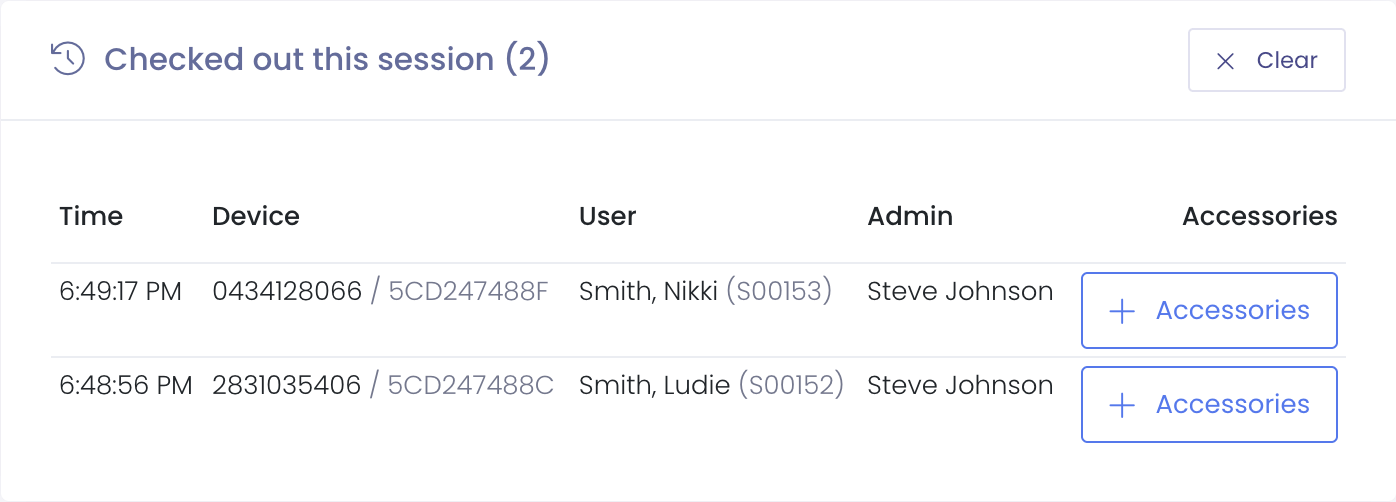
The list holds 25 rows per page and starts a new page as you keep scanning, so long distribution runs stay quick. Use Newer and Older to page through the session, or Clear to empty the list. The list covers the current session only, it clears when you leave or reload the page.
Accessories on checkout
If you've set up a default checkout bundle — for example a charger and a case — those accessories attach automatically to every device as you scan it out, and show on the session-log row so you can see they went with the device. No extra steps per device, which is what you want when you're issuing hundreds of devices in a day.
To hand out something beyond the default bundle for a particular device, each row also has a + Accessories button. Click it to open that user's profile with the accessory bundling step ready, in a new tab, so your scanning session keeps its place. This is optional — if there's nothing extra to add, ignore the button and keep scanning.
Returning devices?
Returns have their own workflow. See Rapid Check-In, scan devices back in with a session log and a keep-scanning option built for high-volume collection.
Best Practices
For Maximum Speed
Do:
- Use barcode scanners instead of manual typing
- Pre-print user barcodes on ID cards or checkout sheets
- Keep device asset tags clearly labeled and visible
- Process similar transactions in batches (all checkouts first, then all check-ins)
- Use Rapid Checkout during high-volume periods (beginning/end of year)
Don't:
- Mix different types of transactions in the same session
- Stop to research issues - flag devices and research them later
- Use Rapid Checkout for complex transactions requiring notes
- Process devices that need condition documentation via Rapid Checkout
For Accuracy
Do:
- Verify device and user information displayed on screen before confirming
- Have students present their ID when checking out devices
- Scan barcodes carefully to avoid misreads
- Keep a running count of processed devices to verify against expected totals
- Review transaction log after completing large batch operations
Don't:
- Rush through confirmations without verifying user/device match
- Assume scans were successful without checking screen feedback
- Process transactions for absent users (unless authorized)
- Ignore error messages or warnings
Handling Errors
If a device or user cannot be processed:
- Note the asset tag/user ID that caused the error
- Skip to the next transaction - don't let one issue slow down the entire line
- Flag problematic devices/users for follow-up after rush completes
- Review error messages to understand what needs correction
- Process exceptions individually using standard device/user profiles after completing rapid workflow
Common errors:
- Device already checked out - Use Rapid Check-In first, then check out again
- Device not found - Verify asset tag is correct and device exists in system
- User not found - Verify user ID or email address, ensure user account exists
- User ineligible - Check user status (may be inactive, graduated, or restricted)
- Device unavailable - Device may be marked as damaged, lost, or restricted
Workflow Scenarios
Scenario 1: Beginning of School Year Distribution
Situation: Distributing 300 Chromebooks to incoming 9th graders during orientation
Approach:
- Pre-stage devices in numerical order by asset tag
- Have students line up with their school IDs ready
- Use Rapid Check-Out with barcode scanner
- Scan device barcode, scan student ID barcode, press Enter
- Hand device to student, motion next student forward
- Repeat for all 300 devices
Estimated time: 2-3 seconds per device = 10-15 minutes total
Scenario 2: Help Desk Loaner Management
Situation: Student returns damaged device, needs loaner while repair is processed
Approach:
- Use Rapid Check-In to return damaged device
- Mark device for incident creation (follow up after student leaves)
- Use Rapid Check-Out to assign loaner device
- Total transaction time: under 30 seconds
- Create incident for damaged device after rush period
Benefit: Student gets loaner quickly, detailed documentation happens later
Scenario 3: End of School Year Collection
Situation: Collecting 500 devices from students during final exams week
Approach:
- Set up collection stations at multiple locations
- Use Rapid Check-In at each station
- Students drop off device, staff scans asset tag
- Visual inspection for obvious damage (process incidents later)
- Students receive return confirmation
Estimated time: 5 seconds per device = 40 minutes per station for 500 devices across 2 stations
Common Questions
Q: Can I add notes during Rapid Checkout? No. Rapid Checkout is designed for speed and does not include a notes field. If you need to document details, use the standard checkout workflow through the device profile.
Q: What if I accidentally check out the wrong device to the wrong user? Use Rapid Check-In to return the device immediately, then use Rapid Check-Out to assign it correctly. The transaction history will show both actions.
Q: Can I customize the checkout date during Rapid Checkout? No. Rapid Checkout always uses the current date and time. If you need to backdate a checkout or set a specific date, use the standard device profile checkout workflow.
Q: How many devices can I check out to one person at a time? Rapid Check-Out issues one device per user. You scan the user, scan a device, and the screen resets to the Local ID field, so every check-out is its own confirmed transaction. This keeps the record accurate, one user and one device per scan, rather than assigning a stack of devices in a single step.
Q: What happens if I scan the same device barcode twice? The system will show an error indicating the device is already checked out. You'll need to check in the device first before checking it out again.
Q: Can I use Rapid Checkout for staff devices? Yes. Rapid Checkout works for both student and staff users. Scan or enter the staff member's ID, email, or barcode just like you would for a student.
Q: Will Rapid Checkout send notifications to users? Yes, if email notifications are configured in System Settings, users will receive checkout/check-in confirmation emails just like standard checkouts.
Q: Can I print checkout receipts from Rapid Checkout? Rapid Checkout does not include built-in receipt printing. If you need receipts, configure email notifications or use the standard checkout workflow which may offer receipt options.
Q: How do I review transactions completed through Rapid Checkout? All rapid checkout/check-in transactions are logged in the Activity Log. You can also see checkout history on individual device and user profiles.
Q: What if a device needs to be marked damaged during check-in? Flag the device during rapid check-in and create an incident afterward. For efficiency during high-volume periods, complete the check-in to keep the line moving, then document damage details later through the device profile.
Q: Can I search for users by name instead of Local ID? Yes, if the User Search Autocomplete option is enabled in Settings. As you type, matching suggestions appear showing the user's name, Local ID, grade, and building. You can click a suggestion or use arrow keys to select. Barcode scanning still works normally even with autocomplete enabled.
Q: How do I see if a student already has a device checked out? Enable the "Show Current Checkouts" option in Settings → System Settings → Inventory Tab. When enabled, the user information panel will display a list of any devices or carts currently checked out to that user.
Q: Can I check if a student signed the AUP before checking out a device? Yes. Enable the "Show AUP Status" option in Settings → System Settings → Inventory Tab. The user information panel will show "Signed" or "Not Signed" so you can verify before completing the checkout.
Q: During Rapid Check-In, can I keep scanning when a device isn't checked out? Yes. The Keep Scanning After a Failed Check-In setting in Settings → System Settings → Inventory Tab controls this. When it's on (the default), a failed scan shows a brief corner notification and the input refocuses so you can continue immediately. When it's off, the workflow stops with an inline error until you take your next action, so you can resolve each problem scan before moving on.
Q: How do I hide the extra user information on the Rapid Check-Out screen? Go to Settings → System Settings → Inventory Tab and look for the Rapid Check-Out Display Options section. You can toggle off any of the display options (AUP Status, Device Fee Status, Current Checkouts, or User Search Autocomplete) that you don't need.