Adding Users
There are several ways to add users (students and staff) to Manage1to1. Depending on your workflow and volume, users can be added manually one-at-a-time, imported in bulk via CSV, or synchronized automatically from your Student Information System (SIS).
You can access the Add User page from Users > Add User.
To create users, you need the Create Users permission assigned to your role.
Understanding User Creation Methods
Think of user creation as getting people into the system so they can be assigned devices, tracked for incidents, billed for fees, and supported through help desk tickets.
Three main approaches:
1. Manual Creation (One-at-a-Time)
Best for:
- Adding a few new students mid-year
- Creating staff member accounts
- Quick additions when needed immediately
- Testing or special circumstances
Typical use: New student enrolls on Monday, secretary adds them manually.
2. Bulk Import (CSV Upload)
Best for:
- Beginning of school year (hundreds of new students)
- Mid-year large transfers (new school opens, boundary changes)
- Initial system setup
- Major data corrections
Typical use: District enrolls 200 kindergarteners in August, IT imports them all at once via CSV.
3. Automated Sync (SIS Integration)
Best for:
- Daily/nightly synchronization with SIS
- Keeping Manage1to1 automatically updated
- Large districts with frequent enrollment changes
- "Set it and forget it" maintenance
Typical use: Nightly automated sync ensures Manage1to1 always reflects current SIS enrollment.
Manual User Creation
How to Add a User Manually
Method One: From the Users Menu
- Navigate to
Users > Add User - Fill out the user information form (see fields below)
- Click Add User
Method Two: From the View Users Screen
- Navigate to
Users > View Users - Click the Add User button
- Fill out the user information form
- Click Add User
Both methods open the same form and work identically. Use whichever fits your workflow.
User Information Form Fields
When adding a user manually, you'll see the following fields. Required fields are marked with an asterisk (*).
Basic Information
Account Type * (Required)
- Student - For K-12 students
- Staff - For teachers, administrators, and support staff
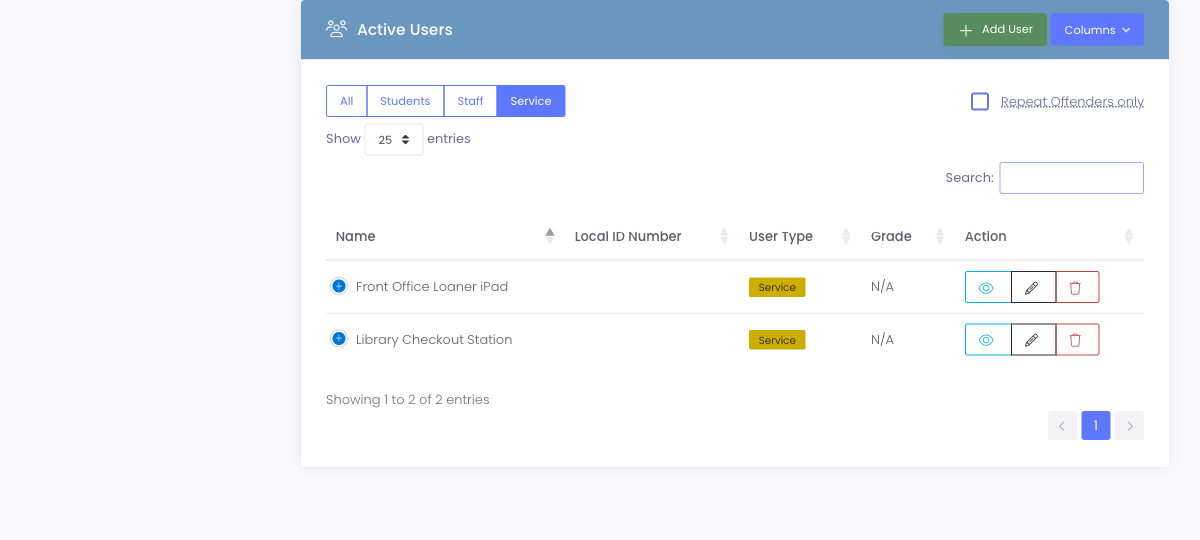
- Service / Generic - For shared, non-person logins such as a library checkout station, a front-office loaner device, or a spare-cart login. A service account is a shared sign-in you can store a username, password, email, and custom fields on. It is deliberately kept simple: because there's no real person behind it, it does not use device checkout, incidents, device fees, acceptable-use agreements, guardians, or a photo. It also doesn't require a Staff ID (see Local ID Number below).
Determines:
- Which fields appear on the form
- How the user is categorized in reports and the user list
Service accounts show a distinct Service badge everywhere users are listed, and the View Users list has an Account Type filter so you can narrow to just Students, Staff, or Service accounts. For a dedicated list of every service account and its details, open Reports → Service Accounts.
First Name * (Required)
- User's legal first name
- Example:
John
Middle Name (Optional)
- Middle name or initial
- Example:
MichaelorM
Last Name * (Required)
- User's legal last name
- Example:
Smith
Preferred Name (Optional)
- Name the user prefers to be called (if different from legal name)
- Example: Student's legal name is "Robert" but goes by "Bobby"
- Appears in some interface areas when configured
Identification
Local ID Number * (Required for Students and Staff)
- Your district's student ID or staff ID
- Must match your SIS records
- Used for syncing and reconciliation
- Example:
123456orS00789 - Optional for Service / Generic accounts - these are shared logins with no person behind them, so no Staff ID is needed. Leave it blank and the field's required marker drops away.
Use the exact same Local ID Number as your SIS. This ensures automated imports update the correct user instead of creating duplicates.
State ID Number (Optional)
- State-assigned identifier
- Required in some states for reporting
- Leave blank if your state doesn't use this
Username (Optional)
- Login username for student/staff portal
- If left blank, automatically generated as
firstnamelastname - Example: Auto-generated →
johnsmith - Must be unique across all users
Password (Optional)
- Initial password for student/staff portal login
- If left blank, a secure random password is generated
- Can be reset later by user or administrator
- Minimum 7 characters recommended
Email Address (Optional)
- User's email address for communications
- If left blank, generated as
username@yourdomain.com - Used for password resets, notifications, invoices
- Example:
jsmith@district.edu
Leaving Username, Password, and Email blank uses smart defaults. For most students, auto-generation works perfectly and saves time.
Academic Information
Grade * (Required for Students)
- Current grade level
- Options: K, 1, 2, 3, 4, 5, 6, 7, 8, 9, 10, 11, 12, Staff
- Use "Staff" for non-student users
- Updated annually (typically via bulk import)
Building * (Required)
- School or location the user is assigned to
- Dropdown shows buildings you have access to
- Determines which administrators can see this user
- Affects device inventory visibility
Homeroom (Optional)
- Homeroom teacher name or room number
- Example:
Mrs. JohnsonorRoom 204 - Useful for elementary schools
- Can be used for filtering and grouping
Section/Period (Optional)
- Class section or period
- District-specific usage
- May not be used in all configurations
Status
Active Status
- Active - Current student/staff (can be assigned devices)
- Inactive - Former student/staff (historical records preserved, no new assignments)
Default: Active (for new users)
Use cases for creating inactive users:
- Importing historical data
- Pre-loading graduating students as inactive for next year
- Rare - most new users are created as active
Contact Information
Phone Number (Optional)
- Primary contact phone number
- Example:
555-123-4567 - Used for parent/guardian contact or staff contact
Guardian Email (Optional - Students)
- Parent or guardian email address
- Used for invoice notifications, AUP reminders
- Separate from student email
- Example:
parent@email.com
Guardian Name (Optional - Students)
- Parent or guardian full name
- Example:
Jane Smith
Address Fields (Optional)
- Street address
- City, State, ZIP code
- Used for billing and correspondence
- May be populated from SIS sync
Technology & Compliance
AUP Signed (Optional)
- Acceptable Use Policy signed status
- Check if user has already signed AUP
- Typically managed through user portal or bulk import
- Default: Unchecked (not signed yet)
Technology Fee Paid (Optional)
- Whether user has paid required technology fees
- Check if fee has been paid
- Affects fee reporting and billing workflows
- Default: Unchecked (not paid)
Custom Fields
Custom Fields (If Configured)
- Your district may have custom fields configured
- Examples: Transportation status, special programs, allergies
- Fields and requirements vary by district
Common Use Cases
Scenario 1: New Student Enrolls Mid-Year
A new 5th grader enrolls at Lincoln Elementary:
- Go to
Users > Add User - Fill out form:
- User Type: Student
- First Name: Sarah
- Last Name: Johnson
- Local ID: 234567 (from SIS)
- Grade: 5
- Building: Lincoln Elementary
- Leave username, password, email blank (auto-generated)
- Click Add User
- Student is immediately available for device checkout
Result: Sarah can now be assigned a device for use starting today.
Scenario 2: New Teacher Starts
A new teacher joins the district:
- Go to
Users > Add User - Fill out form:
- User Type: Staff
- First Name: Michael
- Last Name: Chen
- Local ID: S00890 (from HR system)
- Email: mchen@district.edu
- Building: Washington Middle School
- Grade: Staff
- Click Add User
Result: Mr. Chen can be issued a staff laptop and access the user portal.
Scenario 3: Student Transfers from Another Building
A student moves from Elementary to Middle School mid-year:
Option A - Edit existing user:
- Find student in
Users > View Users - Click Edit
- Change Building from "Lincoln Elementary" to "Washington Middle School"
- Change Grade from "5" to "6"
- Save
Option B - If creating new (rare): Only if student is truly new to the district and SIS. Usually you edit the existing user rather than creating a new one.
Result: Student's record reflects new building and grade.
Bulk Import (CSV Upload)
For adding many users at once (dozens to hundreds), use the bulk import feature.
When to Use Bulk Import
Perfect for:
- Beginning of school year (new student cohort)
- Initial system setup (importing entire district)
- Large transfers or boundary changes
- Major data corrections across many users
Not ideal for:
- Adding 1-2 users (manual is faster)
- Frequent daily updates (use automated sync instead)
How Bulk Import Works
- Navigate to
Settings > System Utilities - Download the CSV template
- Fill in user information (one user per row)
- Upload the completed CSV file
- System processes and creates/updates users
Key features:
- Creates new users if Local ID doesn't exist
- Updates existing users if Local ID matches
- Validates data before import
- Shows error report if issues found
CSV File Requirements
Required columns:
- User Type (Student or Staff)
- First Name
- Last Name
- Local ID Number
- Grade
- Building
Optional columns:
- Middle Name, Email, Username, Password
- State ID, Phone, Address fields
- Guardian Name, Guardian Email
- Homeroom, AUP Status, Fee Status
- Custom fields
Formatting rules:
- Use CSV format (comma-separated values)
- First row must be column headers
- No blank rows
- Text fields in quotes if they contain commas
- Use exact building names (match system exactly)
See Bulk Student Import for complete field definitions and examples.
Automated Sync (SIS Integration)
The most efficient long-term approach is automated synchronization with your Student Information System.
How Automated Sync Works
- Configure automated export in
Settings > System Automation > Exports - Your SIS generates a CSV file nightly (or on your schedule)
- File is placed on SFTP server
- Manage1to1 imports the file automatically
- Users are created or updated to match SIS
What gets synchronized:
- New student enrollments (creates users)
- Name changes, grade promotions (updates users)
- Building transfers (updates building assignment)
- Status changes (marks inactive when student withdraws)
Benefits:
- Zero manual effort once configured
- Always reflects current SIS data
- Catches name corrections, grade changes automatically
- Reduces duplicate user creation
Typical schedule:
- Nightly sync (most common) - Updates happen overnight
- Weekly sync - Less frequent, suitable for small/stable districts
- Multiple times daily - Large districts with high enrollment volatility
Automated sync requires system administrator setup. Contact your Manage1to1 administrator or support to configure SIS integration.
Tips for Adding Users
✅ Do:
- Use automated sync for long-term maintenance (best practice)
- Use bulk import for large one-time additions (beginning of year)
- Use manual creation for quick individual adds (new students mid-year)
- Match Local ID Number exactly with SIS
- Search for existing user before creating (avoid duplicates)
- Use auto-generated username/password for students (saves time)
- Set building correctly (affects data visibility and access)
❌ Don't:
- Create duplicate users (search SIS ID first)
- Use manual creation for hundreds of users (use bulk import)
- Forget to assign a building (users need building for proper access)
- Skip Local ID Number (required for SIS sync)
- Use nicknames in legal name fields (use Preferred Name field instead)
- Create users as Inactive unless specifically needed (default is Active)
Validation and Error Messages
The system validates user information before creation:
Common validation errors:
| Error | Cause | Solution |
|---|---|---|
| "Local ID already exists" | Another user has this ID | Check if user already exists; update existing user instead |
| "Username already exists" | Another user has this username | Use a different username or auto-generate |
| "Email address already exists" | Another user has this email | Use a different email or check for duplicates |
| "Required field missing" | Required field left blank | Fill in all required fields marked with * |
| "Invalid email format" | Email not properly formatted | Use valid email format (user@domain.com) |
| "Invalid building" | Building name doesn't match system | Select from dropdown rather than typing |
After Adding a User
Once a user is created, you can:
Immediate actions:
- Assign them a device (checkout process)
- Create invoices for fees
- Add notes to their profile
- View their profile for verification
Profile management:
- Edit information if needed
- Upload custom data to custom fields
- Attach documents or special instructions
Ongoing management:
- Update grade annually (typically bulk import)
- Change building if they transfer
- Mark inactive when they leave the district
- Track device checkouts, incidents, tickets
Common Questions
Q: What happens if I create a user with the same Local ID as an existing user? The system prevents this. Local ID must be unique. You'll get an error and need to either use a different ID or edit the existing user instead.
Q: Can I create a user without a Local ID Number? No, Local ID Number is required. It's essential for SIS synchronization and preventing duplicates.
Q: Should I create users for every student in the district? Yes, if you're doing 1:1 device deployment or tracking any students. For partial deployments, create users only for students who will receive devices or need tracking.
Q: How do I know if a user already exists?
Search in Users > View Users by name or Local ID before creating. If found, edit the existing user rather than creating a duplicate.
Q: What if I make a mistake after creating a user?
Edit the user to correct the information. Go to Users > View Users, find the user, click Edit, make changes, and save.
Q: Can I delete a user I just created by mistake? Yes, if they have no associated records (devices, incidents, invoices). If they have records, mark them Inactive instead of deleting.
Q: Should I assign a device when creating the user? No, user creation and device checkout are separate steps. Create the user first, then perform a device checkout if needed.
Q: What username and password are generated if I leave those fields blank?
- Username:
firstnamelastname(e.g., johnsmith) - Password: Secure random password These can be viewed/changed later by editing the user.
Q: Can I import users if I don't have an SIS? Yes! Use the bulk CSV import feature. You'll need to maintain the CSV file manually, but you can still import in bulk rather than creating users one-at-a-time.
Q: How often should I sync with our SIS? Best practice is nightly automated sync. This ensures Manage1to1 always reflects current enrollment, grade levels, and building assignments.
Q: What happens to users created manually when we turn on automated sync? Automated sync matches by Local ID Number. If the IDs match, the sync updates the existing user. If not, it creates a new user. Ensure Local IDs match your SIS to prevent duplicates.
Proper user creation ensures your Manage1to1 system accurately reflects your student and staff population, enabling effective device management, billing, and support tracking.