Bulk Student Import and Process
Bulk Student Import and Process lets you create or update student accounts in bulk using a CSV file — upload the file, review a full preview of exactly what will happen, then confirm.
This is commonly used for student adds, updates, and refreshes throughout the year when automated SIS imports are not configured or when one-time data corrections are needed.
Uploading and clicking Preview & Process Student Import only shows you what will happen — a summary of new versus existing students, any unrecognized CSV columns awaiting a decision, and any rows that will be skipped. No student accounts are created or updated until you click Confirm & Import on the preview screen.
To access System Utilities, you need the Manage Settings permission assigned to your role.
If your SIS can export a nightly CSV, point it at SFTP and let Manage1to1 import it automatically every night — no clicking required. See Uploading Student, Staff & Guardian CSVs via SFTP. The column layout below applies to the SFTP students.csv file too.
The SFTP path adds three behaviors the in-app utility doesn't have, all configured at Settings → System Automation:
- Enable Automatic Student Import — runs the nightly import.
- Override Student Passwords... — replaces existing passwords with what's in the CSV (off by default).
- Automatically Mark Missing Students as Inactive — treats the CSV as the authoritative roster; students not in it are deactivated. Only turn this on when your nightly export is a complete district roster.
Understanding Bulk Student Import
Think of bulk student import as manual CSV-based student synchronization - you prepare a student data file, upload it, and then process it to create or update student accounts in batch.
What this utility does:
- Uploads a student CSV into a staging area
- Processes the CSV to create or update student users
- Handles building assignments and profile fields
- Provides a delete option if the wrong file is uploaded
When to use:
- OneRoster/automated imports are not configured
- One-time student data corrections needed
- Mid-year student additions from SIS export
- Bulk updating student profile fields
When NOT to use:
- OneRoster is enabled (use OneRoster sync instead)
- Automated CSV imports are configured (use Automation Settings)
- Adding single students (use manual student creation)
The Two-Step Workflow
Step 1: Upload the Student CSV
Upload prepares the file for processing but does not make changes yet.
How to upload:
- Navigate to Settings → System Utilities → Users tab
- Locate Bulk Student Import/Update
- Download the CSV Import Template
- Populate the template with your student records
- Upload the CSV using the upload area
What happens:
- File is validated for format
- CSV is staged in system for processing
- No student accounts are created or modified yet
Step 2: Preview the Import
Clicking Preview & Process Student Import reads the staged file and shows you a summary — it does not write anything yet.
How to preview:
- Locate Bulk Student Process
- Confirm the system shows a file is present (timestamp displayed)
- Click Preview & Process Student Import
- Review the preview screen (covered in Reviewing the Preview below)
Step 3: Confirm the Import
When the preview looks right, click Confirm & Import to apply the changes.
What happens:
- Student accounts are created or updated
- Any custom fields you chose to create are added
- Building assignments applied
- Profile fields populated
- Rows flagged as skipped are left untouched
If anything looks wrong, click Cancel instead — nothing is written and you can fix and re-upload the CSV.
Reviewing the Preview
The preview screen is the heart of the import. It opens after you click Preview & Process Student Import and summarizes exactly what confirming will do.
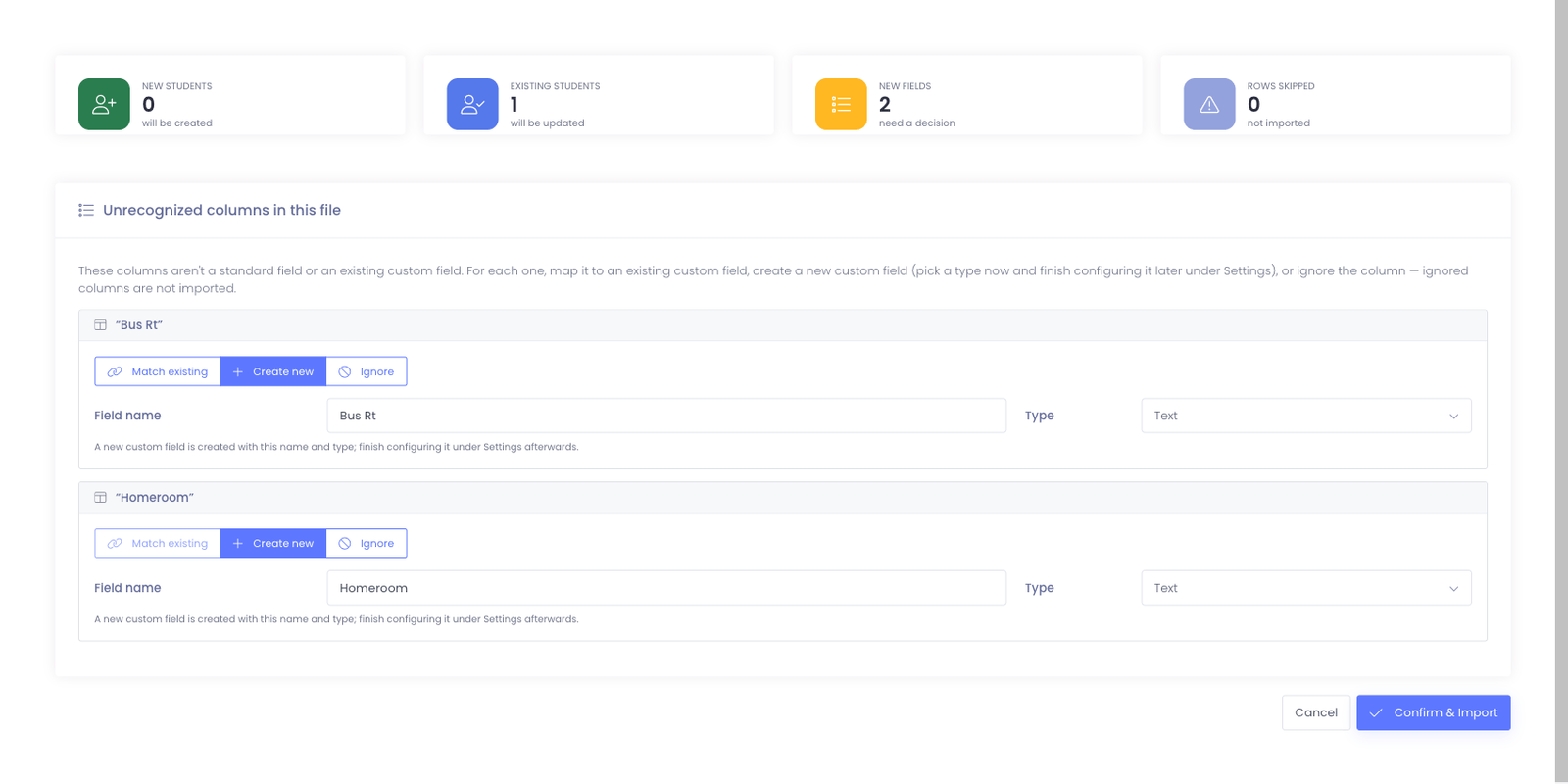
Summary cards
The cards across the top give you the totals at a glance:
- New Students — accounts that will be created
- Existing Students — accounts already in Manage1to1 that will be updated
- New Fields — columns in the file that don't match a standard field or an existing custom field and need a decision from you
- Rows Skipped — rows missing required data; these are left out of the import
Custom fields: putting extra CSV columns onto student records
Your CSV can carry columns beyond the standard student fields — a locker number, a homeroom, a bus route — and the importer turns each one into a custom field on the student record. You don't set anything up in advance: add the column to your CSV, and the preview asks what to do with it.
When a column isn't a standard field or a custom field you already have, Manage1to1 doesn't guess — it lists the column under Unrecognized columns in this file and gives you three choices per column:
- Match existing — map the column to a custom field you already have. Use this when you've imported this data before (the field already exists) and just want to keep filling it.
- Create new — create a brand-new custom field. The Field name is pre-filled from your column header, and you pick a Type (Text, Textarea, Dropdown, Checkbox, Link, or Password). The field is created when you confirm the import; you can fine-tune it later under Settings → System Settings → Custom Fields.
- Ignore — skip that column entirely. It isn't imported and no field is created.
Worked example. Say your CSV has two extra columns, Homeroom and Locker Number:
| First Name | Last Name | Student ID | Homeroom | Locker Number |
|---|---|---|---|---|
| Ava | Nguyen | 100482 | Rm 204 | 318 |
| Liam | Torres | 100517 | Rm 111 | 072 |
On the preview, both Homeroom and Locker Number appear as unrecognized columns:
- For
Homeroom, choose Create new and keep the type Text — it becomes a Homeroom custom field on every student in the file. - For
Locker Number, if you already created a Locker Number field last semester, choose Match existing and point it there so the values land in the same field instead of a duplicate.
After you click Confirm & Import, open any student in the file and you'll see Homeroom → Rm 204 and Locker Number → 318 on their profile.
The importer matches on the column header. If you called the column Locker Number last time and Locker # this time, it treats the second one as a new unrecognized column. Reuse the exact header (or use Match existing to point it at the right field) to avoid creating duplicates.
Skipped rows
Rows missing required data are grouped into a collapsible rows will be skipped notice. Expand it to see which rows were left out, fix them in your CSV, and re-upload if you want them included.
CSV Template and Requirements
Download the Template
Use the CSV Import Template button to download the expected format.
Important: Template columns vary by district configuration. Always download the template from your environment rather than using templates from other sources.
Common columns:
- Student ID (required)
- First Name
- Last Name
- Grade Level
- Building ID
- Email Address
- Username
- Password (optional)
- Active Status
Column requirements:
- Headers must match template exactly (case-sensitive)
- Required columns must have values for every row
- Building IDs must match existing buildings in Manage1to1
- Student IDs must be unique
Before You Upload
Checklist:
- ✓ Confirm required columns exist and match the template exactly
- ✓ Confirm student identifiers are consistent with your SIS exports
- ✓ If your file includes building references, verify the building codes match configured buildings
- ✓ Remove test rows or header comments
- ✓ Ensure file is saved as CSV (not Excel .xlsx)
Common mistakes to avoid:
- Misspelled building codes (students won't associate correctly)
- Duplicate student IDs (creates conflicts)
- Missing required fields (rows will be skipped)
Delete Option
If the uploaded file is incorrect, delete it and re-upload.
How to delete:
- Locate Bulk Student Process
- Click Delete Student CSV File
- File is removed from staging
- Re-upload the correct file using Bulk Student Import/Update
When to delete:
- Wrong file uploaded
- Realized errors in CSV after uploading
- Need to make changes before processing
Important: Delete must be done BEFORE processing. Once processed, changes are applied and cannot be undone by deleting the CSV.
Verification Steps
After processing, confirm changes were applied correctly.
What to check:
- Students were created or updated as expected
- Grade levels, buildings, and active status reflect expectations
- A sample of student profiles display correct demographic and assignment-related data
- Student count matches expected total
- No students missing or duplicated
Recommended verification:
- Run user report filtered by recent additions
- Check 5-10 student profiles manually
- Verify building assignments are correct
- Confirm grade levels match SIS
- Test student logins (if applicable)
If problems found:
- Review CSV for errors
- Check building ID alignment
- Verify required fields were populated
- Contact Manage1to1 Support if import results are unexpected
Best Practices
✅ Do:
- Download template from your environment (don't reuse old templates)
- Test with small CSV (10-20 students) before processing full file
- Backup data before large imports (request from Support if needed)
- Verify building IDs match Manage1to1 buildings exactly
- Review uploaded file timestamp before processing
❌ Don't:
- Click Confirm & Import without reading the preview summary and resolving every unrecognized-column decision
- Upload CSV with thousands of rows without testing
- Use building codes that don't exist in Manage1to1
- Include sensitive data not needed for import
- Process same file multiple times (creates duplicates)
Common Questions
Q: What happens to existing students not in the CSV? Nothing. Bulk import only affects students included in the CSV. Existing students not in the file remain unchanged.
Q: Can I update existing students with this utility? Yes. If a student ID already exists, the import updates that student's profile fields with values from the CSV.
Q: What if a student in the CSV has a building that doesn't exist? The student may be created but won't be associated with a building, or the import may skip that row. Check import results carefully.
Q: A row says "Local ID conflict" and the student wasn't created. Why? A Local ID identifies exactly one person, and this student's Local ID is already assigned to a staff record. Rather than risk changing the wrong person, Manage1to1 holds the row back — your existing staff record is left untouched — and flags it as a Local ID conflict. Correct the duplicate Local ID in your source system so each person has their own, then re-run the import.
Q: Can I upload multiple CSV files before processing? No. Only one CSV can be staged at a time. Process or delete the current file before uploading another.
Q: How long does processing take? Depends on file size. Small files (100 students): seconds. Large files (5000+ students): several minutes.
Q: What happens if I process the same CSV twice? Students already in the system will be updated again with the same values. This is generally harmless but unnecessary.
Q: Can I include inactive students in the CSV? Yes, if your template has an active status column. Set the status column to indicate inactive status.
Q: How do I import custom fields (extra columns like locker number or homeroom)? Just add the column to your CSV. On the preview it appears under Unrecognized columns in this file, where you choose to match it to an existing custom field, create a new one, or ignore it. See Custom fields: putting extra CSV columns onto student records for a worked example. Nothing is imported until you confirm.
Q: Can I still cancel after clicking Preview & Process Student Import? Yes. The preview writes nothing. Click Cancel to walk away with no changes, or Confirm & Import to apply what the preview shows.
Bulk Student Import and Process provides manual control over student account creation and updates when automated imports are not available or when one-time data changes are needed.