Bulk Guardian Import and Process
Bulk Guardian Import and Process lets you create or update guardian/parent records and associate them with students using a CSV file — upload the file, review a preview of exactly what will happen, then confirm.
This workflow is used when OneRoster or automated guardian imports are not available, allowing manual guardian data management from SIS exports.
Uploading and clicking Preview & Process Guardian Import only shows you what will happen — how many guardian records will be created or updated, how many students they match, and any rows that will be skipped. No guardian records are created or updated until you click Confirm & Import on the preview screen.
To access System Utilities, you need the Manage Settings permission assigned to your role.
OneRoster typically does not include guardian data. Most districts use this CSV-based import for guardian information even when using OneRoster for students and staff.
If your SIS can export a nightly guardian CSV, point it at SFTP and let Manage1to1 import it automatically every night — no clicking required. See Uploading Student, Staff & Guardian CSVs via SFTP. The column layout below applies to the SFTP guardians.csv file too.
The SFTP path adds two behaviors the in-app utility doesn't have, both configured at Settings → System Automation:
- Enable Automatic Guardian Import (CSV Only) — runs the nightly import. Flipping this on removes all guardians that were created via
students.csvand rebuilds the guardian list fromguardians.csvgoing forward, so only enable it once your dedicated guardian feed is ready. - Automatically Remove Missing Guardians (CSV Only) — treats the CSV as the authoritative source; guardians not in the file are unlinked from their students. Only turn this on when your nightly export contains every active guardian relationship district-wide.
Understanding Bulk Guardian Import
Think of bulk guardian import as manual CSV-based parent/guardian account management - you prepare guardian data from your SIS, upload it, and process it to create guardian accounts and link them to students.
What this utility does:
- Uploads a guardian CSV into a staging area
- Processes the CSV to create or update guardian records
- Applies guardian-to-student associations based on CSV values
- Provides a delete option if the wrong file is uploaded
When to use:
- Initial guardian data setup
- Annual guardian data refresh from SIS
- Updating guardian contact information in bulk
- Adding guardians for new student enrollments
When NOT to use:
- Adding single guardian (use manual guardian creation)
- Automated guardian imports are configured (use Automation Settings)
The Workflow
Step 1: Upload the Guardian CSV
Upload prepares the file for processing but does not make changes yet.
How to upload:
- Navigate to Settings → System Utilities → Users tab
- Locate Bulk Guardian Import
- Download the CSV Import Template
- Populate the template with guardian records
- Upload the CSV using the upload area
What happens:
- File is validated for format
- CSV is staged in system for processing
- No guardian accounts are created or modified yet
Step 2: Preview the Import
Clicking Preview & Process Guardian Import reads the staged file and shows you a summary — it does not write anything yet.
How to preview:
- Locate Bulk Guardian Process
- Confirm the system shows a file is present (timestamp displayed)
- Click Preview & Process Guardian Import
- Review the preview screen (covered in Reviewing the Preview below)
Step 3: Confirm the Import
When the preview looks right, click Confirm & Import to apply the changes.
What happens:
- Guardian accounts are created or updated
- Guardian-student associations applied
- Contact information populated
- Rows flagged as skipped are left untouched
If anything looks wrong, click Cancel instead — nothing is written and you can fix and re-upload the CSV.
Reviewing the Preview
The preview screen opens after you click Preview & Process Guardian Import and summarizes exactly what confirming will do.
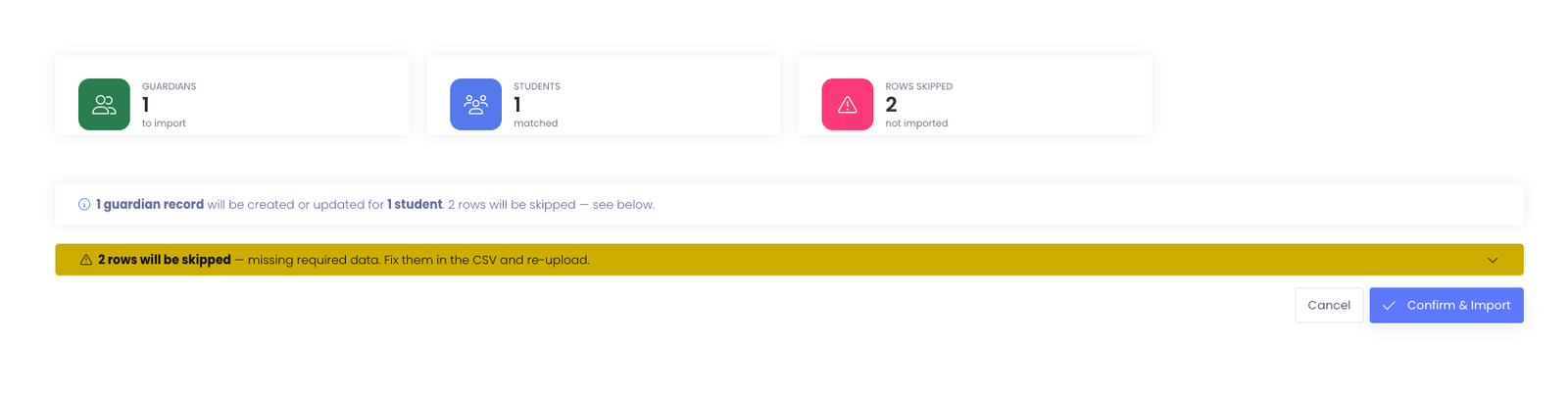
Summary cards
The cards across the top give you the totals at a glance:
- Guardians — guardian records that will be created or updated
- Students — students in the file that match an existing record and will have the guardian linked
- Rows Skipped — rows missing required data; these are left out of the import
Skipped rows
Rows missing required data are grouped into a collapsible rows will be skipped notice. Expand it to see which rows were left out, fix them in your CSV, and re-upload if you want them included.
CSV Template and Requirements
Download the Template
Use the CSV Import Template button to download the expected format.
Common columns:
- Student ID (to link guardian to student)
- Guardian First Name
- Guardian Last Name
- Guardian Email
- Guardian Phone
- Relationship (Mother, Father, Guardian, etc.)
Column requirements:
- Student ID must match existing student IDs in Manage1to1
- Guardian identifiers must be consistent (for updating existing guardians)
- Contact fields should be formatted consistently
Before You Upload
Checklist:
- ✓ Confirm required columns match the template exactly
- ✓ Confirm student identifiers used for association match how students are identified in your environment
- ✓ Confirm guardian contact fields are formatted consistently (phone numbers, emails)
- ✓ Remove test rows or header comments
- ✓ Ensure file is saved as CSV (not Excel .xlsx)
Common mistakes to avoid:
- Student IDs that don't match existing students (guardian won't associate)
- Inconsistent phone number formatting
- Missing required relationship field
- Duplicate guardian entries for same student
Delete Option
If the uploaded file is incorrect, delete it and re-upload.
How to delete:
- Locate Bulk Guardian Process
- Click Delete Guardian CSV File
- File is removed from staging
- Re-upload the correct file using Bulk Guardian Import
When to delete:
- Wrong file uploaded
- Errors found in CSV after uploading
- Need to make changes before processing
Important: Delete must be done BEFORE processing. Once processed, changes are applied and cannot be undone by deleting the CSV.
Verification Steps
After processing, confirm changes were applied correctly.
What to check:
- Guardians appear where expected in student records
- Contact data is correct and complete
- A sample of students reflect the correct guardian relationships
- Guardian-student associations are accurate
- Email and phone numbers formatted correctly
Recommended verification:
- Check 10-15 student profiles to see guardian associations
- Verify guardian contact information
- Confirm relationship types are correct
- Test parent portal login for sample guardians (if applicable)
If problems found:
- Review CSV for student ID matching errors
- Check that student IDs in CSV match existing students
- Verify required fields were populated
- Contact Manage1to1 Support if import results are unexpected
Best Practices
✅ Do:
- Download template from your environment
- Test with small CSV (10-20 guardians) before processing full file
- Verify student IDs match existing students exactly
- Format phone numbers consistently
- Review uploaded file timestamp before processing
❌ Don't:
- Click Confirm & Import without reading the preview summary first
- Use student IDs that don't exist in Manage1to1
- Upload CSV with thousands of rows without testing
- Process same file multiple times (creates duplicate guardian associations)
- Include outdated guardian data (graduated students, etc.)
Common Questions
Q: Can I cancel after clicking Preview & Process Guardian Import? Yes. The preview writes nothing. Click Cancel to walk away with no changes, or Confirm & Import to apply what the preview shows.
Q: What happens to existing guardians not in the CSV? Nothing. Bulk import only affects guardians included in the CSV. Existing guardians not in the file remain unchanged.
Q: Can I update existing guardian information with this utility? Yes. If a guardian already exists (matched by guardian identifier), the import updates that guardian's contact information.
Q: What if a guardian in the CSV is linked to a student that doesn't exist? That guardian-student association will fail. The guardian may still be created, but won't be linked to the non-existent student.
Q: Can I upload multiple CSV files before processing? No. Only one CSV can be staged at a time. Process or delete the current file before uploading another.
Q: How long does processing take? Depends on file size. Small files (100 guardians): seconds. Large files (5000+ guardians): several minutes.
Q: Can a guardian be associated with multiple students? Yes. Include multiple rows in the CSV with the same guardian information but different student IDs to link one guardian to multiple students.
Q: Will guardians get parent portal access after import? If parent portal is enabled, yes. Guardians will receive portal access and can log in using their email and password (if passwords are set during import or via password reset).
Bulk Guardian Import and Process provides efficient guardian/parent account management for initial setup, annual updates, and maintaining parent contact information when automated imports are not available.