Google Devices
Google Devices enables ChromeOS device data synchronization from Google Admin. This integration is intended for districts that manage Chromebooks through Google Admin Console and want richer device detail inside Manage1to1 without changing how inventory is managed.
Google Devices is used for device sync only. Google single sign on is not configured here.
Connection, Sync Options, Writeback, and Device Import behave the same across every MDM — Common Setup Options explains each, including how Device Import routes unknown devices into a review queue instead of adding them automatically. Google Devices doesn't offer Removed-Device Handling. This page covers what's specific to Google Devices.
Before You Start
Most districts complete setup with a dedicated Google account rather than a personal administrator account. The account used to create and authorize the project should be one the district will retain long term.
The Google account that owns the Google Cloud project is difficult to change later without reauthorization. Districts should plan for continuity before completing setup.
Step 1: Create a Google Cloud Project
- Visit the Google Cloud Console and sign in with the account your district will use for this integration.
- Use the project selector to create a new project.
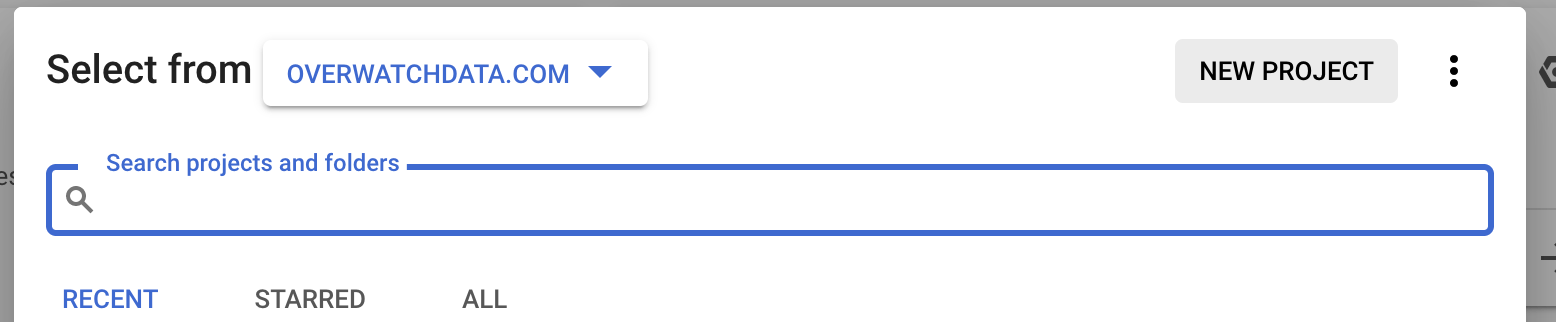
Under the Project selector, choose Create project
- Give the project a name that is meaningful to your district. The project name is not public facing.
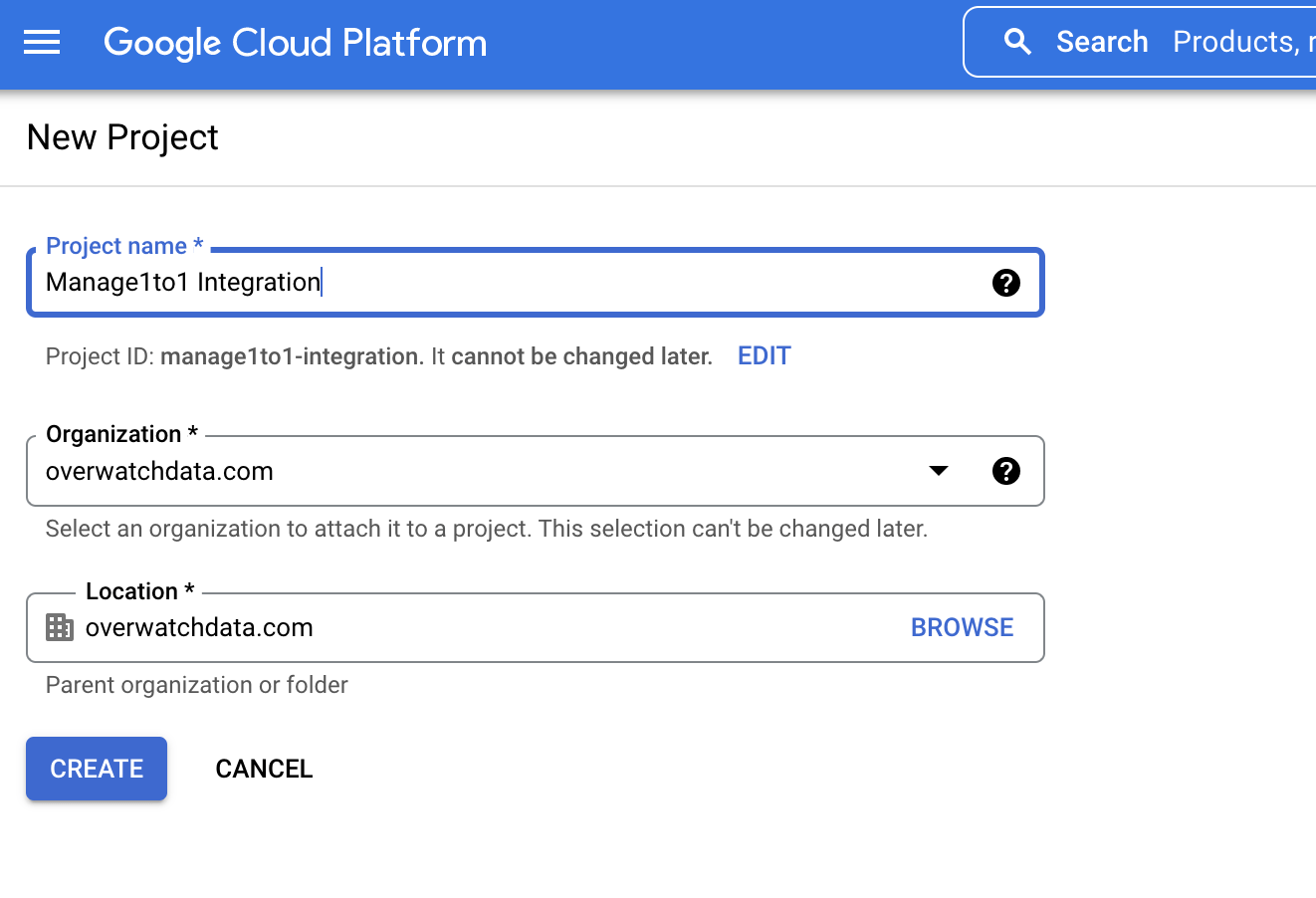
Enter a Project Name and click Create (This name is private to you)
Many districts name the project something like Manage1to1 Device Sync so it is easy to identify later.
Step 2: Configure OAuth Consent
Google requires an OAuth consent configuration even if the integration is used only by district staff. This is where the name shown during authorization comes from.
- In the Google Cloud Console, open
APIs & Services.
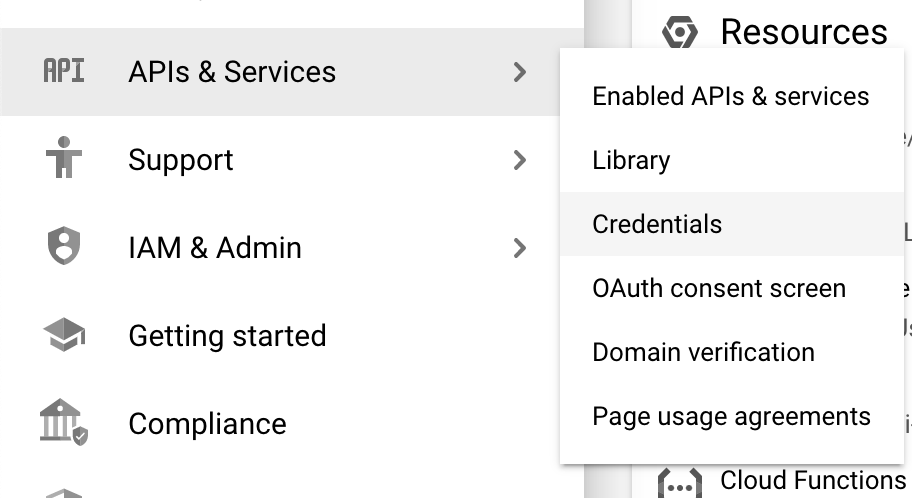
Choose Internal as the User Type for the integration and press Create
- Select OAuth consent configuration.
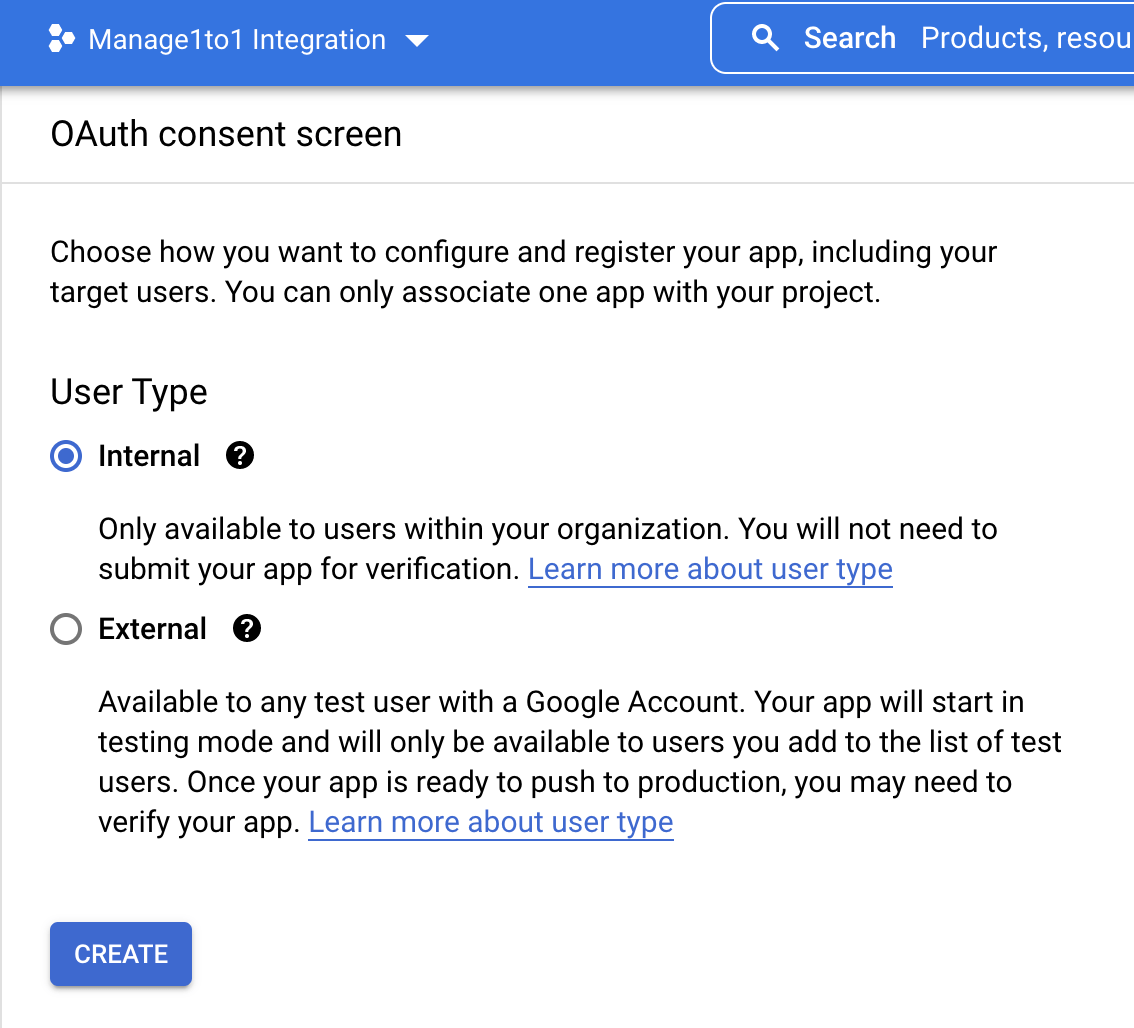
Next you will be taken to the project dashboard. From here, select API’s & Services >> Credentials in the left sidebar
- Choose Internal as the user type.
- Enter an app name and a homepage URL. Districts typically use their district homepage.
- Add
manage1to1.comas an authorized domain. - Save and continue through the remaining steps without adding additional scopes unless your district has a specific requirement.
Step 3: Create OAuth Credentials
Next, create the OAuth client used for authorization.
- Navigate to
APIs & Services > Credentials. - Choose
Create credentials > OAuth client ID. - Select Web application.
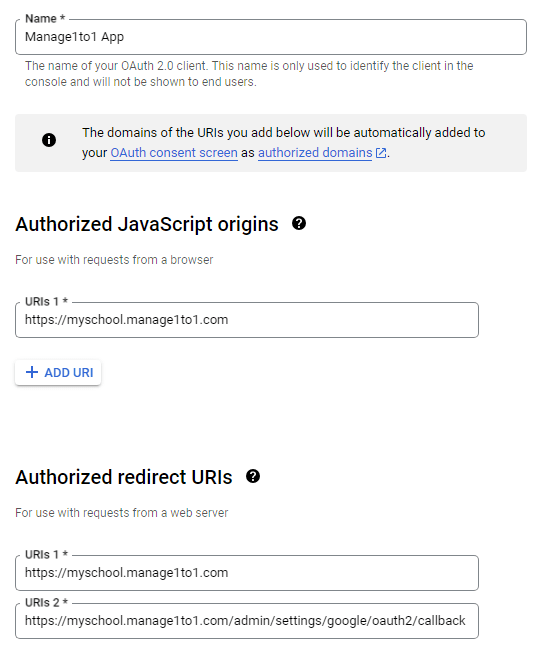
Provide a Name for the credential set (this is not visible to the public) and the authorized JavaScript origins and redirect URIs. Enter your full URL for Manage1to1 (do not include the /admin) in both the authorized JavaScript origin and redirect URI boxes. In the example here we are using “https://yourschoolurl.manage1to1.com”.
- Add the authorized JavaScript origin for your Manage1to1 URL:
https://YOURDISTRICT.manage1to1.com - Add the same url above as an authorized redirect URI as well.
After creation, Google will display a Client ID and Client Secret. Store these securely.
Treat the Client Secret like a password. Districts should store it in a secure location and restrict access to staff who manage platform configuration.
Step 4: Activate Google Devices in Manage1to1
Return to Manage1to1 and navigate to:
System Settings > MDM Settings
Locate the Google Devices tile and select Activate.

To activate, Manage1to1 will prompt for the Google OAuth credentials from the earlier steps.
- Enter the Client ID.
- Enter the Client Secret.
- Choose Test Configuration to verify the credentials.
- Save the configuration.
You will then be presented with an OAuth2 Callback URL. Please take note of this URL as it will need to be added in the URL Redirect alongside the main URL in the previous step. The format will be similar to this: https://YOURDISTRICT.manage1to1.com/admin/settings/mdm/oauth2/GoogleDevices/callback
Step 5: Enable Admin SDK API
Google Devices sync relies on Admin SDK API access.
- In the Google Cloud Console, open
APIs & Services > Library. - Search for Admin SDK API.
- Select it and click Enable.
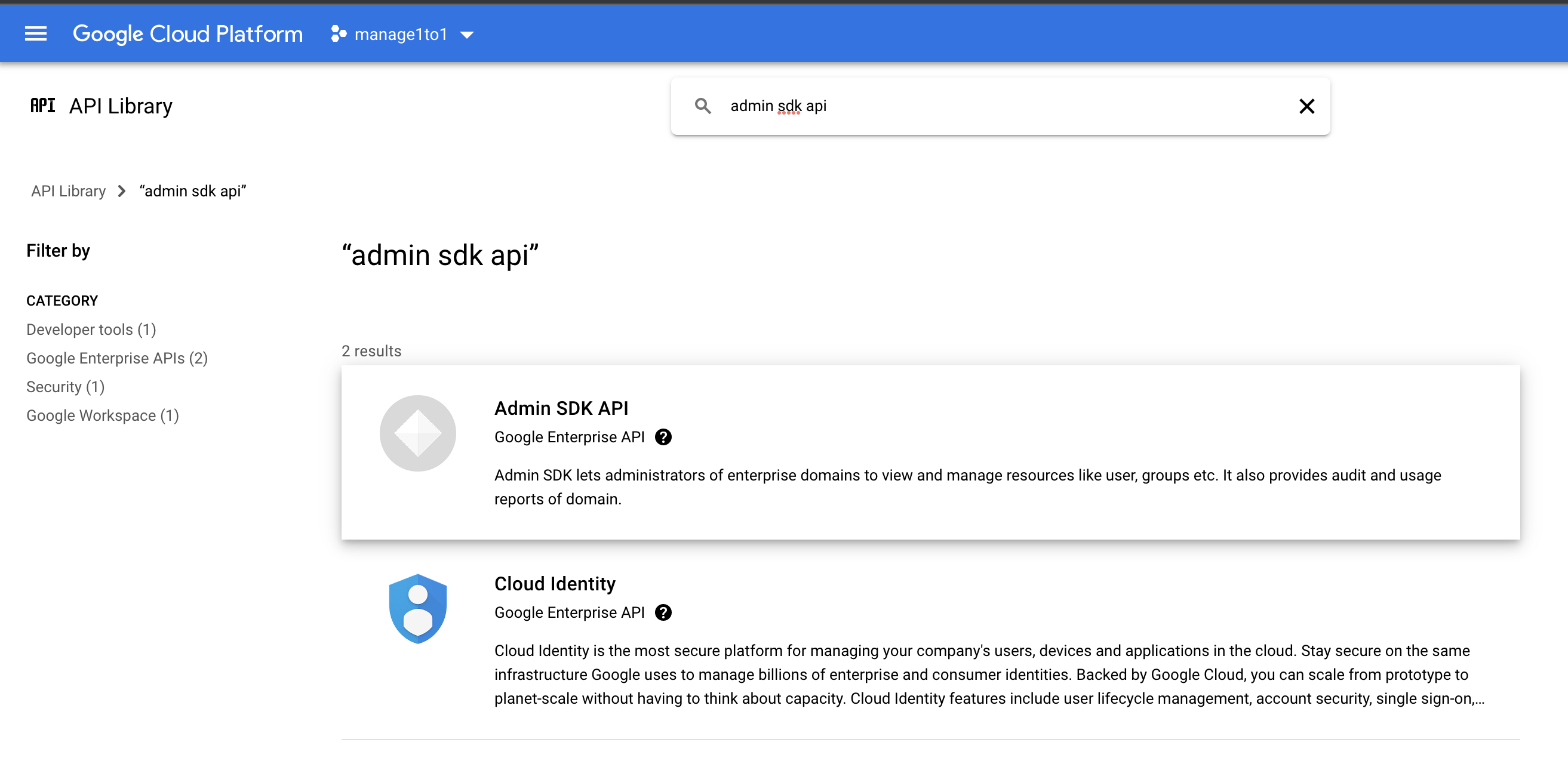
Search for admin sdk api and choose the Admin SDK API from the results screen
If Admin SDK API is not enabled, authorization may succeed but device sync will fail.
Step 6: Authorize Device Sync
After credentials are saved, head back to Manage1to1 and click the Authorize button to authorize the connection to Google.
When you select Authorize, Manage1to1 opens a Google authorization window. Sign in using a Google administrator account that has sufficient permissions to access ChromeOS device data in Google Admin.
Once authorization is complete, Manage1to1 will store an access token for the integration and enable sync actions.
If you ever need to grant a new permission (for example, after turning on battery health) or refresh the connection, use the Re-authorize button on the Google Devices settings. Re-authorizing keeps your existing settings and synced devices, so you never have to remove and set the integration up again.
Step 7: Sync Device Data
After authorization, device data will begin syncing automatically. Manage1to1 syncs with Google periodically throughout the day in small batches to keep device data current without impacting performance.
You can also view the latest Google data for any individual device by opening the device info panel and selecting Refresh Now.
A sync updates Google device fields for devices that already exist in Manage1to1. This includes only devices that Manage1to1 can match to your inventory.
Manage1to1 syncs Google device data only for devices that already exist in Manage1to1.
A Chromebook that exists only in Google Admin will not be pulled into Manage1to1 automatically. It must exist in Manage1to1 before syncing.
Districts typically prefer this approach because it prevents old, staged, lost, or retired devices from being added back into inventory unintentionally. It also keeps API utilization focused on devices that are actively tracked, checked out, or audited.
Writeback to Google
Beyond pulling device data from Google, Manage1to1 can also push a few fields back to the Google Admin Console so your Chromebook records there reflect who has each device and where it belongs.
Turn on the Checkout Writeback master option in the Google Devices sync settings to unlock three fields you can enable individually:
- Annotated User — set to the person a device is checked out to, and cleared when the device is checked back in.
- Asset ID — set to the device's asset tag from Manage1to1.
- Location — set to where the device currently is: while it's checked out, the holder's building with (User) appended, such as
Oakwood High School (User); once it's returned, the device's own building. If there's no building to use, the Location is left untouched.
Enable any combination you want. The Asset ID always reflects the device's asset tag, and the Location follows the device from its holder's building back to its own on return. Only the Annotated User is cleared on check-in.
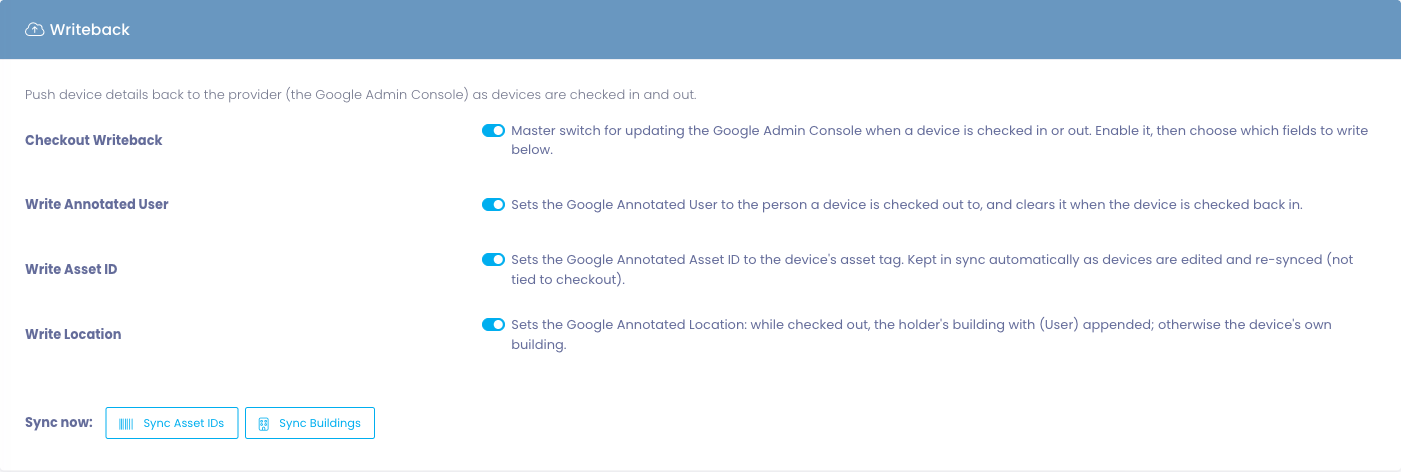
The three field options stay locked until Checkout Writeback is turned on.
Writeback runs from every check-out and check-in path, including Rapid Check-Out, Rapid Check-In, the loaner desk, and bulk tools, so the Google Admin Console stays in step no matter how your team processes devices.
Writeback only applies to devices Manage1to1 has already matched to a synced Google record, and updates are processed in the background shortly after each check-out or check-in.
Keeping Asset ID and Location Correct
The Asset ID and Location describe the device, not who's holding it, so Manage1to1 keeps them correct in Google on their own — not just at check-out. When you edit a device's asset tag or building, the change is pushed to Google right away, and the regular sync also corrects any that have drifted (only updating the ones that are actually different).
To push everything at once, use the Sync Asset IDs and Sync Buildings buttons in the Writeback section of the Google Devices settings (they're active whenever Checkout Writeback is on). Both honor the writeback options above and only touch devices whose value has changed.
Sync Buildings sets each device's Location the same way check-out and check-in do:
- If the device is checked out, it's set to the holder's building with (User) appended, for example
Oakwood High School (User). - If the device is not checked out but has a building, it's set to that building's name.
- If the device has no building to use, it's skipped — an existing value in Google is never blanked out.

Deprovisioned Device Handling
When a Chromebook is deprovisioned in the Google Admin Console (removed from management), Manage1to1 can react to it automatically. Turn on Handle Deprovisioned Devices in the Google Devices sync settings, then choose the status deprovisioned devices should move to. It defaults to Deprovisioned, an inactive status.
With it enabled, during each sync:
- A deprovisioned device that isn't in Manage1to1 is skipped, so retired hardware is never pulled into your inventory.
- A deprovisioned device that is in Manage1to1 is moved to the status you chose. Because the default Deprovisioned status is inactive, those devices drop out of your active device counts and rosters while staying visible for auditing.
The handling is one-way (Google to Manage1to1): it only moves a device to the deprovisioned status and never reactivates one on its own. It is off by default.
Battery Health
Manage1to1 can show a Chromebook's battery health right in the device's MDM Information, so staff can spot power issues without opening the Google Admin Console. When enabled, each device shows:
- Battery Capacity — how much of the battery's original design capacity remains (a lower number means a more worn battery).
- Battery Health — Google's overall assessment: Healthy, Replace soon, or Replace now.
- Battery Cycles — how many charge cycles the battery has been through.
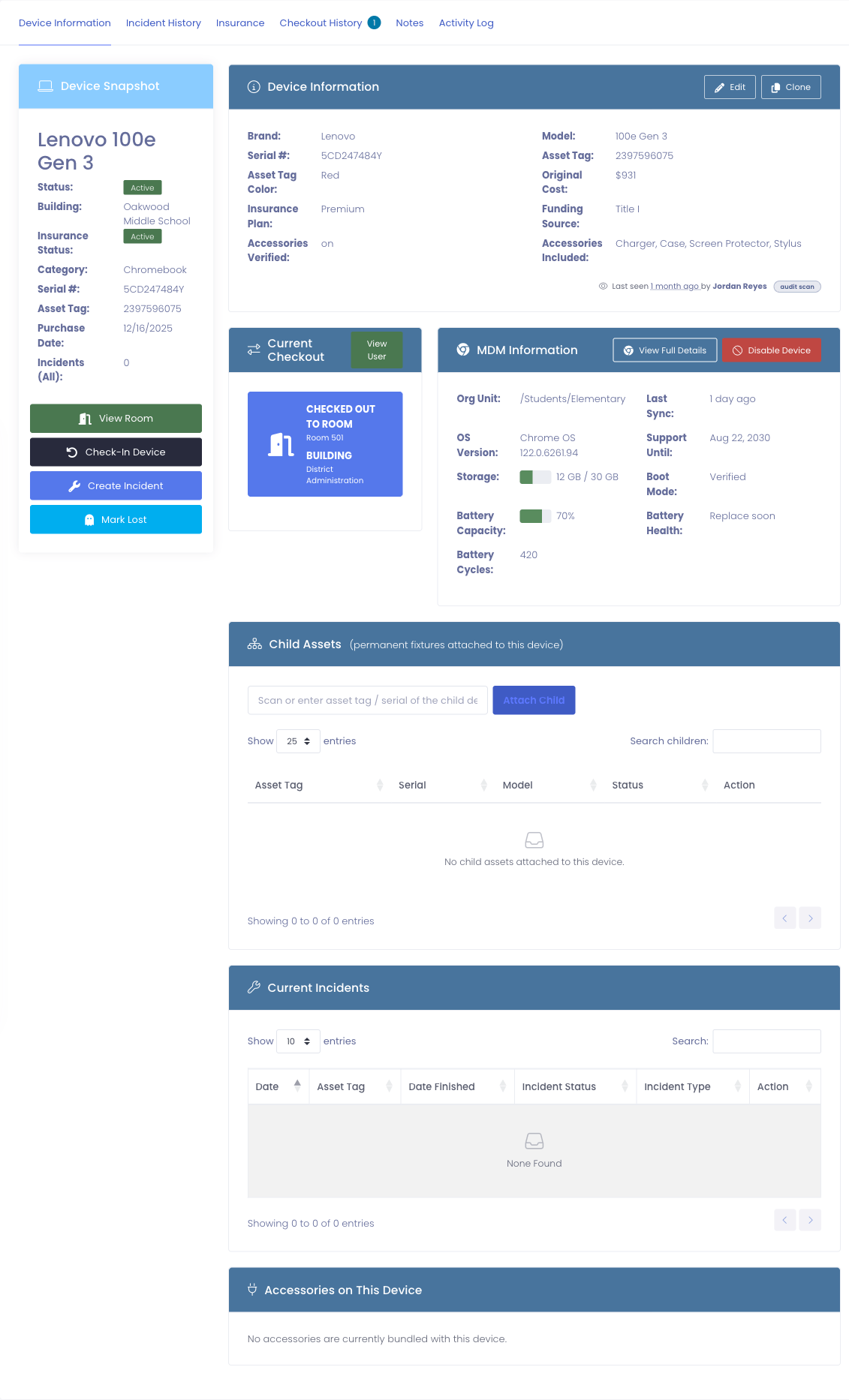
Turning it on. Battery health is controlled by the Sync Battery Health option in the Google Devices sync settings, and it is on by default. Battery data comes from an additional Google service, so it requires one extra permission beyond the standard device sync.
Because battery health needs an additional Google permission, you must re-authorize the connection after enabling it. On the Google Devices settings, click the Re-authorize button and sign in with your Google administrator account to grant the new permission. Re-authorizing keeps all of your settings and already-synced devices, so nothing is lost. Until you do, everything else keeps working normally and battery fields simply won't appear yet. If you'd rather not pull the extra data, turn Sync Battery Health off.
When a new permission is needed, the Google Devices card also shows an action needed message prompting you to re-authorize, so you know exactly when to do it.
Battery values populate on the next device sync (or immediately when you use Refresh on an individual device). Devices without a battery, such as some desktops, simply won't show these fields.
Matching Behavior and Data Integrity
Google device sync is designed to be additive. It enhances device records that your district already owns inside Manage1to1.
When a device does not match, Manage1to1 skips it rather than creating a new record. This protects districts from two common issues:
- Inventory drift caused by old devices that still appear in Google Admin
- Excessive API utilization on devices that are not relevant to current workflows
Serial number matching is case-insensitive — a serial entered in any casing in Manage1to1 will match the corresponding device in Google Admin. Devices with an auto-hide status in Manage1to1 are excluded from sync automatically.
If a district expects a device to sync and it does not, the device should be reviewed in Manage1to1 first to confirm it exists, is not hidden, and has the correct identifier stored.
Common Troubleshooting
Authorization succeeds but sync fails
Confirm that Admin SDK API is enabled in the Google Cloud project. This is required for the device level calls used during sync.
Devices are not updating
- Verify the device exists in Manage1to1 and that the identifier stored in Manage1to1 matches what Google Admin reports for the same device
- Check that the device is not hidden in Manage1to1 (devices with an auto-hide status are excluded from sync)
The authorization window uses the wrong Google account
Districts often have multiple Google accounts signed in at once. Use an incognito window or sign out of other accounts before authorizing.