Managing Articles
Articles are the core content of your Knowledge Base. Each article belongs to a category and can be configured for internal staff use, public access, or both.
You can access article management from Knowledge Base > Articles.
- View Knowledge Base to read articles
- Manage Knowledge Base to create, edit, publish, and delete articles
Understanding Article Status
Articles progress through different statuses during their lifecycle:
| Status | Description | Visibility |
|---|---|---|
| Draft | Work in progress | Admin only |
| Published | Live and accessible | Based on visibility settings |
| Archived | Retired but preserved | Admin only |
New articles start as drafts, giving you time to write and review before publishing.
Creating an Article
- Navigate to
Knowledge Base > Articles - Click Add Article
- Fill in the article details:
Basic Information
| Field | Description |
|---|---|
| Title | Article headline (appears in search results and navigation) |
| Category | Which category this article belongs to |
| Slug | URL-friendly identifier (auto-generated, editable) |
Content
Choose your preferred editor format:
- Markdown - Write using Markdown syntax with live preview
- Rich Text - Use the visual editor with formatting toolbar
The editor format is saved with the article, so you can use different formats for different articles.
Visibility Settings
| Setting | Options | Description |
|---|---|---|
| Visibility | Public / Internal | Who can access this article |
| Require Login | Yes / No / Inherit | For public articles, require authentication |
| Featured | Yes / No | Show on Knowledge Base homepage |
SEO Fields (Public Articles)
| Field | Description |
|---|---|
| Meta Title | Custom title for search engines (defaults to article title) |
| Meta Description | Description shown in search results (defaults to excerpt) |
| Excerpt | Short summary (auto-generated from content if not provided) |
Tags
Add relevant tags to improve searchability. Tags help users find related articles and improve search result relevance.
- Click Save as Draft or Publish
Content Editors
Markdown Editor
The Markdown editor provides a split view with your source text on the left and a live preview on the right.
Supported Markdown features:
- Headers:
# H1,## H2,### H3 - Emphasis:
*italic*,**bold**,***bold italic*** - Lists: Ordered and unordered
- Links:
[text](url) - Images:
 - Code: Inline
`code`and fenced code blocks - Tables: GitHub-flavored Markdown tables
- Blockquotes:
> quoted text
Rich Text Editor
The Rich Text editor provides a familiar word-processor experience with a toolbar for formatting:
- Text formatting (bold, italic, underline, strikethrough)
- Headings (H1-H4)
- Lists (bulleted, numbered)
- Links and images
- Embedded videos (YouTube, Vimeo)
- Tables
- Code blocks
Each article stores its content format. If you need to switch from Markdown to Rich Text (or vice versa), create a new article or manually convert the content.
Adding Images
You can add images to articles using two methods, both accessible via buttons below the content editor.
Upload Image
Click Upload Image to select a file from your device:
- Click the Upload Image button below the editor
- Select an image file from your computer
- The image uploads automatically and inserts at your cursor position
Supported file types:
- JPEG (.jpg, .jpeg)
- PNG (.png)
- GIF (.gif)
- WebP (.webp)
Size limit: 5MB per image
Uploaded images are stored on Manage1to1 servers and served directly within your articles.
Insert Image from URL
Click Insert Image from URL to embed an image hosted elsewhere:
- Click the Insert Image from URL button below the editor
- Enter the full URL of the image (must start with
http://orhttps://) - Click Insert
The image displays inline from its original source. Use this for:
- Images hosted on your school website
- Screenshots from external documentation
- Images from approved cloud storage
External images depend on the source server. If the original image is moved or deleted, it will no longer display in your article. For permanent content, prefer uploading images directly.
Embedding Videos
In the Rich Text editor you can embed a YouTube or Vimeo video so it plays right inside the article.
- In the editor toolbar, click the Insert media button.
- Paste the video's share link (for example, a
youtube.com/watch?...URL). - Press Enter. The video appears as a player and automatically resizes to fit the reader's screen.
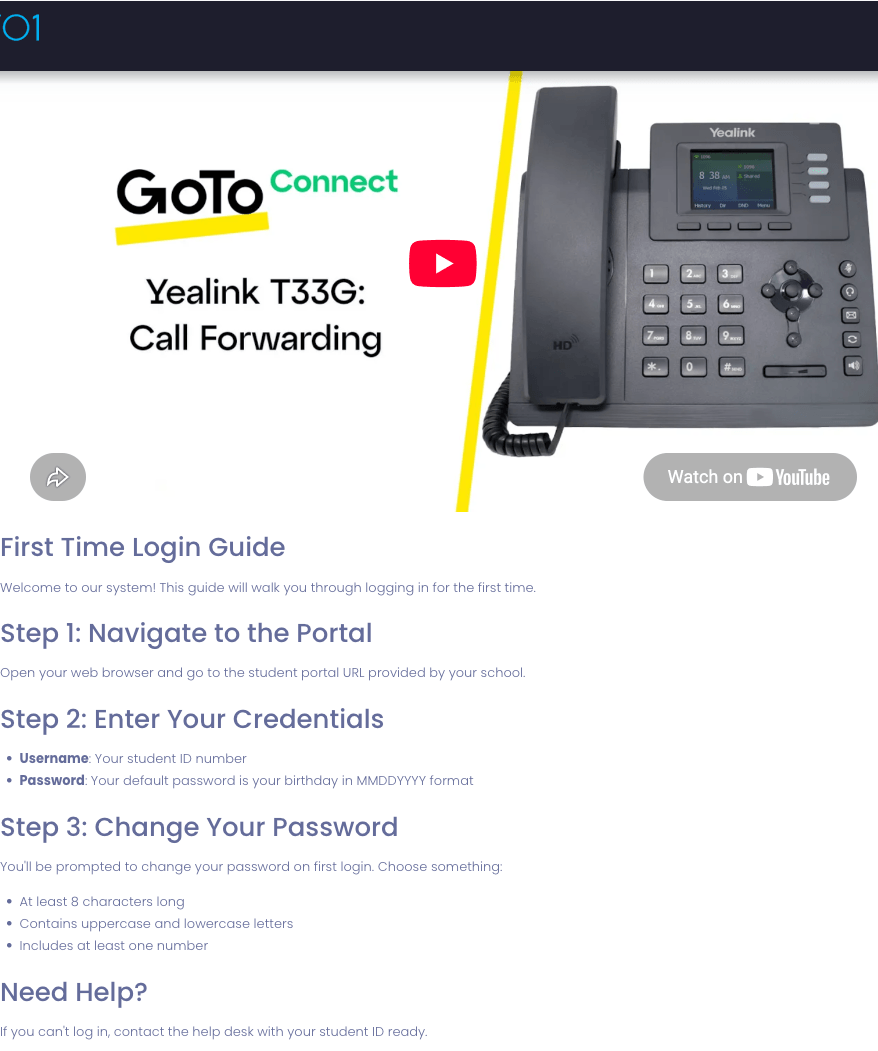
The player shows everywhere the article appears — the public Knowledge Base and the user portal included. To remove a video, click it in the editor and delete it like any other block.
Paste the normal video page link (the one in your browser's address bar). You don't need to find any "embed" code — the editor turns the link into a player for you.
Article URLs
Each article has a unique URL based on its category and slug:
/kb/{category-slug}/{article-slug}
For articles in subcategories:
/kb/{parent-slug}/{subcategory-slug}/{article-slug}
URL Best Practices
- Keep slugs short but descriptive
- Use keywords users might search for
- Avoid dates or version numbers in slugs
- Use hyphens to separate words
Changing URLs
When you change an article's slug, the old URL automatically redirects to the new one (HTTP 301 redirect). This preserves:
- Bookmarks and saved links
- Search engine rankings
- Links from other articles or external sites
Publishing Workflow
Draft to Published
- Write and save your article as a draft
- Preview the article using the Preview button
- Review formatting, links, and accuracy
- Click Publish to make it live
Making Updates
When editing a published article:
- Changes save immediately
- No separate draft version exists
- Consider timing for significant changes
Archiving
Instead of deleting old content:
- Navigate to the article
- Click Archive
- The article becomes hidden from public view but preserved in the system
Archived articles:
- Maintain their view history and analytics
- Can be restored if needed
- Don't appear in search results or navigation
Restoring Archived Articles
To restore an archived article:
- Navigate to
Knowledge Base > Articles - Filter by Archived status to find the article
- Click on the article to view it
- Click Restore to Draft
- The article returns to draft status for review
- Review and update the content if needed
- Click Publish to make it live again
Restoring an article sets it to draft status rather than immediately publishing, giving you an opportunity to review and update the content before making it publicly available again.
Viewing and Previewing
Admin View
Click on any article in the list to see:
- Full rendered content
- Metadata (author, dates, status)
- View count and feedback stats
- Edit and delete options
Preview Mode
The Preview button shows exactly how the article will appear to end users, including:
- Full content rendering
- Related articles sidebar
- Feedback buttons
- Breadcrumb navigation
Tags
Tags help categorize articles across category boundaries and improve search relevance.
Adding Tags
- In the article editor, find the Tags field
- Type a tag name and press Enter
- Repeat for additional tags
- Tags auto-complete from existing tags
Tag Best Practices
- Use consistent naming (decide on pluralization rules)
- Create broad tags for discoverability
- Avoid too many tags (5-10 per article is usually sufficient)
- Review and consolidate tags periodically
Article Analytics
Each article tracks usage metrics:
| Metric | Description |
|---|---|
| View Count | Total number of views |
| Helpful (Yes) | Users who clicked "Yes" on feedback |
| Helpful (No) | Users who clicked "No" on feedback |
| Published Date | When article was first published |
| Last Updated | Most recent edit date |
View detailed analytics from the article view page or the main Analytics dashboard.
Bulk Operations
From the article list, you can perform bulk operations:
- Select multiple articles using checkboxes
- Choose an action from the bulk actions dropdown:
- Publish - Publish all selected drafts
- Archive - Archive all selected articles
- Delete - Permanently delete selected articles
Bulk delete is permanent and cannot be undone. Use Archive for content you may need later.
Search and Filtering
The article list supports filtering to find content quickly:
| Filter | Options |
|---|---|
| Status | All, Draft, Published, Archived |
| Category | Any category or "Uncategorized" |
| Visibility | Public, Internal |
| Search | Title, content, tags |
Combine filters to narrow results. For example: Published + Internal + "password" finds all published internal articles about passwords.
Best Practices
Writing Effective Articles
- Start with a clear problem statement
- Use headings to structure content
- Include step-by-step instructions where applicable
- Add screenshots for visual processes
- End with related links or next steps
Maintenance
- Review articles quarterly for accuracy
- Update screenshots when UI changes
- Check links for broken URLs
- Monitor feedback and improve low-rated articles
- Unused uploaded images are automatically cleaned up after 30 days
Internal Documentation
For internal articles:
- Include context only staff would need
- Reference internal tools and processes
- Link to related tickets or issues
- Note when procedures change