Public Portal
The Public Knowledge Base Portal is your district's public-facing help center. Anyone can browse articles, search for answers, and solve common problems on their own before opening a support ticket.
Enable the portal under Settings → Help Desk → Knowledge Base → Enable Public KB Portal. Until it's enabled, your articles are only visible inside the admin area and user portal.
What visitors see
The portal is organized so people can find answers whether they prefer to search or to browse.
Home
The landing page leads with the search box and then surfaces the content most people need:
- Smart Search — the search box, front and center
- Featured Articles — the articles you've chosen to highlight
- Categories — a visual grid of your top-level topics
- Popular Articles — the most-viewed articles, based on your analytics
Category pages
Selecting a category shows its description, any subcategories, and the full list of published articles in that topic, with a breadcrumb trail back to the home page.
Article pages
An article page shows the full content along with its last-updated date and view count, a Was this helpful? feedback prompt, other articles from the same category, and a sidebar for jumping around your topics.
Smart Search
Smart Search is what makes the portal genuinely self-service. Instead of matching only the exact words someone types, it understands what they mean and returns the most relevant articles, even when their wording doesn't appear in the article at all.
- Understands plain-language questions, the way people actually ask them
- Finds the right article even when the visitor's words differ from yours
- Tolerates small typos and partial words
- Ranks results by how well they answer the question
- Can be narrowed to a single category
For example, a visitor searching "my internet keeps dropping" will still find your "Wi-Fi Connection Troubleshooting" article, even though that article never uses the word "internet."
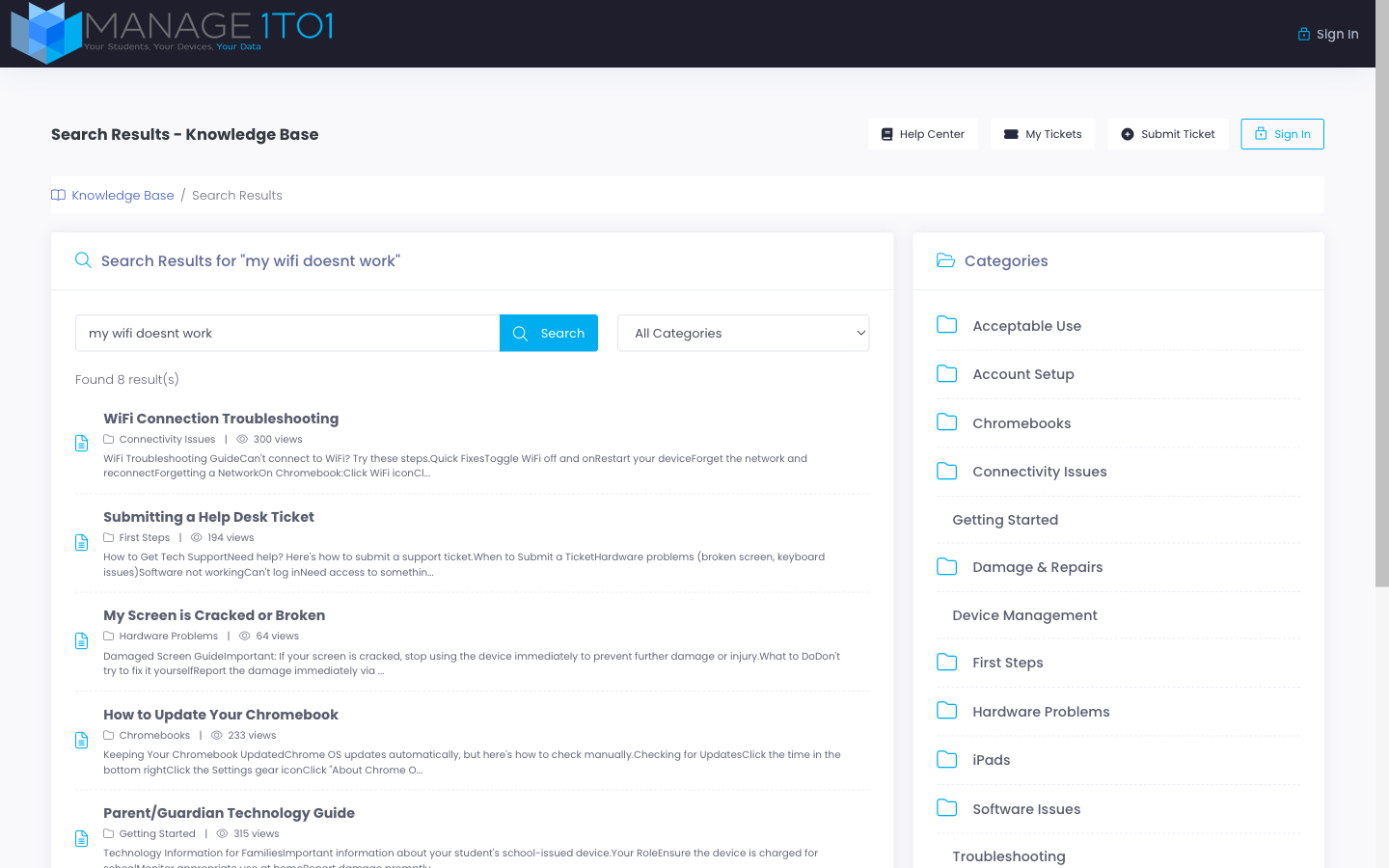
If Smart Search is ever briefly unavailable, the portal automatically falls back to standard keyword search, so visitors always get answers. You don't have to do anything, and there's no setting to manage.
Every search is recorded so you can see what people are looking for. The Knowledge Base Analytics dashboard shows your most common queries, the searches that returned no results, and how often a search led someone to skip opening a ticket.
Access control
You decide what's open to the public and what requires signing in.
Public content
By default, published articles are visible to anyone, no sign-in needed.
Login-required content
To keep an article for signed-in users only, set Require Login on the article or on its category. Visitors who aren't signed in still see the title and a short preview, along with a prompt to sign in to read the rest. This is useful for account-specific instructions or anything more sensitive.
Mixing public and login-required
You can combine both in the same category:
- A category's Require Login setting acts as the default for the articles inside it.
- Any individual article can override that default with its own setting.
- Internal articles never appear on the public portal at all, regardless of these settings.
Helping people find you
Friendly web addresses
Every article and category gets a clean, readable web address based on its title, so links are easy to read and share, and search engines can index them well.
Custom titles and descriptions
You can set a custom page title and description for any article in the editor. These are what show up in a search engine's results, so a clear, specific description helps the right people find your article.
Rich search-engine listings
Articles are automatically formatted so search engines can display them as rich results, with breadcrumbs and article details, which helps your help center stand out in search.
Automatic forwarding
If you rename an article or category, links to its old address automatically forward to the new one, so bookmarks and older links keep working.
Suggesting articles on the ticket form
When someone starts opening a ticket, the Knowledge Base can suggest relevant articles before they finish, often answering the question and saving everyone a ticket.
How it works
As the person types a subject, up to three relevant articles appear beneath the field. They can open an article without leaving the form.
Enable this under Settings → Help Desk → Knowledge Base → Show Article Suggestions on Ticket Form.
Seeing whether it helped
Your analytics track the outcome of every suggestion:
| Outcome | What it means |
|---|---|
| Deflected | The person read an article and didn't open a ticket |
| Continued | The person read an article but opened a ticket anyway |
| Ignored | The person didn't open any suggestion |
This tells you which articles are doing the work of your support team, and where your content still has gaps.
Article feedback
Every article ends with a Was this helpful? prompt with Yes and No buttons. Votes are counted once per visitor session, so the totals stay honest.
Use the results in your analytics to guide upkeep:
- Low-rated articles are the first ones to rewrite.
- Highly-rated articles are good candidates to feature on the home page.
- A pattern of negative feedback usually points to a content gap worth filling.
Look and feel
The portal automatically matches your Help Portal's branding and colors, so it feels like part of your district's site with no extra setup. On phones and tablets it adapts on its own: navigation collapses into a menu, search stays prominent, and articles fill the screen.
Best practices
Organize for scanning
- Feature your most important articles on the home page.
- Keep your category structure shallow, no more than two levels deep.
- Use clear, descriptive category names.
Write so Smart Search (and people) can find it
- Give articles clear, specific titles.
- Use the words your community actually uses for a problem.
- Add relevant tags and write a descriptive excerpt.
Keep it fresh
- Review the searches that returned no results and fill those gaps.
- Revisit low-rated articles about once a month.
- Recapture screenshots when your interface changes.