Insurance Tab
The Insurance tab tracks device insurance coverage associated with a user. Think of it as the insurance card on file - documenting what coverage exists, when it's active, and which provider handles claims for device damage or loss.
This tab helps districts determine whether incidents are covered by insurance and streamline the claims process.
This tab only appears when insurance tracking is enabled in General Settings. Many districts don't use this feature. If you don't see this tab, insurance tracking is not enabled for your district.
To view the Insurance tab, you need the View Users permission assigned to your role. Adding or modifying insurance records may require additional permissions based on district configuration.
Understanding Insurance Tracking
Think of insurance tracking as documenting who has device insurance - similar to how schools track who has medical insurance or who's signed up for the meal plan.
What insurance tracking does:
- Documents insurance policy (company name)
- Records coverage period (start and end dates)
- Tracks enrollment status (active/expired)
- Links to incident claims processing
- Helps determine if damage/loss is covered
- Streamlines claim submissions
What insurance tracking doesn't do:
- Process actual insurance claims (handled by insurance company)
- Automatically bill or charge premiums (billing handled separately)
- Replace incident reporting (incidents still created normally)
Why insurance tracking is important:
- Financial protection - Know which incidents may be covered
- Claims processing - Quickly identify insured users during incident review
- Compliance - Track insurance enrollment for district requirements
- Parent communication - Verify coverage before discussing incident billing
- Reporting - Generate lists of insured vs. uninsured users
What You'll See on the Tab
At a glance, the Insurance tab tells you three things about the user: whether they're currently insured, how much of their coverage they've used, and which incidents drew on it.
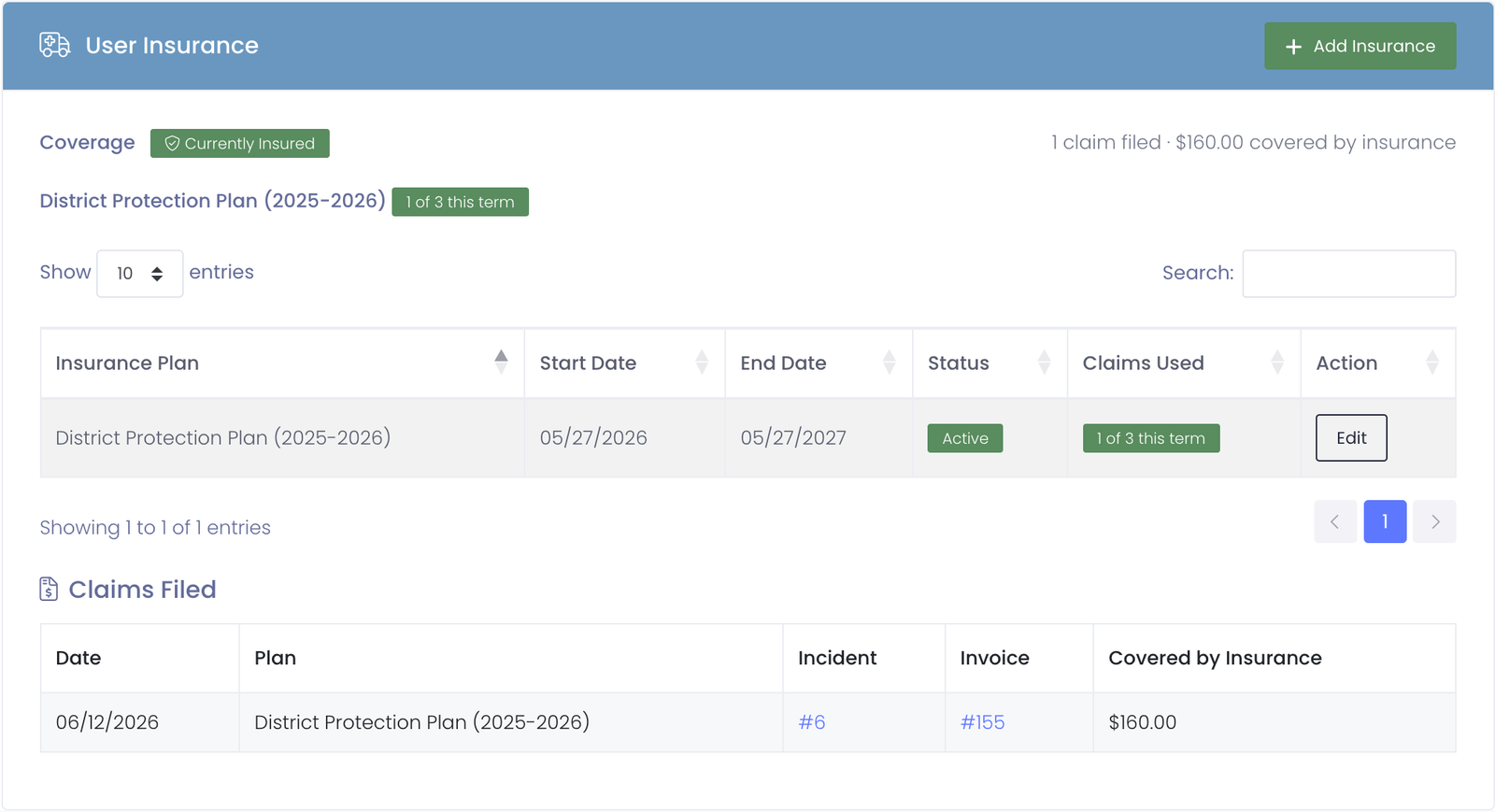
Coverage summary
At the top of the tab, the Coverage line shows a Currently Insured badge when the user has at least one plan active today, or No Active Coverage when they don't. When there's active coverage, each active plan is listed with its term and a claims-used badge (for example, District Protection Plan (2025-2026) — 1 of 3 this term). A summary on the right shows how many claims have been filed in total and how much the plans have covered.
Enrollments table
Each plan the user is enrolled in appears as a row, active plans first:
| Field | What It Shows |
|---|---|
| Insurance Plan | The plan and its term year (e.g., "District Protection Plan (2025-2026)") |
| Start Date | When coverage becomes active |
| End Date | When coverage expires |
| Status | Active while today falls inside the coverage window, otherwise Expired |
| Claims Used | Claims filed against this plan, shown against its per-term limit — 1 of 3 this term, or 2 used (Unlimited) for plans with no cap. The badge turns amber when one claim remains and red when the limit is reached. |
| Action | Edit the enrollment |
If the user isn't enrolled in any plan, the table shows This user is not enrolled in any insurance plan.
Claims Filed
When the user has filed one or more claims, a Claims Filed list appears below the table. Each row shows the claim date, the plan, and clickable links to the related incident and invoice, plus the amount the plan covered. This lets a technician or billing admin see at a glance that a student has used insurance, how many claims they've filed, and exactly which incidents are related.
Claims are counted from insurance-paid invoices; a cancelled invoice releases its claim slot, so test or reversed charges don't burn a real claim.
Insurance Coverage Scenarios
Districts implement insurance in different ways:
Opt-In Insurance
How it works:
- Parents choose whether to purchase insurance
- Premium charged annually or per semester
- Coverage only for users who opted in
Use case:
- District offers optional protection plan
- Parents buy if they want coverage
- Those without insurance pay out-of-pocket for damage/loss
Required Insurance
How it works:
- All users required to have insurance
- Premium included in technology fees
- Universal coverage across all users
Use case:
- District mandates insurance as part of 1:1 program
- Fee collected from all families
- Claims processed for any damage incident
Tiered Insurance
How it works:
- Multiple insurance options (basic, premium, etc.)
- Different deductibles and coverage levels
- Users choose plan that fits needs/budget
Use case:
- Basic plan: $50 premium, $100 deductible
- Premium plan: $100 premium, $25 deductible
- Comprehensive plan: $150 premium, $0 deductible
Adding Insurance Records
How to Add Insurance
- Open user profile
- Click Insurance tab
- Click Add Insurance button
- Fill in coverage details:
- Insurance provider
- Policy/plan number (if applicable)
- Coverage start date
- Coverage end date
- Premium amount (if tracking payments)
- Notes about coverage specifics
- Click Save
- Insurance record appears on tab
When to Add Insurance
Beginning of school year:
- Parent enrolls in district insurance program
- Premium payment received
- Add insurance record documenting coverage
Mid-year enrollment:
- Parent purchases insurance after initial device issue
- Add insurance with current start date
- Coverage applies to future incidents only (typically)
Renewal:
- Existing insurance expires
- Parent renews for new school year
- Add new insurance record or extend existing one
Common Use Cases
Scenario 1: Student Has Damage Incident - Check Insurance
Student reports cracked screen:
- Create incident report as normal
- Open student's user profile
- Click Insurance tab
- Review coverage:
- Active insurance found: SafeDevice Insurance, $50 deductible
- Click Incident History tab
- Open the damage incident
- Note in incident: "User has active insurance, $50 deductible. Submit claim to SafeDevice Insurance."
- Process insurance claim with provider
- Charge user only $50 deductible, insurance covers rest
Result: Insurance coverage verified, appropriate deductible applied.
Scenario 2: Parent Questions Damage Charge
Parent calls asking why they're being charged $150 when they bought insurance:
- Open student's user profile
- Click Insurance tab
- Check insurance status:
- No active insurance found
- Previous insurance expired 06/30/2024
- Incident occurred 09/15/2024 (after expiration)
- Explain to parent: "Your insurance expired on June 30th and wasn't renewed for this school year. The damage occurred in September, so there's no coverage. The full repair cost applies."
- Offer opportunity to purchase insurance for remainder of year
Result: Clarified why insurance doesn't apply, resolved parent's confusion.
Scenario 3: Beginning of Year Insurance Enrollment
District collects insurance premiums at start of school year:
- Finance provides list of families who paid insurance premium
- For each enrolled user:
- Open user profile
- Click Insurance tab
- Click Add Insurance
- Enter details:
- Provider: District Self-Insurance Program
- Start: 08/01/2024
- End: 06/30/2025
- Premium: $75
- Notes: Full replacement, $50 deductible
- Save
- Bulk import option may be available for large enrollments
Result: All insured users documented, ready for incident processing.
Scenario 4: Lost Device - Determining Coverage
Student reports device lost:
- Create loss incident
- Open student's user profile
- Click Insurance tab
- Review coverage:
- Active insurance: Worth Ave Group
- Notes: "Covers theft and loss, $100 deductible, 2 claims per year max"
- Review incident count for year:
- This is first loss incident this school year
- Process claim through Worth Ave Group
- Charge user $100 deductible
- Insurance pays device replacement cost
Result: Insurance covers majority of cost, user pays only deductible.
Insurance and Incident Processing
How Insurance Affects Incident Billing
With insurance (covered incident):
- Incident created (damage/loss reported)
- Insurance coverage verified on Insurance tab
- Claim submitted to insurance policy
- Invoice created for user showing:
- Deductible amount only (e.g., $50)
- Note: "Insurance covering remainder of cost"
- User pays deductible
- Insurance reimburses district for repair/replacement cost
Without insurance:
- Incident created
- No insurance found on Insurance tab
- Full repair/replacement cost billed to user
- Invoice created showing full amount
- User responsible for entire cost
Insurance expired or incident not covered:
- Incident created
- Insurance found but doesn't apply (expired, claim limit reached, intentional damage excluded)
- Full cost billed to user
- Document reason insurance didn't apply
Editing and Deleting Insurance Records
Editing Insurance
When to edit:
- Correcting coverage dates
- Updating policy number
- Changing provider name
- Adding notes about coverage restrictions
How to edit:
- Find insurance record to edit
- Click Edit button
- Modify fields as needed
- Click Save
Deleting Insurance
When to delete:
- Record created by mistake
- Duplicate entry
- Insurance enrollment was refunded/cancelled
How to delete:
- Find insurance record to delete
- Click Delete button
- Confirm deletion
- Record is permanently removed
Consider carefully before deleting insurance records. Even expired insurance provides historical context. Only delete truly erroneous entries.
Insurance Enrollment Workflows
Different districts handle insurance enrollment differently:
Manual Entry (Per User)
Process:
- Parent enrolls in insurance
- Payment received/verified
- Staff manually adds insurance record to user profile
Best for:
- Small districts
- Low insurance participation
- Initial program setup
Bulk Import (CSV)
Process:
- Collect insurance enrollments
- Create CSV file with user IDs and coverage details
- Import all insurance records at once
Best for:
- Large districts
- Beginning of school year with many enrollments
- Districts with high insurance participation
Integration with Payment Portal
Process:
- Parent enrolls and pays through online portal
- Insurance record automatically created in system
- No manual entry needed
Best for:
- Tech-forward districts
- Automated workflows
- Reducing manual data entry
Tips for Using Insurance Tab
✅ Do:
- Check insurance status before billing damage/loss incidents
- Update insurance records annually
- Document deductible amounts in notes
- Verify coverage dates match incident dates
- Keep expired insurance records for historical reference
- Note claim limits in insurance record notes
- Cross-reference with Incident History when processing claims
❌ Don't:
- Assume insurance covers all incidents (check coverage limits, exclusions)
- Delete historical insurance records
- Forget to renew insurance records for new school year
- Bill full amount without checking insurance first
- Apply insurance to incidents outside coverage dates
- Overlook deductible requirements
Common Questions
Q: Does insurance automatically apply to incidents? No. Insurance verification and claims processing are manual steps. When an incident occurs, staff check the Insurance tab, verify coverage, and process the claim through the insurance policy. The system doesn't automatically reduce billing based on insurance.
Q: What if insurance was purchased after the incident occurred? Typically, insurance only covers incidents that occur during the active coverage period. If device was damaged before insurance started, it's usually not covered. Check your insurance policy's policy for specifics.
Q: Can a user have multiple insurance records? Yes. Common scenarios:
- Current year and historical records
- Multiple coverage periods (semester-based insurance)
- Changed providers mid-year
Only one should be active at a time for the current period.
Q: What's the difference between insurance premium and deductible?
- Premium - Cost to purchase the insurance (e.g., $75/year)
- Deductible - Amount user pays when filing a claim (e.g., $50 per incident)
Example: Parent pays $75 premium for coverage. When incident occurs, they pay $50 deductible, insurance covers rest.
Q: Why don't I see the Insurance tab? Insurance tracking is an optional feature. If disabled in General Settings, the tab doesn't appear. Contact your system administrator if you need insurance tracking enabled.
Q: How do I know what's covered by insurance? Check the insurance policy/plan documentation from your provider. Common coverages:
- Accidental damage (drops, spills)
- Theft (with police report)
- Loss (after investigation)
- Manufacturer defects (if not under warranty)
Common exclusions:
- Intentional damage
- Cosmetic damage
- Accessories (unless specified)
- Incidents beyond claim limit (e.g., max 2 claims per year)
Q: Can I edit insurance to extend the coverage date? Yes, if insurance is renewed. Edit the insurance record and update the coverage end date. Or add a new insurance record for the renewal period.
Q: What happens if insurance claim limit is reached? If a user has filed maximum claims allowed (e.g., 2 per year) and has another incident, they're responsible for full cost even though insurance is "active." Document this in incident notes.
Q: Do I need to track insurance premium payments here? The Premium field is optional. Some districts track it for reference, others handle payments entirely through billing system. Use whatever fits your workflow.
Q: Can parents see their child's insurance status in the parent portal? This depends on portal configuration. Typically, insurance information may or may not be visible to parents. Check with your system administrator.
Q: What if the incident exceeds insurance coverage limit? Example: Device cost is $600, insurance max is $500. Insurance pays $500 (minus deductible), user pays difference plus deductible. Document in incident and invoice notes.
Q: Should I delete expired insurance records? No. Keep them for historical reference. Expired records show coverage history, which may be relevant for questions about past incidents.
The Insurance tab provides tracking for device insurance coverage, helping districts determine when incidents are covered and streamlining the claims process. When enabled and properly maintained, insurance tracking reduces billing disputes and accelerates incident resolution.