Inventory Tab
The Inventory tab is where you define the "building blocks" that show up all over Manage1to1 when you're working with inventory and incidents. This tab is organized into sub-tabs to keep things manageable:
- Settings — checkout notifications, asset tag rules, rapid checkout display options, and loaner return dates
- Device Models — the models you assign to devices (Chromebook, Laptop, Tablet, etc.)
- Device Status — statuses that describe the condition or disposition of a device (Active, Lost, Sold, etc.)
- Insurance — insurance providers (only visible if insurance tracking is enabled on the General tab)
- Device Cases — protective case types (only visible if device case tracking is enabled for your instance)
Most districts set these up once during implementation, then only revisit them when a new device program launches or workflows change.
Settings
The Settings sub-tab controls system-wide behaviors related to device and cart management.
Device Checkout Notification
When enabled, Manage1to1 will automatically send an email notification to users when a device or cart is checked out to them. This keeps users informed about device assignments and provides them with a record of their checkout.
What gets notified:
- Device checkouts to users
- Cart checkouts to users
What does NOT trigger notifications:
- Device checkouts to rooms
- Cart checkouts to rooms
- Device assignments to carts
The notification email includes:
- Device model name
- Serial number
- Asset tag
- Checkout date
This feature is disabled by default. Enable it to help users stay informed about their device assignments, especially during large-scale deployments or device refresh cycles.
Notifications are sent only to the user's primary email address. Guardian/parent email addresses are not included.
Asset Tag Minimum Length
This setting enforces a minimum character length for asset tags across your inventory. It's particularly useful for districts that use numeric asset tags with leading zeros (e.g., "001234") to ensure consistency during bulk imports and manual entry.
How it works:
- Set a minimum length (e.g., 6 characters)
- When a shorter asset tag is entered, the system will either reject it or automatically pad it with leading zeros, depending on your preference
Auto-Pad with Leading Zeros:
When enabled alongside a minimum length, asset tags that are shorter than the minimum will automatically have leading zeros added to meet the requirement.
| Entry | Minimum Length | Auto-Pad | Result |
|---|---|---|---|
1234 | 6 | Off | Rejected with error |
1234 | 6 | On | Saved as 001234 |
123456 | 6 | Either | Saved as 123456 |
This is especially helpful during bulk device imports where spreadsheet software often strips leading zeros from numeric values. With auto-pad enabled, those shortened values are automatically restored to the correct format.
Set the minimum length to 0 to disable this validation entirely (default behavior).
Rapid Check-Out Display Options
These settings control what information is displayed on the Rapid Check-Out screen when a user is selected. Showing additional details helps staff verify they're checking out devices to the right person and identify any potential issues before completing the transaction.
Show AUP Status
When enabled, displays whether the user has signed the current Acceptable Use Policy. This appears as a "Signed" or "Not Signed" badge next to the user's information.
This is helpful during device distribution when you want to ensure students have completed required paperwork before receiving their device.
Show Device Fee Status
When enabled, displays whether the user has paid their device fee. This appears as a "Paid" or "Not Paid" badge next to the user's information.
This option only appears if your instance has Device Fees enabled. If Device Fees are not configured, this setting has no effect.
Show Current Checkouts
When enabled, displays a list of devices and carts currently checked out to the user. This helps staff quickly see if a user already has equipment assigned before checking out additional items.
This is particularly useful for:
- Preventing duplicate checkouts
- Identifying users who may need to return a device before receiving a new one
- Verifying loaner device status
Enable User Search Autocomplete
When enabled, the Local ID field on Rapid Check-Out provides search suggestions as you type. You can search by Local ID or by the user's name, and matching results appear in a dropdown showing the user's name, Local ID, grade, and building.
This makes it easier to find users when you don't have their exact Local ID handy, while still allowing barcode scanning and manual ID entry to work as expected.
All display options are enabled by default. You can disable any of them if they add unnecessary clutter to your workflow.
Loaner Return Dates
When enabled, loaner device checkouts will include a return date field and Manage1to1 will send automated reminders to users as the return date approaches.
Enable Loaner Return Dates — Toggle this on to activate the feature. When enabled, checking out a loaner device will prompt for a return date.
Default Return Period — The return date that is pre-filled when checking out a loaner:
| Option | Description |
|---|---|
| Same day | Device is due back by end of the current day |
| Next school day | Due the next weekday (skips weekends) |
| 1 week | Due in 5 school days (skips weekends) |
| Custom | Due in a custom number of school days that you specify |
Custom School Days — When "Custom" is selected as the default period, enter the number of school days here. Weekends are automatically excluded.
Automated Reminders — Reminders are sent automatically to the user based on how long the loan is:
- Same day / next day: No advance reminder
- 2-5 days out: Day before + day of
- 1-2 weeks out: 3 days before + day before + day of
- 2+ weeks out: 1 week + 3 days + day before + day of
- Overdue: Daily reminder until the device is returned
The reminder email can be customized in the Email Templates tab using the "Loaner Return Reminder" template.
The default return date is just a starting point. Staff can adjust the date during each individual checkout as needed.
Insurance Expiry Reminders
Send automatic emails to users (and any guardian addresses on file) when device insurance coverage is about to expire. Replaces the manual process of pulling a list and emailing parents one at a time.
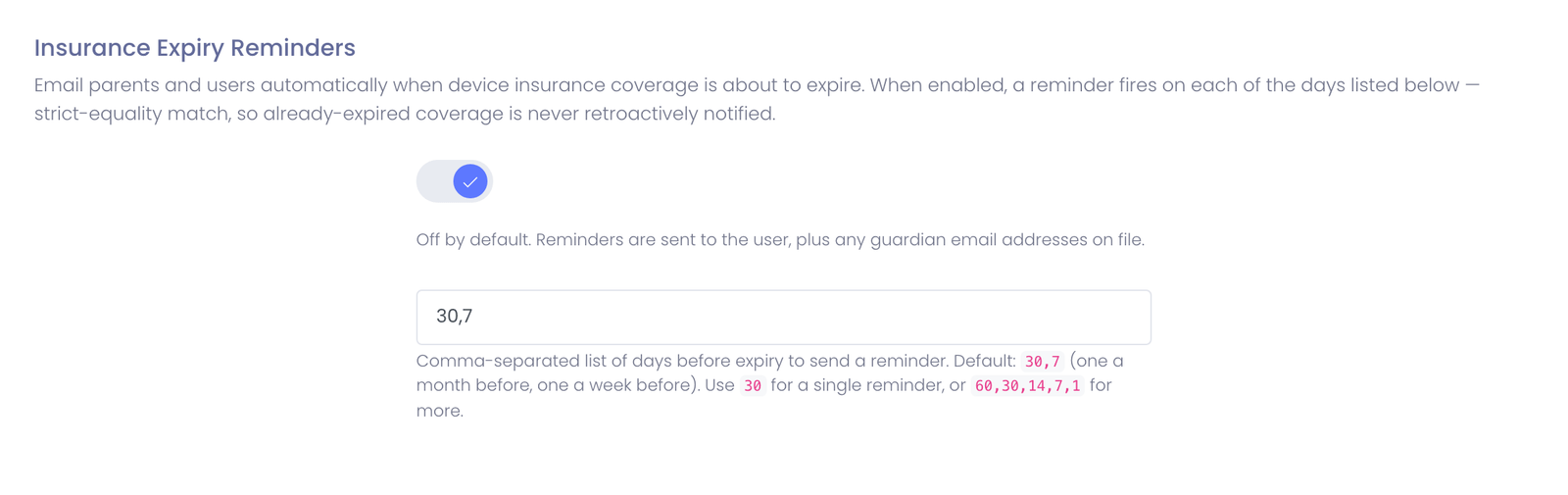
Enable Insurance Expiry Reminders — Off by default. Toggle it on and the system will start sending reminders on the cadence below.
Reminder Days Before Expiry — Comma-separated list of days before the expiration date to send a reminder. Default is 30,7 (one reminder a month before, one a week before). Tune to your district's communication style:
| Cadence | Cadence meaning |
|---|---|
30 | A single reminder one month before expiry |
30,7 | Default — month-out and week-out |
60,30,14,7,1 | Aggressive — five reminders escalating to day-before |
Who gets the email — Reminders are sent to the user's email address on file, with any guardian email addresses on file added as CC. If the user has no guardians configured, only the user receives the email.
The email body lists the coverage end date, days remaining, insurance provider, and the device under coverage. It can be fully customized in the Email Templates tab under "Insurance Expiry Reminder."
Flipping this on does not retroactively notify users whose insurance already expired. The system uses strict-equality matching — a reminder fires only when today is exactly one of the configured threshold days before the expiration date. Insurance that expired years ago can never satisfy that match, so there's no risk of blasting old expirations when you first enable the feature.
If a user's coverage is mid-window when you enable (e.g. 5 days until expiry with a 30,7 cadence), they won't receive a late "missed" reminder either — the 30-day and 7-day windows already passed, and the system never sends after-the-fact.
Device Models
The Device Models sub-tab controls which "types" are available when staff add or edit a device. If you want a device to be categorized correctly in reporting and dashboards, this is where it starts.
You'll want at least one device model configured before you start adding inventory, otherwise staff will have nothing to select when creating devices.
Add or Edit a Device Model
Adding and editing are the same workflow. The only difference is whether you click Add (new) or the Edit action (existing).
When you create or update a device model, you're essentially defining the category the device belongs to. Common examples include:
- Chromebook
- Laptop
- Tablet
If you edit an existing device model, any devices already assigned to that model will reflect the updated values. If you are trying to preserve historical accuracy, consider creating a new model instead of heavily revising an old one.
Delete a Device Model
A device model cannot be deleted if it has already been assigned to a device. This protects reporting and historical data.
If a model is no longer used, the best approach is typically to leave it in place and stop using it moving forward.
Device Status
The Device Status sub-tab lets you manage statuses that describe the state of a device beyond its incident status. This is where districts track things like whether a device is active in circulation, out for parts, sold, or marked lost.
In most districts, device status is used by inventory managers and technicians to keep the fleet clean and accurate over time.
Common Status Examples
- Active
- Lost
- Law Enforcement
- Parts
- Sold
Active is the default status and is protected from removal or modification since it represents normal in-service inventory.
Lost is a status tied to specific functionality and is protected from removal or modification.
Add or Edit a Device Status
Adding and editing are the same workflow. When creating or editing a status, you can configure:
- Status Name — the display name shown throughout the system
- Count devices with this status as active controls whether devices with this status appear under the Active device tab and in active-device reports. Turn it off for statuses like Retired, Lost, or Sold so those devices are treated as inactive.
- Automatically hide devices — when enabled, any device changed to this status is hidden from the default device list
Active and hidden are separate settings, so a status can be active but hidden, or inactive but visible. You control each independently.
Only the built-in Active status starts out marked active. If you use other statuses for in-service devices (such as Deployed or In Storage), turn on Count devices with this status as active for those so their devices show under the Active tab.
The auto-hide option is useful for statuses like "Released", "Retired", or "Sold" where devices should no longer appear in your active inventory.
Device visibility is controlled entirely by the device status — there is no manual hide/show toggle on individual devices. When you enable auto-hide on a status:
- All devices currently with that status are immediately hidden
- Any device changed to that status in the future will also be hidden
- Changing a device back to a non-auto-hide status (like Active) automatically makes it visible again
- Disabling auto-hide on a status will unhide all devices with that status
Most districts keep this list short and meaningful, and rely on incidents for repair workflow detail. If a status is rarely used, it often makes reporting noisier instead of more helpful.
If you rename or edit a status, devices currently using that status will show the new value everywhere in the system.
Delete a Device Status
A status cannot be deleted if it is currently being used by a device. If you are trying to retire a status, the best approach is to move devices off of it first, then remove it once it is no longer in use.
Insurance
The Insurance sub-tab is only visible if insurance tracking is enabled on the General tab. If you don't see it, your instance does not currently have insurance tracking turned on.
If your district tracks device insurance, you can add insurance providers here. When enabled, insurance can act as a helpful visual indicator during incident entry and throughout the platform so staff can quickly see whether a device is covered.
Add or Edit an Insurance Provider
Adding and editing are the same workflow.
Use this to define the provider name exactly as your district refers to it, especially if you want clean reporting (for example, avoiding multiple versions of the same provider name).
Delete an Insurance Provider
Insurance providers cannot be deleted once they are in use. If you no longer need a provider, the typical approach is to keep it for historical reporting, disabling it which will prevent assigning it to new devices.
Device Cases
The Device Cases sub-tab is only visible if device case tracking is enabled for your instance. If you don't see it, the feature is not currently turned on. Contact support to have it enabled.
If your district tracks protective cases (or shells) for devices, you can manage those case types here. When enabled, cases can be selected on device records and can help staff quickly identify what a device should have on it, especially during check-in, repairs, or device swaps. Additionally some insurance plans require cases be tracked for devices.
Add or Edit a Device Case
Adding and editing are the same workflow.
Most districts keep case names simple and consistent so staff can select the right option quickly. Common patterns include:
- "iPad Case: OtterBox"
- "Chromebook Case: Gumdrop"
- "Laptop Case: Protective Shell"
If you differentiate cases by size or generation, it's a good idea to include that in the name so reporting stays clean.
If you rename or edit a case type, devices already assigned to that case will show the updated value across the system.
Delete a Device Case
Device cases cannot be deleted if they are currently assigned to a device. If you are retiring a case type, the cleanest approach is:
- Stop assigning it to new devices
- Move any remaining devices off that case type if needed
- Delete it once it is no longer in use
Best Practices
A few patterns that tend to work well across districts:
- Keep Device Models aligned to how you report inventory (not necessarily every vendor variation).
- Only add Device Statuses you will actually use operationally.
- Avoid frequent renaming of items already in use unless you are comfortable with historical records reflecting the new naming.
- Enable Device Checkout Notification during large device deployments to help users track their assignments.